
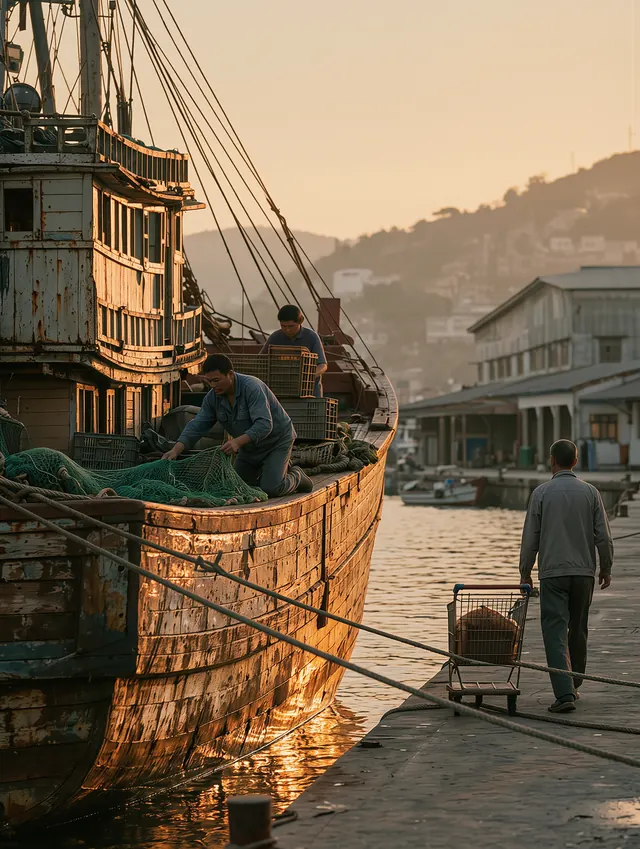
 Documentary-Style Photography
Kling Image 4.0 for Image Creation and Full-Page Visuals
Start with a prompt or a reference image to create a new visual, edit an existing image, or make a set with a consistent look. For a product detail page or website mockup, use the long image generator to bring the copy and visuals together in one layout.
Kling Image 4.0 is coming soon. In the meantime, try Seedream 5.5 below to start creating.
Reference images
Model
Loading models…
Preview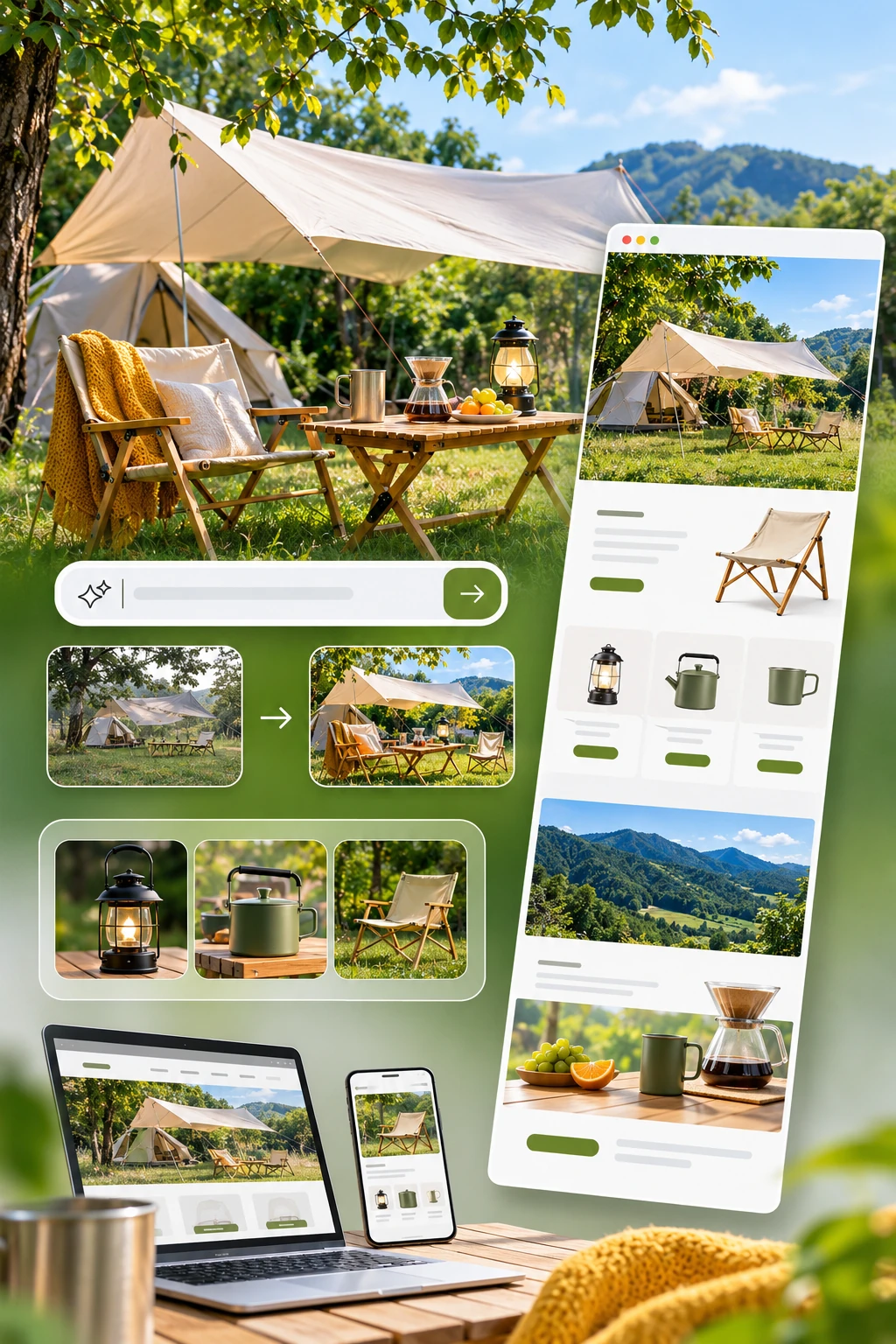
What Is Kling Image 4.0?
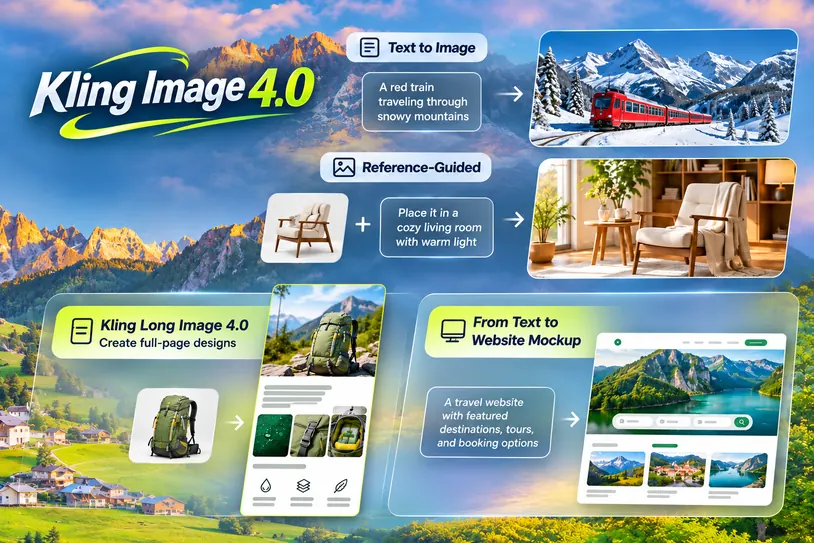
Kling Image 4.0 is an image creation model from Kling AI, available on HeyTop AI. It can turn a written description into an image or draw on a reference to guide the subject, composition, or style.
The model also creates full-page designs in a mode called Kling Long Image 4.0. A product detail layout starts with a product photo, while a website mockup can take shape from a written description alone.
Find Creative Inspiration in the Kling Image 4.0 Gallery
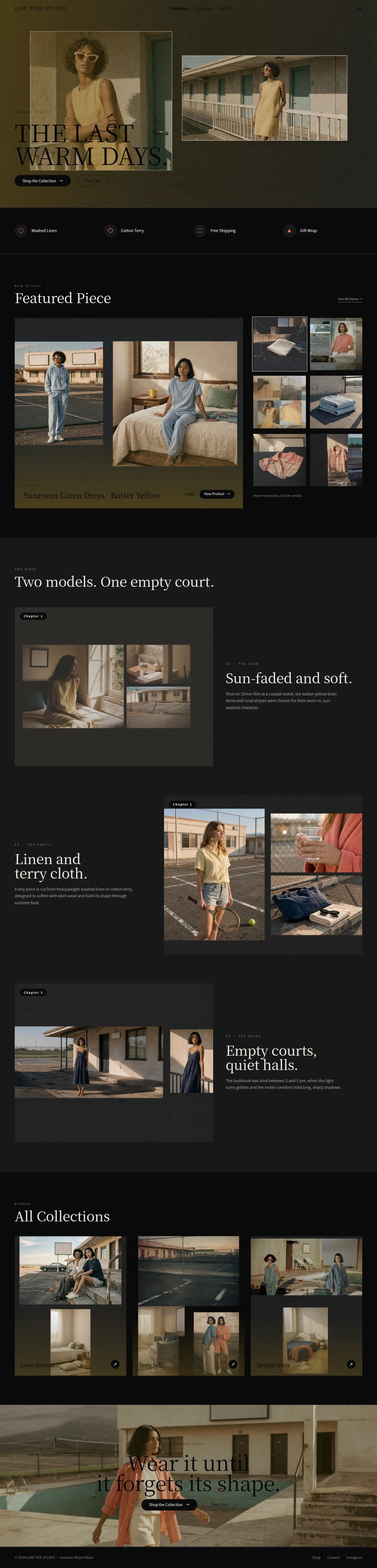
Explore real examples created with the model, from a street market filled with steam to a character seen from several angles. Take a closer look at the lighting, framing, and lettering for ideas you can bring to your next project.
Documentary-Style Photography
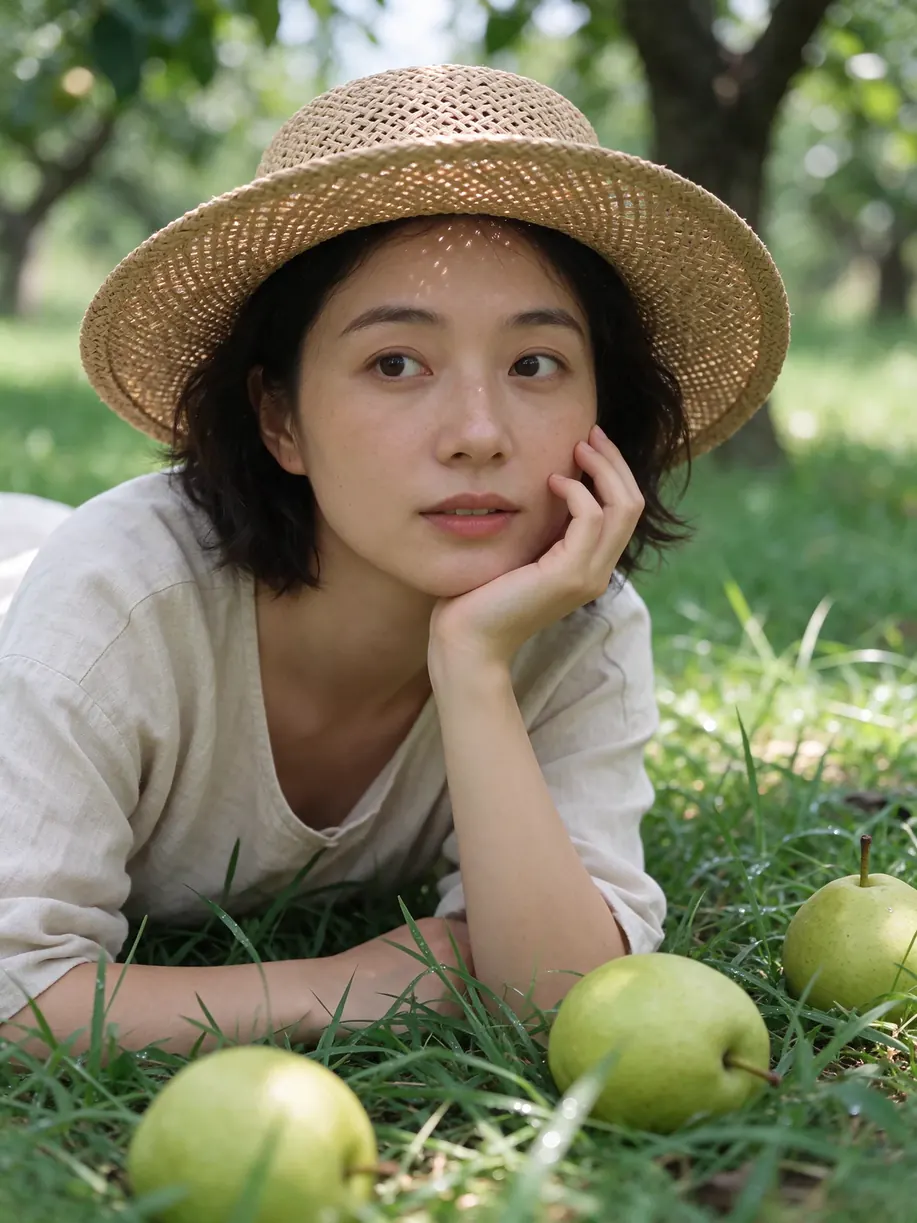 Natural-Light Portrait
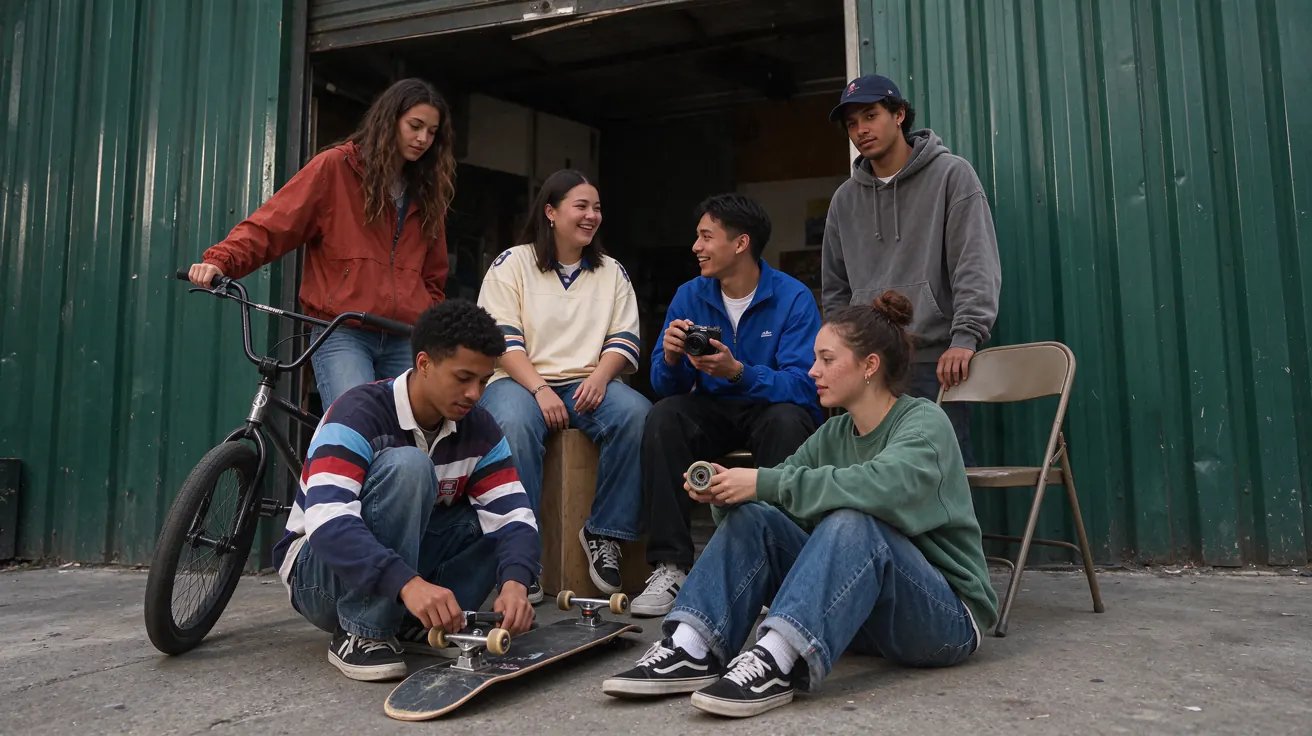 Group Portrait
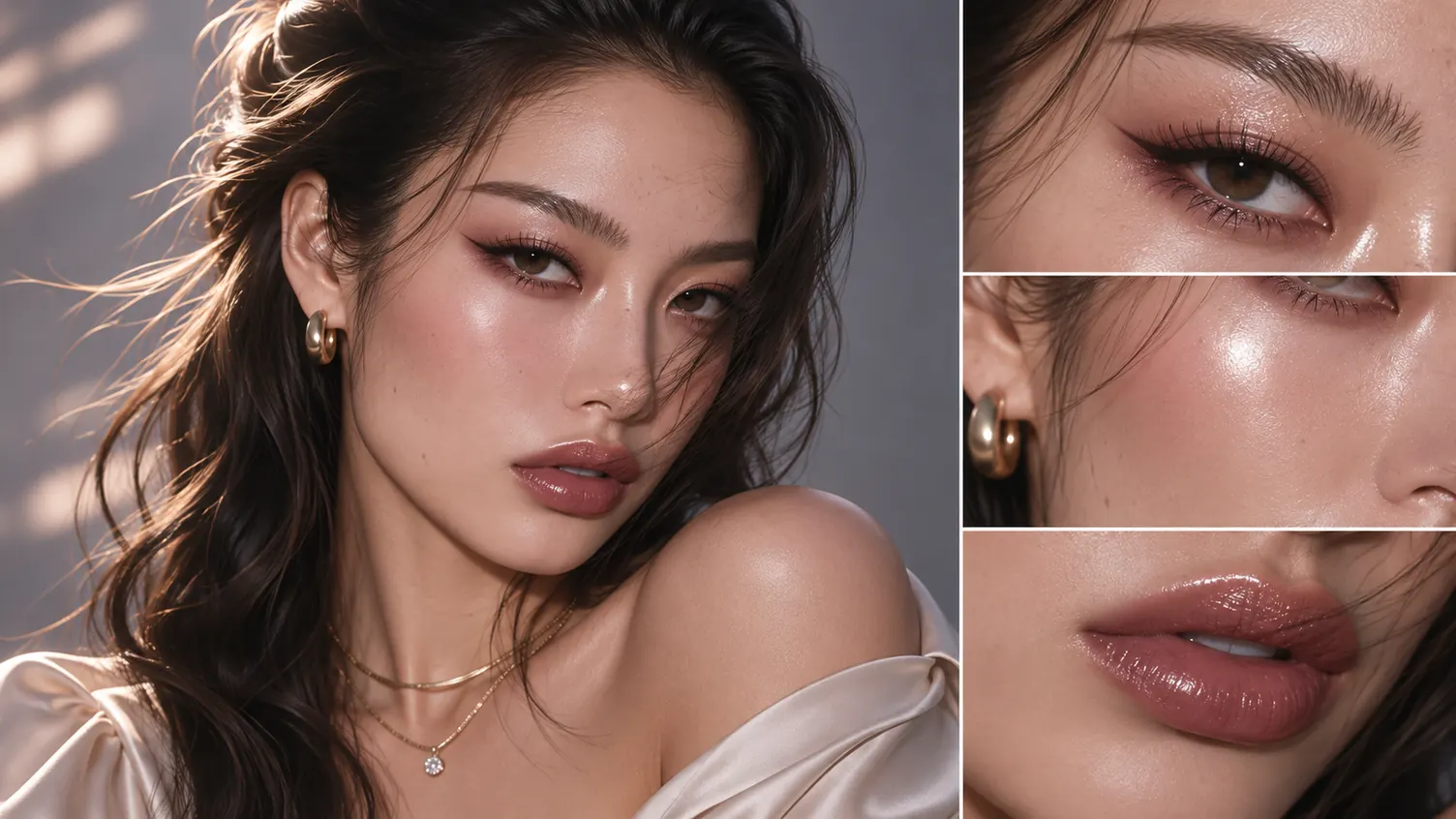 8K Detail Close-Up
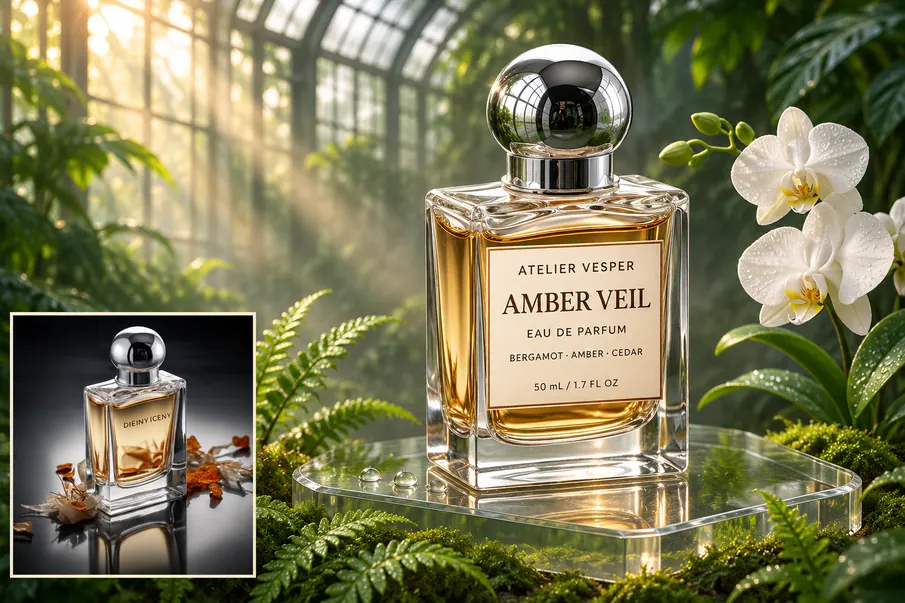 Product Photo Edit
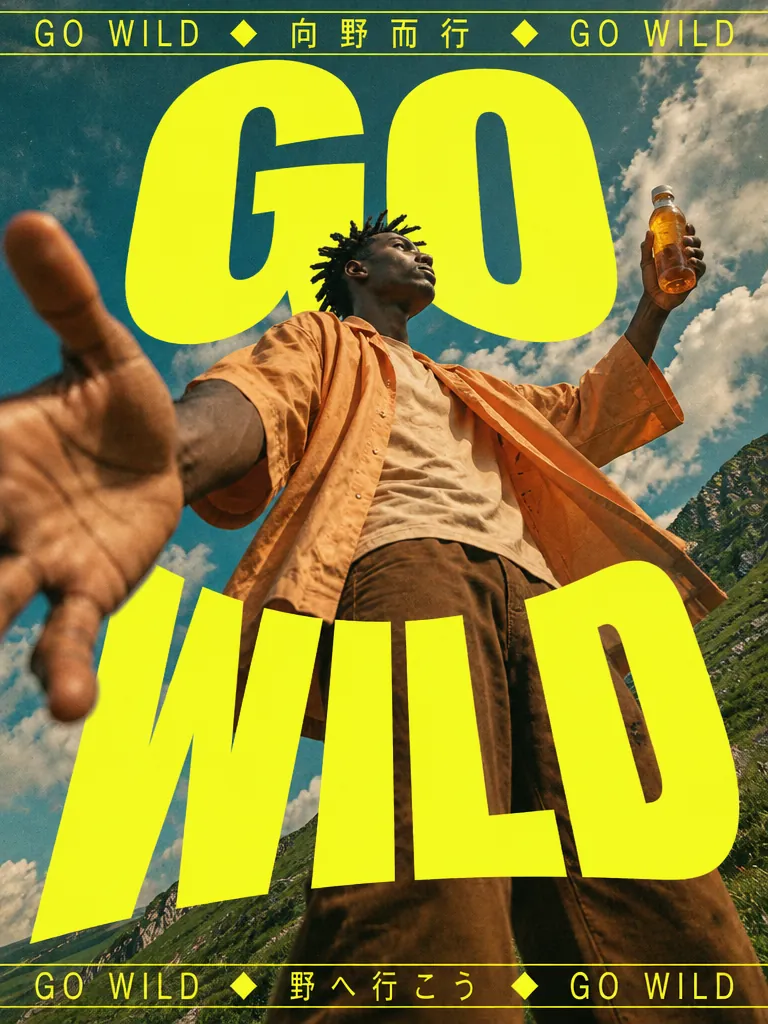 Poster Typography
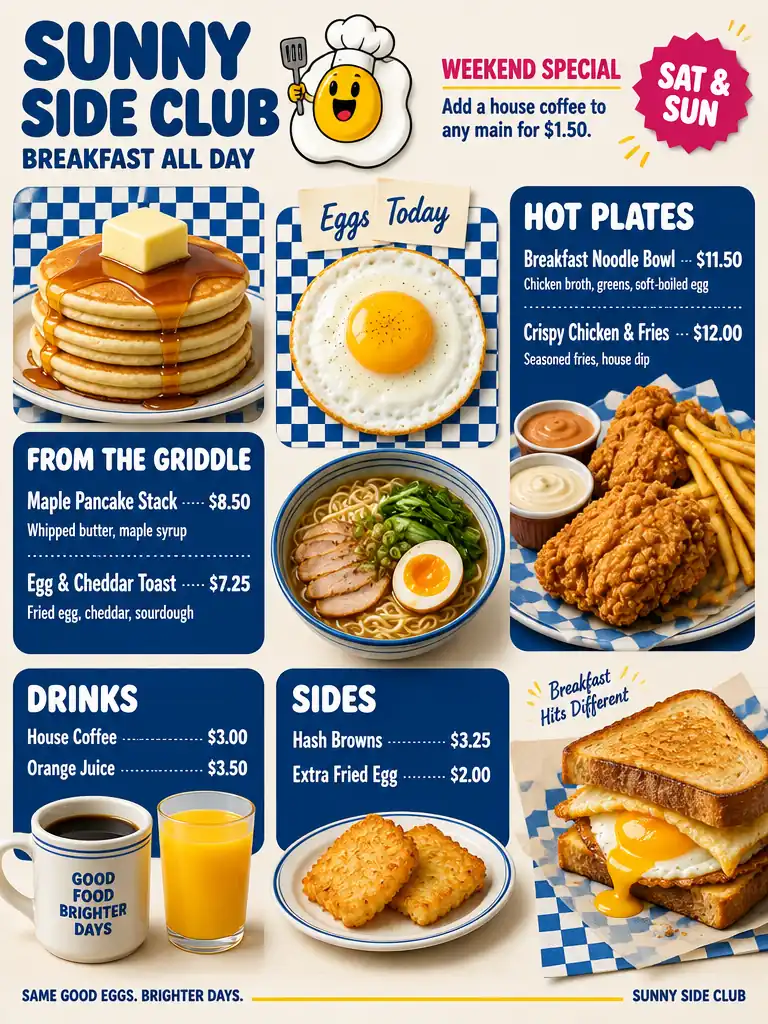 Menu Layout
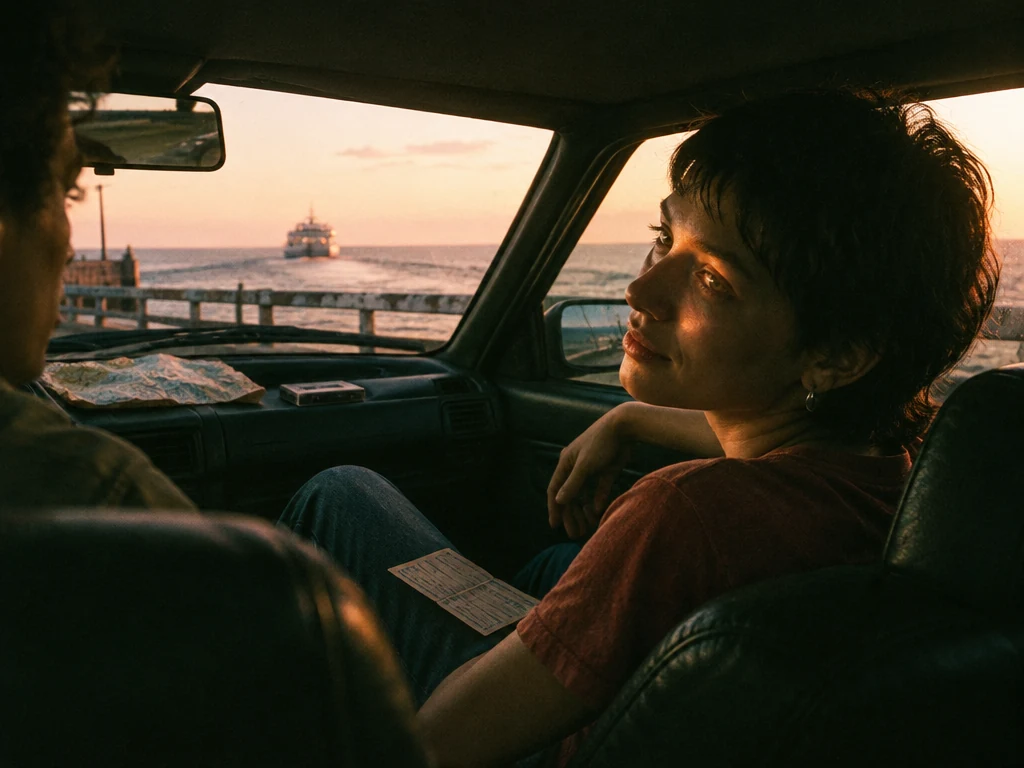 Cinematic Film Still
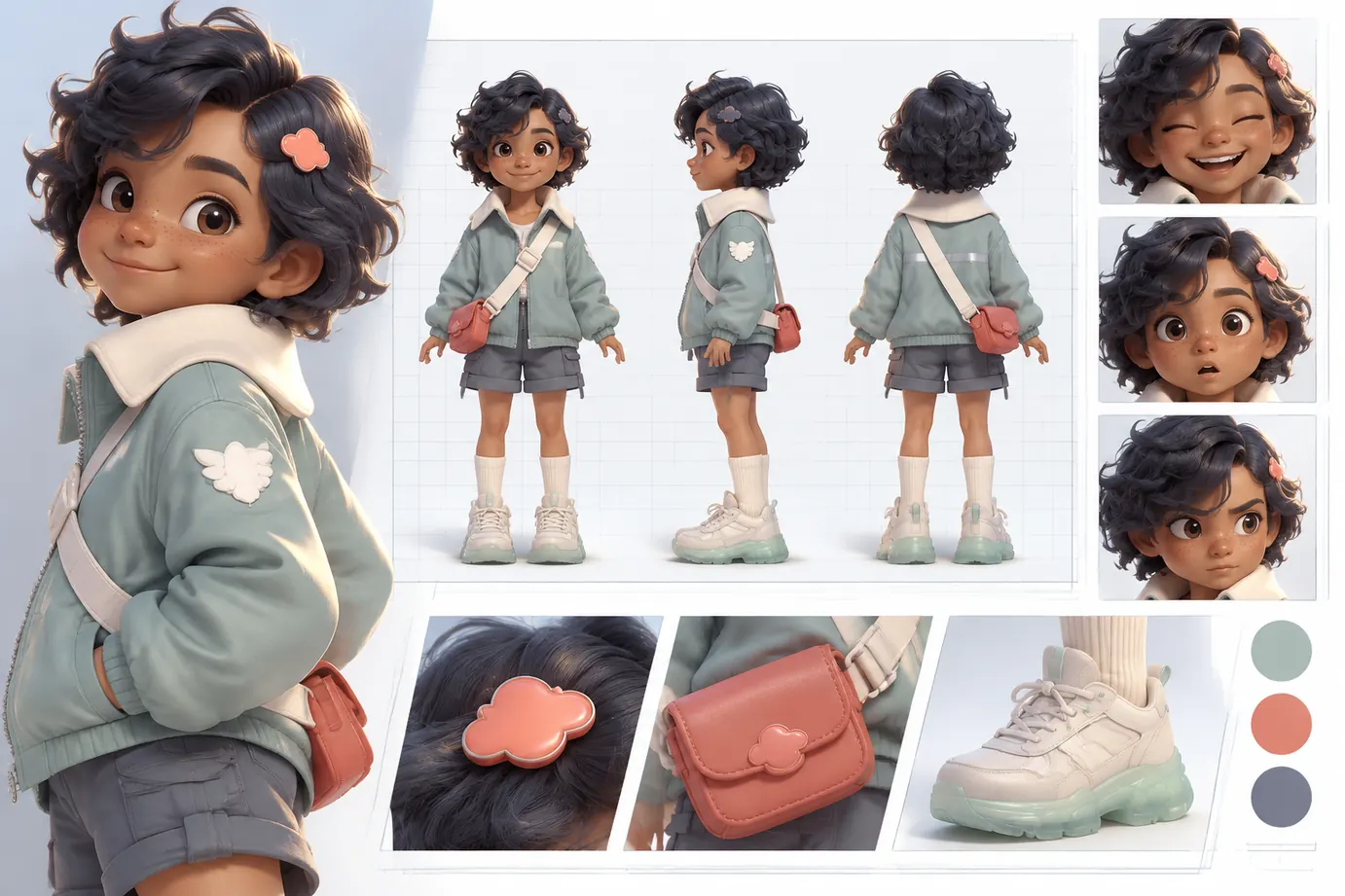 Character Turnaround
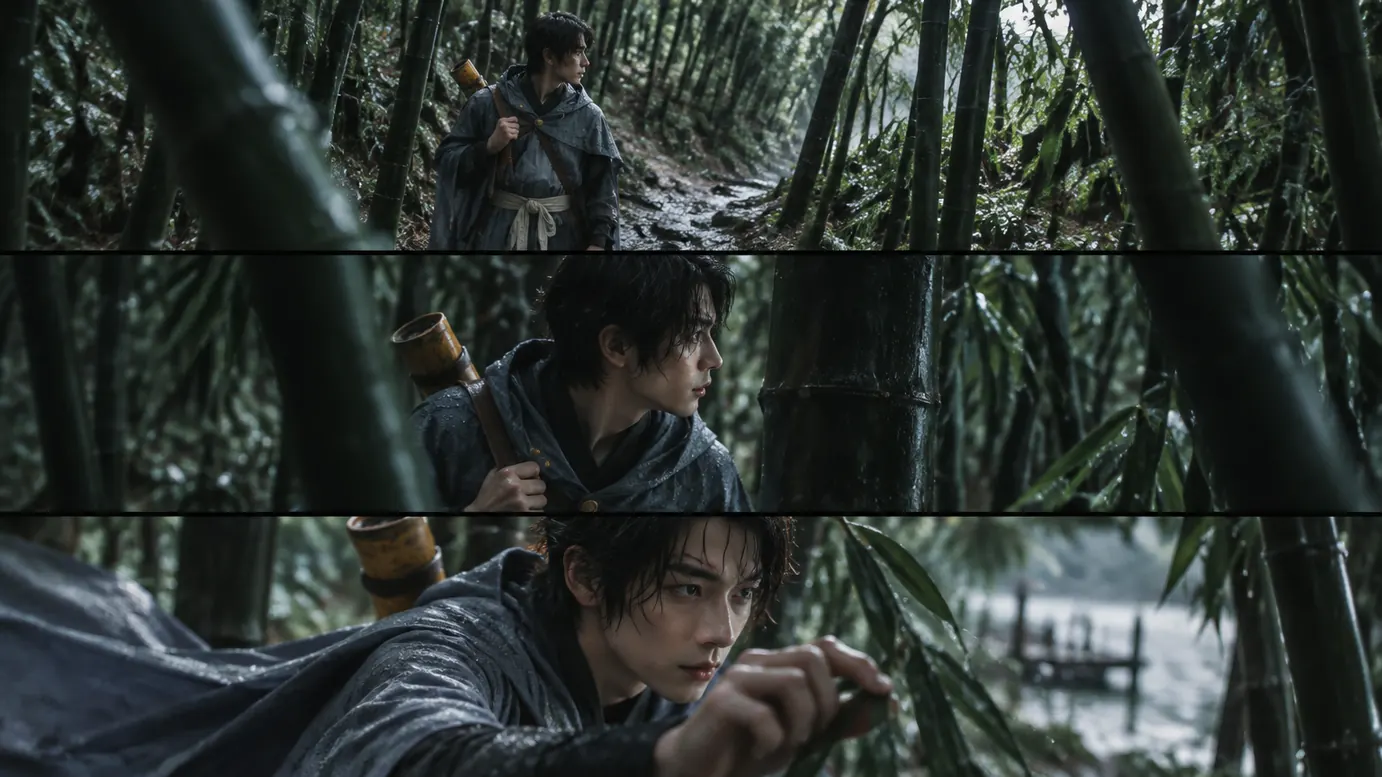 Film Storyboard

What Are the Core Features of Kling Image 4.0?
Shape how your work looks and reads, from the details that draw the eye to the way information is arranged. You can guide what carries across related visuals and what changes to suit each shot or layout.
Render Natural Light and Fine Detail in Native 8K
Soft shadows, natural skin texture, and the way light reflects off glass or metal lend the scene a photographic feel. Native 8K gives you more room to crop in and bring those details into focus, or to use the full composition in a large-format design where texture and lighting still matter.
Generate in Native 8K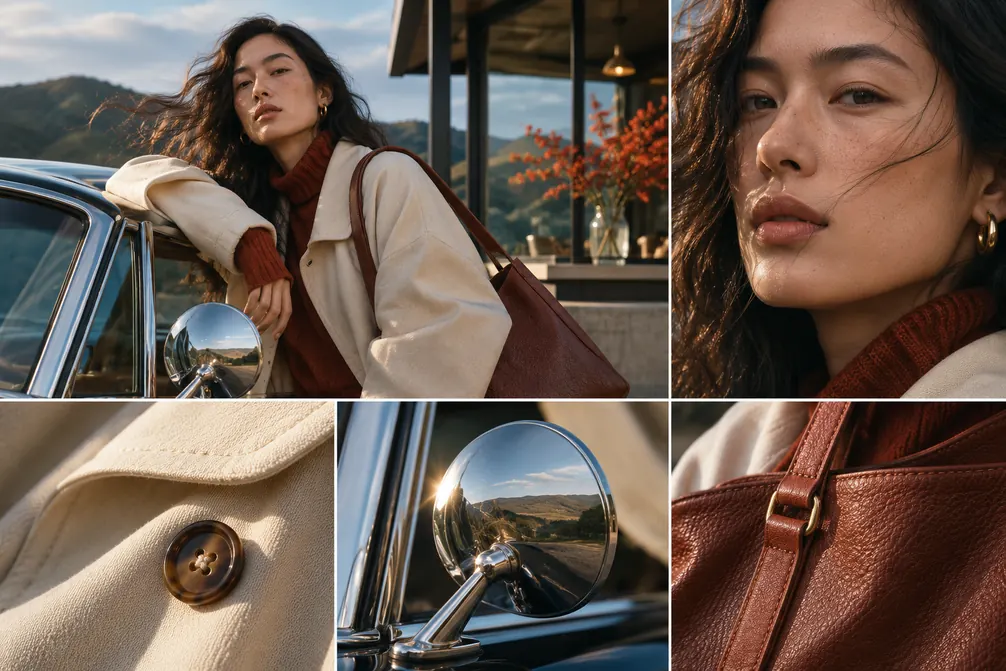
Design Expressive Lettering and Readable Small Text
Give the headline a distinct lettering style and specify where captions and body copy should appear. With support for up to 2,000 characters per image, you can lay out text-heavy designs such as menus, with separate areas for item names, descriptions, and prices.
Turn Copy into Artwork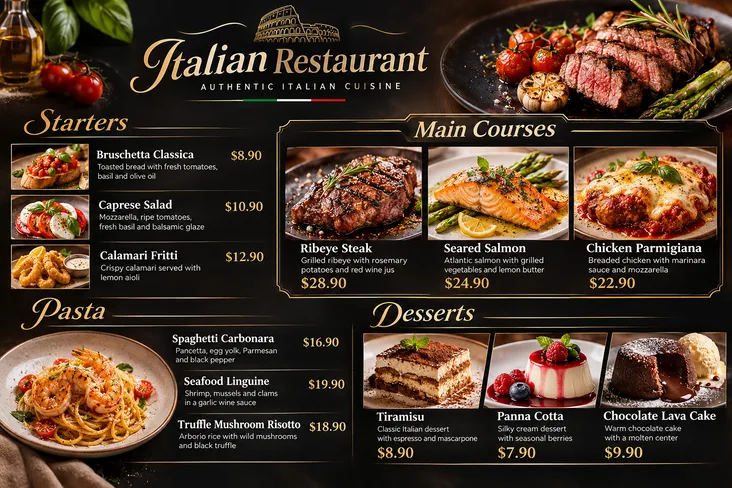
Create Coordinated Image Sets with a Consistent Look
Series Mode uses one brief to plan related frames that share a subject and visual style. Each frame can show a different angle or moment, so an establishing shot, a reaction shot, and a close-up can work together as parts of the same scene.
Build Your First Image Set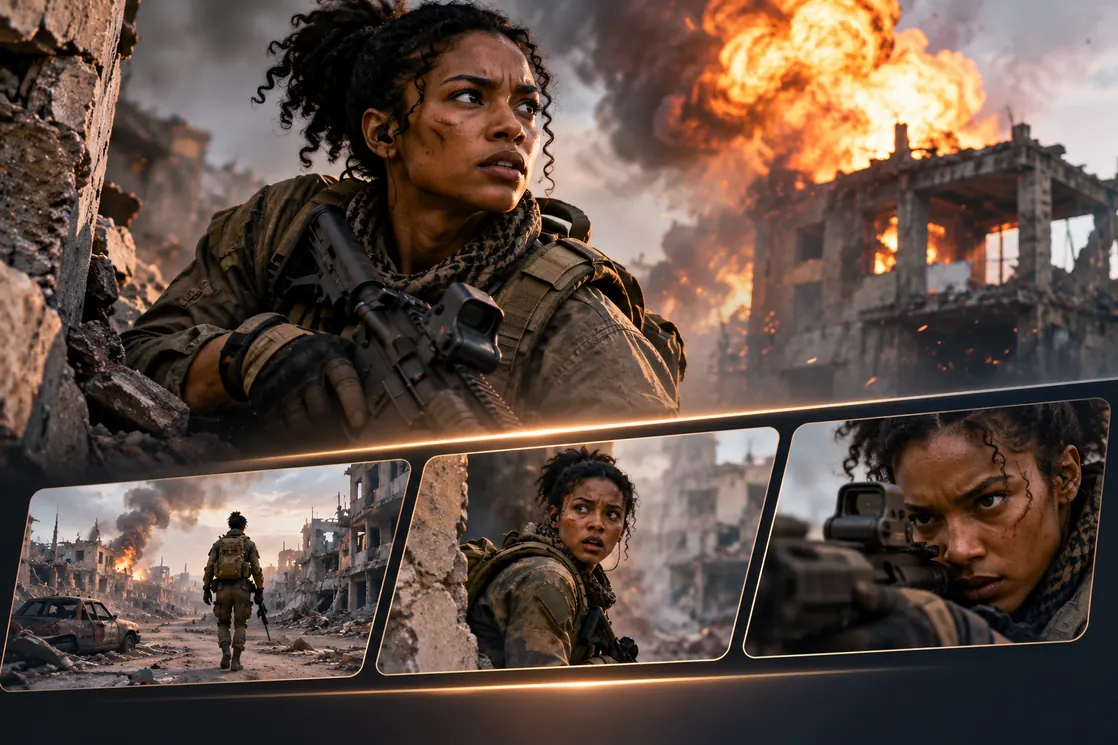
Compose Long Graphics for Product Pages and Websites
Combine a lead visual, section headings, and supporting copy in one continuous layout. An e-commerce detail graphic requires a product photo and can take shoppers from the main selling points to the specifications. For a website mockup, describe the sections you want to see and preview how they fit together across the page.
Make Full-Page Visuals Now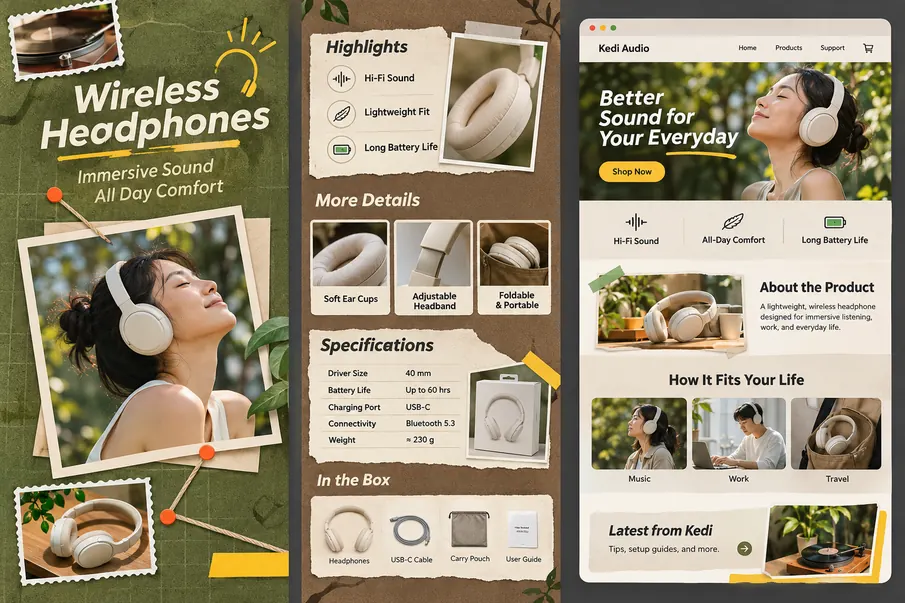
Show Multiple Character Views on One Sheet
Bring a character’s front, side, and back views together on one reference sheet, with room for facial close-ups. Comparing the silhouette, outfit, and facial features side by side makes it easier to spot which details need adjusting before you settle on the design.
Draft Your Character Sheet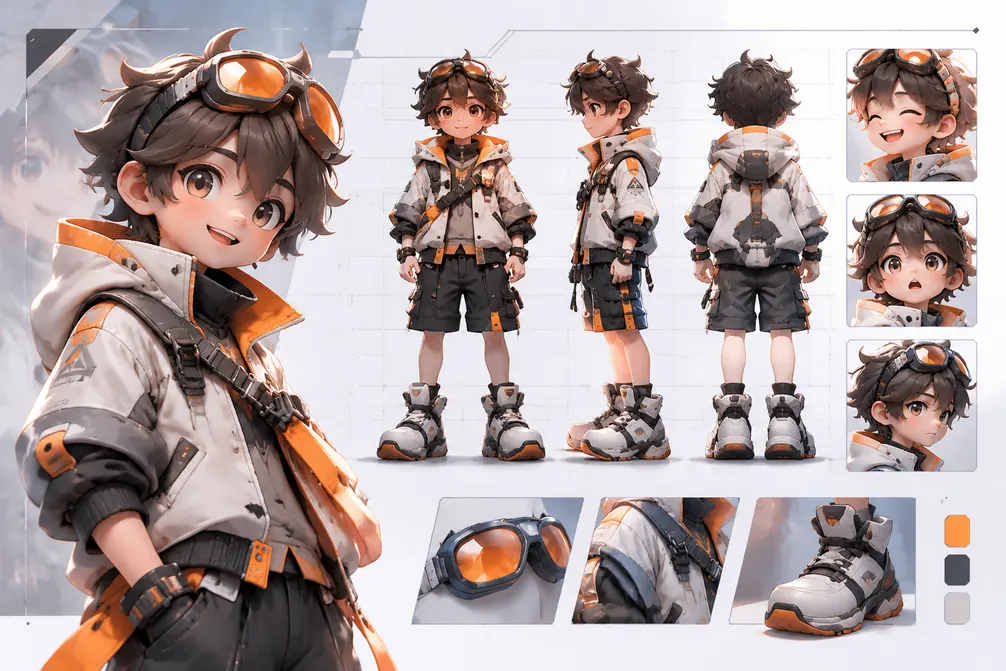
How to Use Kling Image 4.0 on HeyTop AI
Follow these three steps to create a standalone image, a coordinated series, or a full-page graphic.
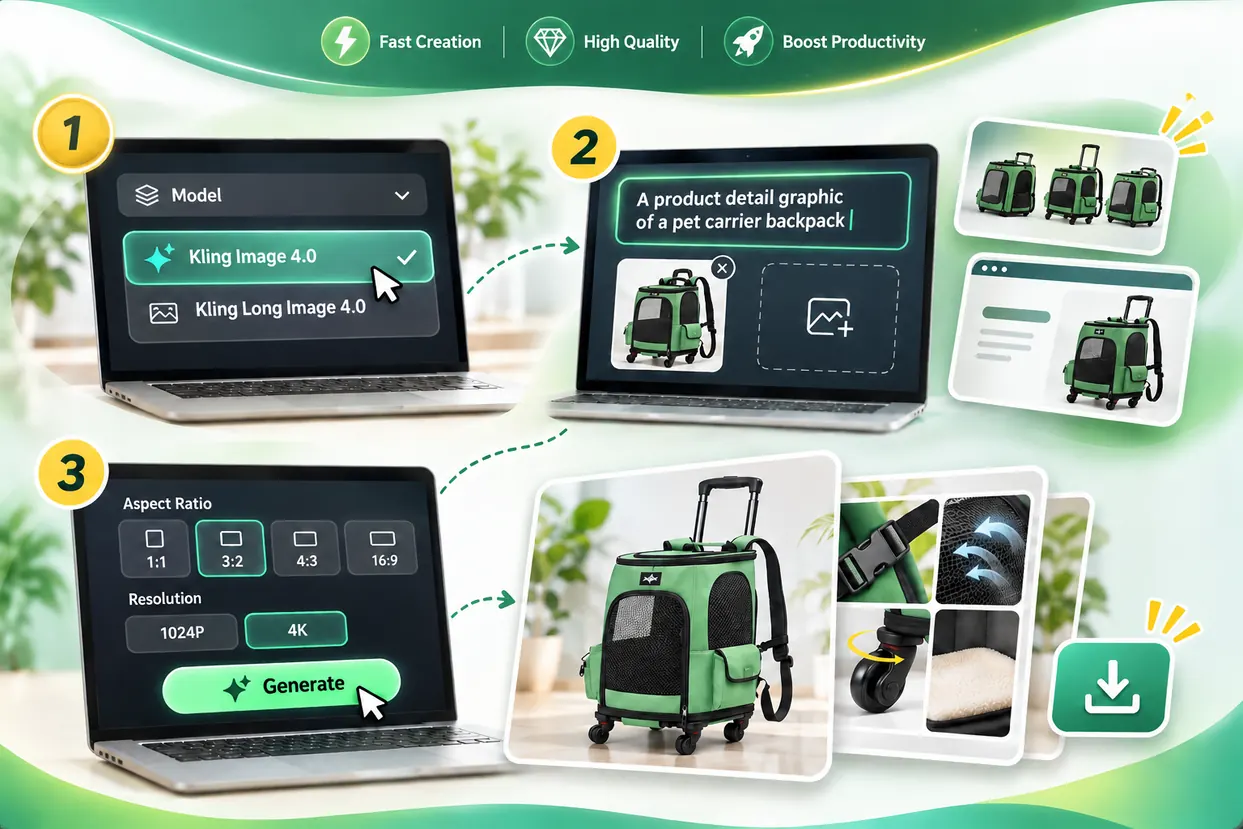
Choose Your Model
In the model menu, select Kling Image 4.0 for single images or sets. Choose Kling Long Image 4.0 for product detail graphics or website mockups.
Add Your Idea and Assets
Enter a prompt and add references if needed. Product detail graphics require a product photo. Website mockups can start with text alone
Generate and Download
Set the aspect ratio and resolution where available, then click Generate. Preview the result before downloading.
Why Choose Kling Image 4.0 for Creative Work?
Multilingual Text Support
Support for in-image text in Chinese, English, Japanese, Korean, Spanish, and Portuguese makes it easier to adapt the same campaign concept for different markets.
Custom Lettering References
Your own lettering samples can guide the look of new headlines, helping the finished design reflect the style you have in mind.
Flexible Aspect Ratios for Publishing
Aspect ratios such as 21:9 for ultrawide banners and 9:16 for vertical social posts help visuals fit their intended placements with less cropping later.
Professional Visuals Across Industries
The model supports a range of professional projects, including e-commerce promotions, advertising concepts, film and television previsualization, and website design.
What Creators Say About Kling Image 4.0
“I tried native 8K on a rainy street scene and cropped in on the pavement. What stood out was how the reflections still seemed to come from the shop windows, even with most of the scene cropped away.”
EV
Elin VossPhotographer
“My poster needed a hand-lettered headline with smaller text for the time and venue. On the first pass, the title had the loose, handwritten look I wanted, and I could read the event details without zooming in.”
SM
Signe MaretDesigner
“I put three shots of a bike courier into one brief. Across the image set, the green jacket and messenger bag were still recognizable as the angle changed, which made the frames feel like part of the same sequence.”
IC
Ivo CalderStoryboard Artist
“For a lunchbox listing, I uploaded the product photo and asked for sections on capacity, compartments, and cleaning. I liked how the generated graphic introduced the box first, then showed what each compartment was for.”
NA
Nuri AvenE-commerce Manager
“All I had for the flower shop homepage was a short written brief. From that alone, I got a website mockup with a clear opening section and enough space between the collections to see how the page might flow.”
TR
Tess RavnWeb Designer
“I asked for front, side, and back views on one sheet. I could recognize the same outfit from all three angles, though I ran it again to get the fringe closer to what I wanted in profile.”
LS
Lio SerrinCharacter Designer
1 / 6
Explore More AI Image Models
Frequently Asked Questions
How many images can I generate at once with Kling Image 4.0?
In standard image mode, use the Quantity setting to generate 1 to 9 images per request. For example, one reference can show the product, while another guides the composition.
Can I use the generated images for commercial projects?
Yes, subject to the Terms of Use, applicable law, and any restrictions specific to the model or feature. Before publishing, review the finished image and confirm you have permission to use the materials you uploaded.
Can I turn a generated image into a video?
Yes. Download the still image and upload it to the Kling 4.0 video generator as a starting frame. Describe how you want the subject or camera to move.
How can I keep a character recognizable across separate generations?
Use the same character reference each time and name the details you want to carry over, such as the hairstyle, outfit, or a distinctive accessory. Then describe what changes in the next scene, such as the pose or setting.
How do I describe a scene with several subjects?
Describe where each subject should appear and how they interact. For example, place a bicycle in the left foreground and show the rider standing beside it, unlocking the bike.