Kling 4.0 AI Video Generator: Create 4K Short Films from Text or Images

Describe a scene or upload your images to create videos up to 30 seconds long. Showcase a product, bring a character into motion, or turn an ad concept into a video—with control over the action and camera movement.

Reference files
Model

Loading models…

Preview
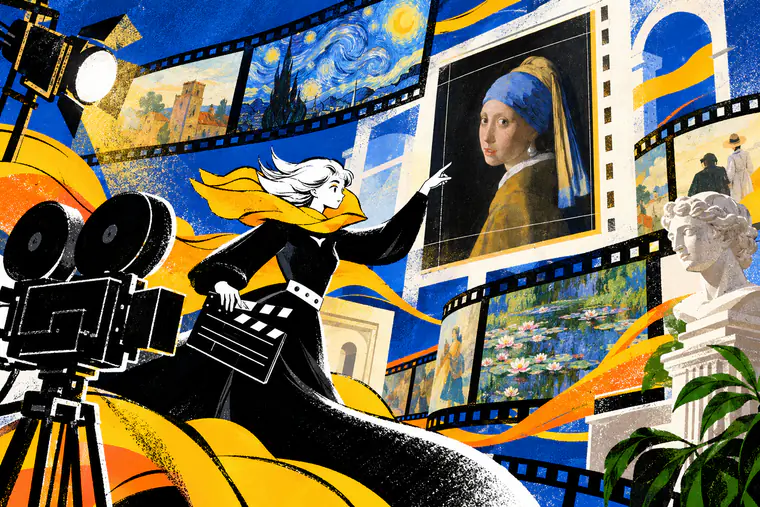
Cinematic scenes, a director, and editing timelines arranged in a Kling 4.0 video showcase

What Is Kling 4.0 ?

Kling 4.0 is Kuaishou’s multimodal AI video generation model, combining video creation and targeted editing in one workflow. It emphasizes realistic character performance, stable motion, and cinematic camera work, with synchronized audio and lip sync.

Multiple keyframes guide a scene’s beginning, progression, and ending, while references shape characters, products, settings, and movement. Creators can also edit expressions, actions, backgrounds, or camera work in existing footage—for short films, product ads, animation, and character-led stories.

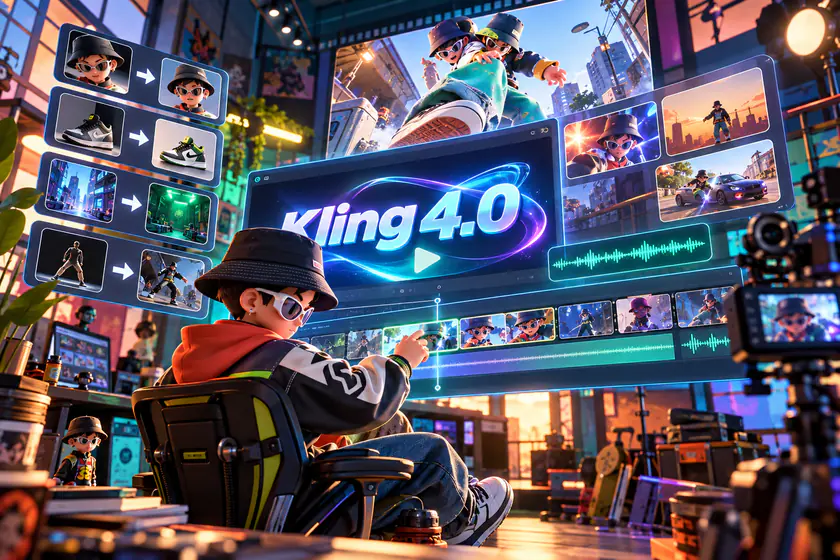
A director views character references, scene previews, and audio tracks in a Kling 4.0 workspace

What Can You Do with the Core Features of Kling 4.0?

Develop a complete scene, adapt existing visual assets, or refine footage around a specific creative brief. Explore how narrative controls, audiovisual generation, and targeted editing support different stages of production.

Create a Complete Narrative Sequence in a Single Generation

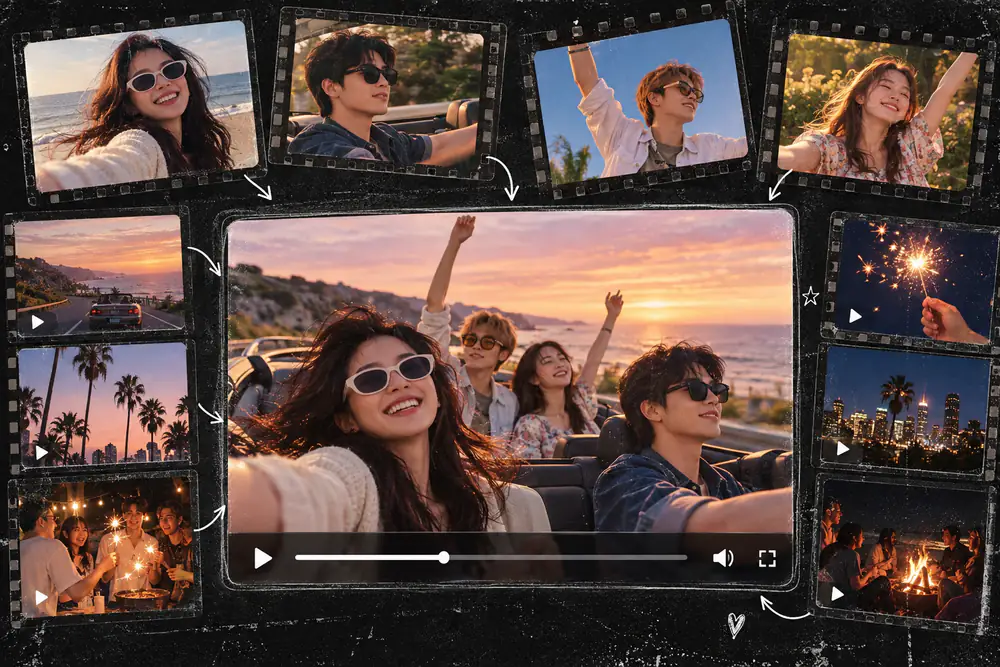
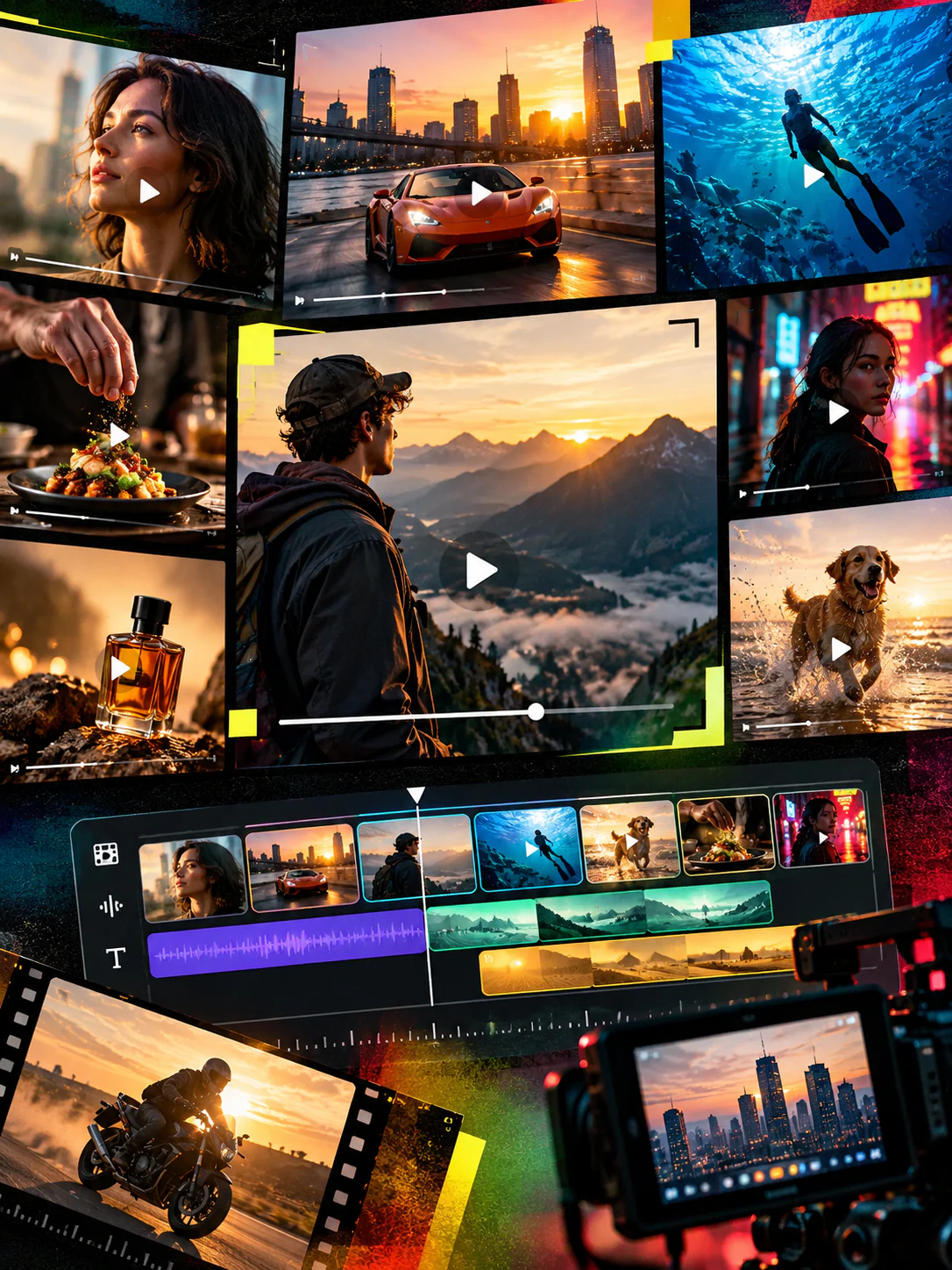
Longer video generation and multiple keyframes let you plan how a sequence unfolds beyond its opening image. Set the moments that matter—a character’s arrival, a product reveal, or a final reaction—and describe the action connecting them. This gives a short story or advertisement room to develop, with greater control over pacing and how it ends.

Build Your Next Scene
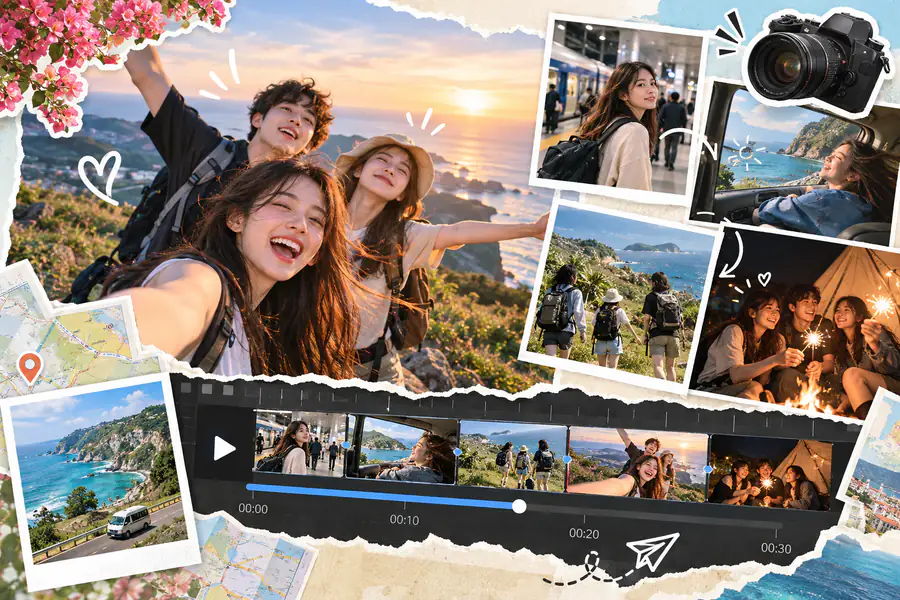
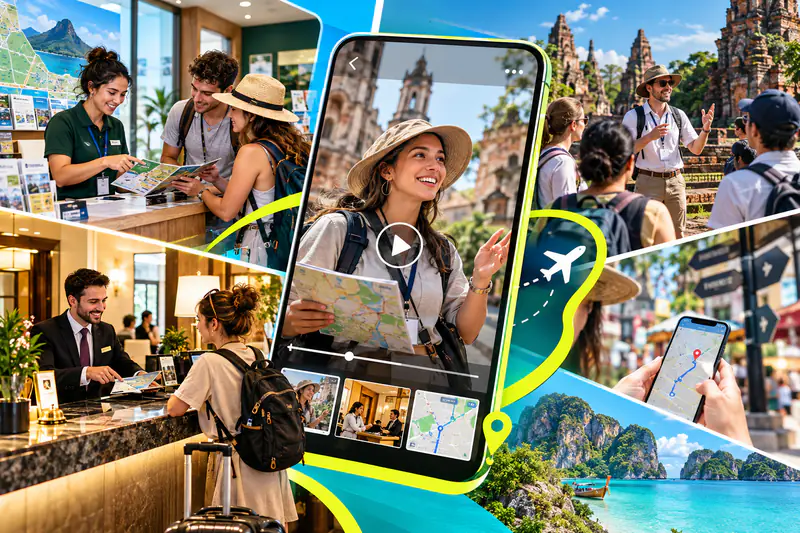
Travel snapshots and a video timeline connect friends, scenic stops, and evening scenes into a story

Give Action Scenes Clearer Movement and Richer Visual Detail

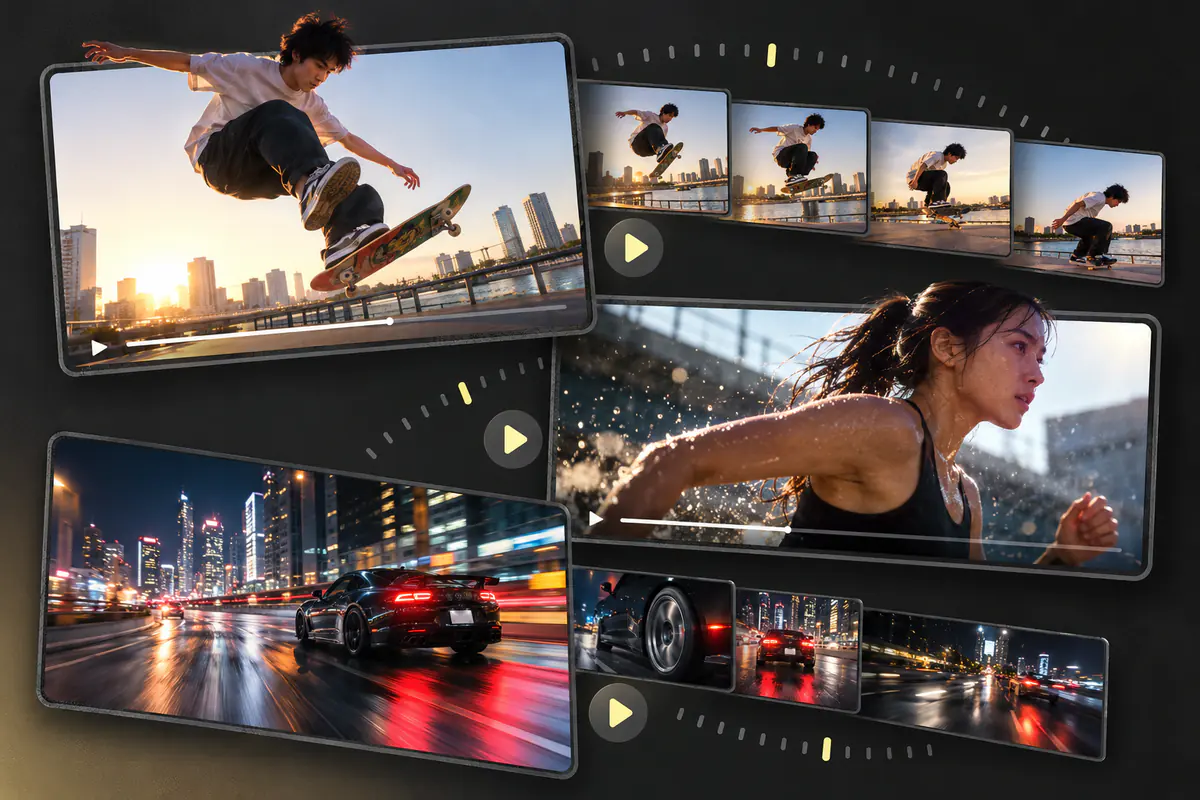
Improved motion handling and camera control help depict moving subjects through tracking shots, orbits, and changes in framing. High-resolution HDR output helps preserve texture and tonal detail in scenes with bright highlights and deep shadows. Together, these capabilities support sports, performance, and cinematic footage where both the action and its surroundings matter.

Direct Your Camera Moves
Skateboarding, running, and night driving scenes illustrate action framing and cinematic camera movement

Reimagine Existing Characters and Products in New Creative Settings

Use images and video clips as references to guide character appearance, product details, settings, and movement. Bring a product into a different environment, build a scene around an established character, or draw on a reference clip’s pacing and composition. Develop new campaign variations using existing assets to guide your brand’s visual identity.

Create from Your References
Reference portraits surround a travel video scene featuring the same characters in different settings

Build Scene Atmosphere with Synchronized Dialogue and Ambient Sound

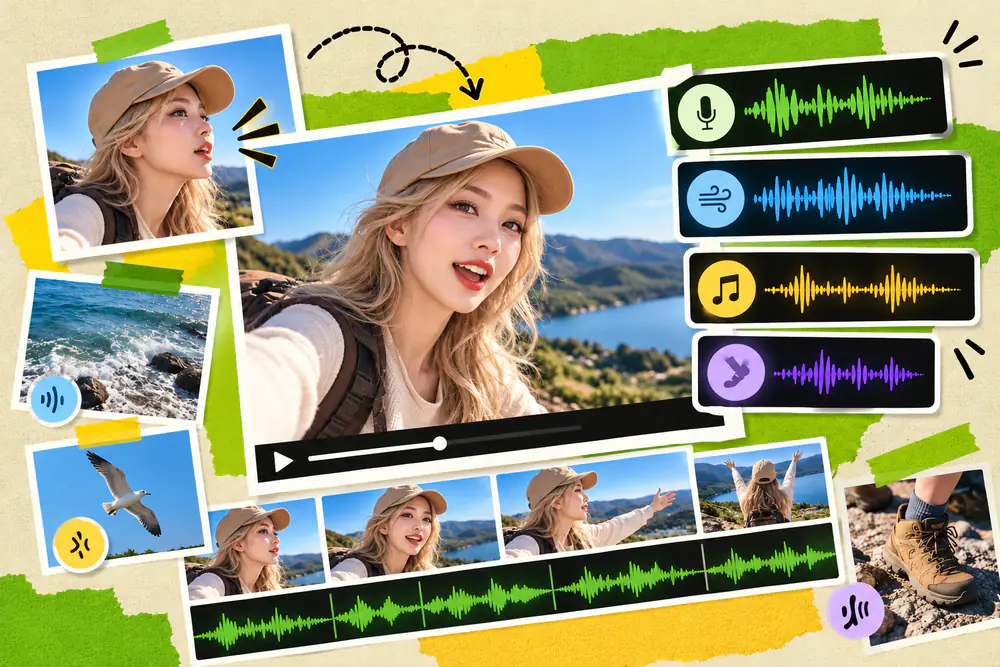
Native audio generation creates speech, ambience, and sound effects alongside the visuals, with stereo sound and lip sync connecting them to the picture. Describe a character’s lines, the surrounding sounds, and the atmosphere you want; voice references can also guide how the speaker sounds. Easily add character voiceovers for conversations, background noise for settings, or sound effects for action scenes.

Generate Video with Sound
A speaking traveler appears beside dialogue, wind, music, and sound waveforms aligned with video frames

Develop New Video Variations through Focused Edits to Existing Footage

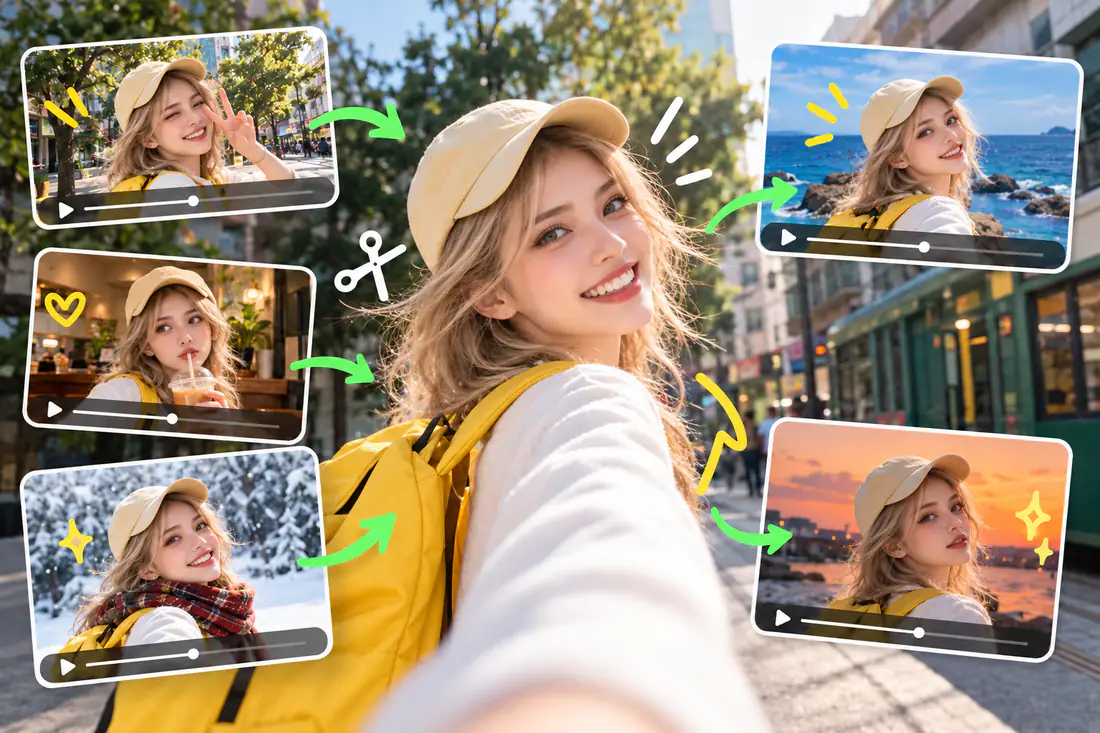
Targeted editing lets you modify expressions, actions, backgrounds, camera work, or visual style in existing footage. Specify the adjustment and what you want to preserve, whether you need a different reaction, a new setting, or another visual treatment. Use specific revision notes to turn feedback into alternative versions of the scene.

Refine Your Existing Video
A traveler portrait connects to revised scenes with different expressions, clothing, and backgrounds

Tailor Character Dialogue with Different Languages, Dialects, and Accents

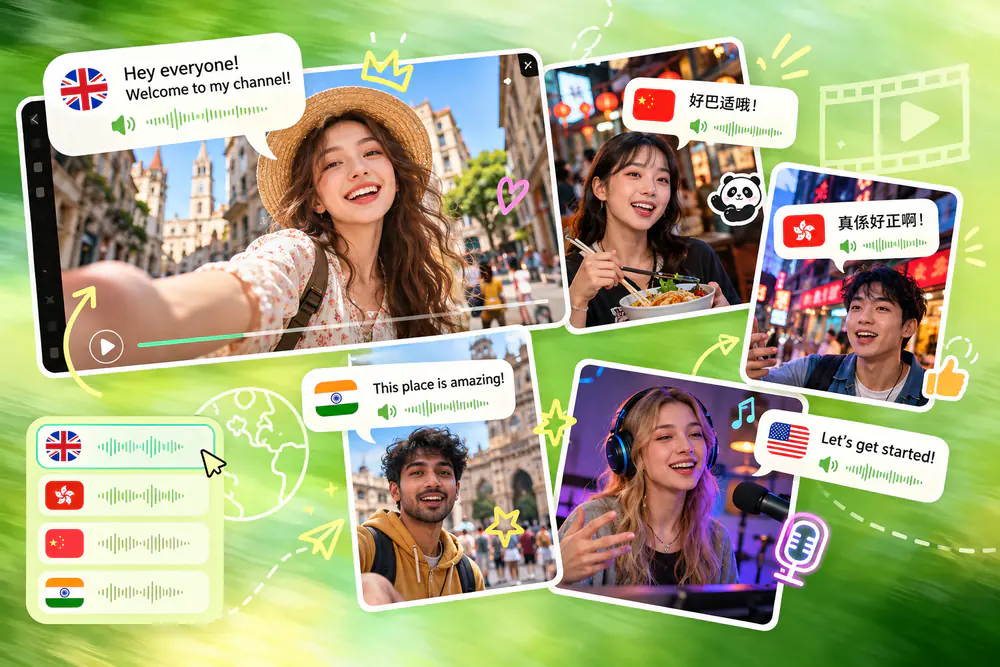
Generate dialogue in multiple languages, with regional options including Cantonese, Sichuanese, and American, British, or Indian English accents. Write the lines and specify their delivery to shape a regional conversation, a character’s voice, or an ad for another market. Support for multilingual on-screen text, emojis, and logos also helps you adapt visual elements for your audience.

Create in Your Language
Characters speak in regional voice examples with language labels, speech bubbles, and audio waveforms

How to Create Videos with Kling 4.0 on HeyTop AI

Follow these three simple steps to create a video from your idea or reference materials, ready to download and share.

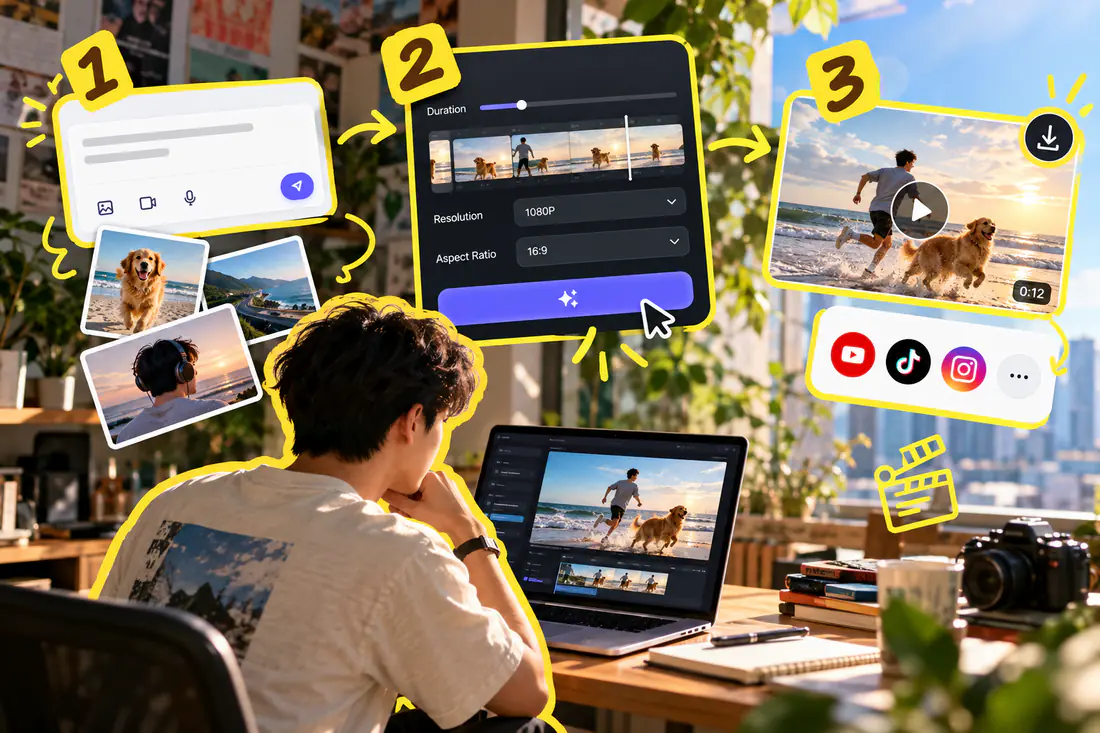
Three panels show adding references, choosing video settings, and sharing a clip from a laptop workflow

Describe Your Scene and Add References

Describe the subject, action, camera movement, and any sound you need. Upload optional references and specify their roles.

Set Your Output and Generate

Choose your duration, resolution, and aspect ratio, adding keyframes where timing matters. Check the credit cost, then generate.

Download and Share Your Video

Download your video for a short film, a larger film project, or social content, then share it with collaborators or publish it on your chosen platform.

Why Choose HeyTop AI Kling 4.0 for Your Video Projects?

Privacy and Data Protection

HeyTop AI does not store your uploaded content or use it to train AI models. This applies to both personal and project materials.

No Editing Experience Required

You don’t need professional filming or editing skills to get started. The controls are approachable for beginners, with options for more detailed creative control.

Clear, Watermark-Free Output

Download high-resolution footage without visible platform watermarks. Use it in your own projects without an additional watermark-removal step.

Cinematic-Grade Realism

Give your videos an instant high-budget look. Kling 4.0 delivers breathtaking visual fidelity with lifelike textures and complex lighting.

Discover What’s Possible: Practical Examples of Kling 4.0 at Work

Give your ideas and existing materials a new role in video. The examples below show where the results can fit and how they can contribute to your project.

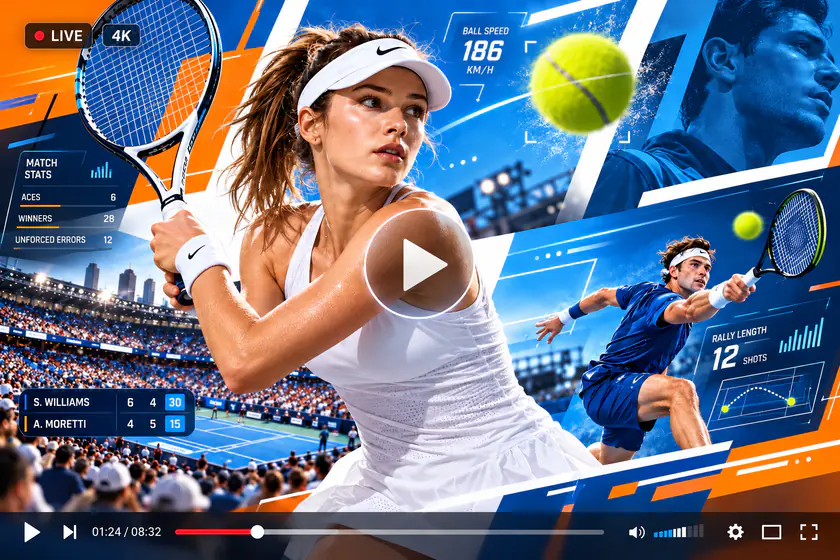
Stage Athletic Action for Sports Promo Reels

Club introductions, tournament announcements, and sports community posts can build anticipation around the energy of a sport. Promotional sequences offer organizers a way to introduce the event’s character and begin promotion before match footage becomes available.

A tennis player, match graphics, and action close-ups form an energetic sports promotional video preview

Kling 4.0 vs Kling 3.0: What’s New?

Kling 4.0 vs Kling 3.0: What’s New?
SpecificationKling 4.0Kling 3.0 Series
Text to Video & Image to Video✅✅
Start & End Frames✅✅
Multiple KeyframesUp to 10 keyframe images · NEWNot supported
Video Duration3–30 seconds · NEW3–15 seconds
Resolution720p / 1080p / 4K720p / 1080p / 4K
Audio OutputTwo-channel stereo · NEWSingle-channel audio
Reference Images & SubjectsUp to 10 images and 7 subjects, within the combined reference limitUp to 7 combined without video; up to 4 with video
Reference VideosUp to 5 videos, totaling up to 30 seconds1 video, up to 15 seconds
Combined ReferencesUp to 15 assets across supported reference typesUp to 7 images/subjects, or 1 video + 4 images/subjects
Video EditingTargeted editing within the multimodal workflowAvailable through 3.0 Omni workflows

✅ Supported · NEW indicates a new capability or expanded specification marked in the official Kling 4.0 release.

Reference limits apply together: individual input limits cannot be added beyond the combined maximum. Kling 3.0 capabilities vary by version, and its editing entry refers to 3.0 Omni. Available settings depend on the platform and creation mode.

Frequently Asked Questions

Do I need reference images, or can I start with text alone?

You can start with text alone when you want the model to interpret an idea. Add references when a character, product, setting, or visual style needs a more specific starting point.

Do I need to use all 10 keyframes?

No. Use keyframes only where a particular visual moment matters, such as an entrance, transition, or ending. A simpler sequence may need just a few, or none.

How much does it cost to use Kling 4.0 on HeyTop AI?

Usage is charged in credits under HeyTop AI’s subscription plans. Visit the pricing page for plan allowances and check the credit cost shown before submitting each generation.

What should I include in my video prompt?

Describe the subject, setting, main action, and camera movement, adding dialogue or sound requirements where needed. When several events are involved, state their order and avoid conflicting instructions.

How can I improve character or product consistency?

Use clear references of the same subject and identify the details that should stay consistent, such as clothing, shape, or color. Conflicting references can make the result less predictable, and exact reproduction is not guaranteed.

Will editing one part leave everything else unchanged?

Targeted editing does not guarantee that every other detail will remain unchanged. Specify what to modify and what to preserve, then check the downloaded result for unintended changes.

Start Creating with Kling 4.0 Today and Bring Your Story to the Screen

★★★★★ Trusted by Creators · 4.8/5

Try Kling 4.0 AI Video Generator Now