AI Background Remover for Clean, Ready-to-Use Images

Upload an image to separate your subject from the original scene. HeyTop AI Background Remover carefully handles edges and textures to deliver a clean cutout. Download a transparent PNG directly, or use text prompts to add a fitting new background.

Reference images

Loading models…

Preview
Results panel showing multiple background removal outputs and a selected portrait variation

Core Image Processing Capabilities of Our AI Background Remover

Experience precise edge detection and manual-level text control for flawless cutouts. Whether preserving fine hair or generating entirely new scenes, our tool streamlines your entire visual workflow.

Remove Background From Image Without Manual Masking

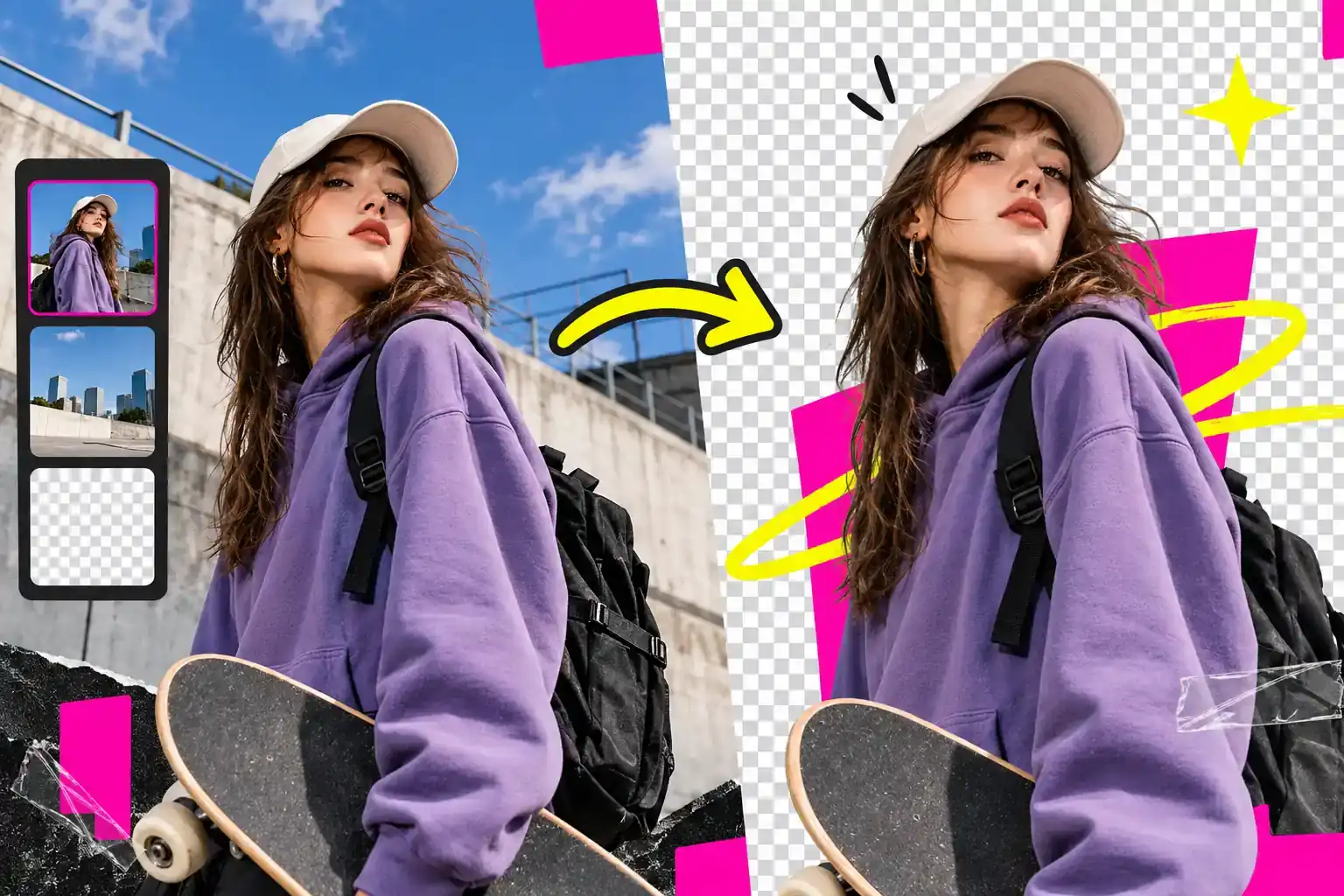
Skip the manual lasso and path tracing tools. Our background eraser scans uploaded photos to identify the main subject and isolate it from the scene. You directly receive a clean, separated element ready for your next design step, making it easy to remove background from image files.

Try Background Eraser Now
AI background remover workspace showing a subject isolated from the original scene as a clean cutout

Preserve Hair and Fine Edges to Ensure Natural Portrait Cutouts

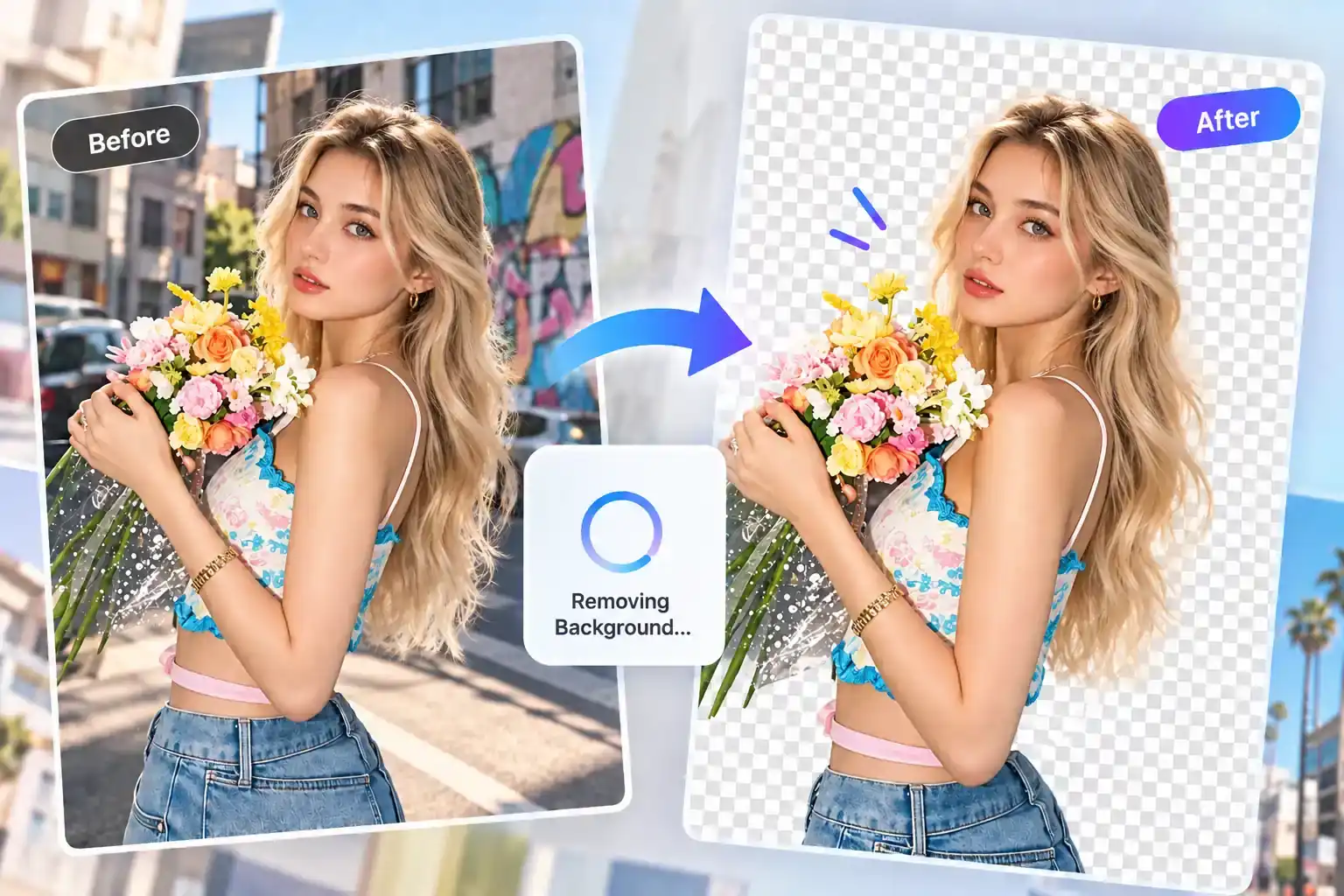
Handling tricky elements like loose hair, fur, or semi-transparent fabrics requires precision. Our portrait background remover focuses on how to preserve hair and fine edges rather than cutting them off abruptly. You get a realistic cutout that blends well, instead of looking like a flat sticker.

Extract Subjects with Clean Edges
Portrait comparison showing fine hair edges preserved after removing a busy background

Control Complex Product Cutout Details with Simple Text Prompts

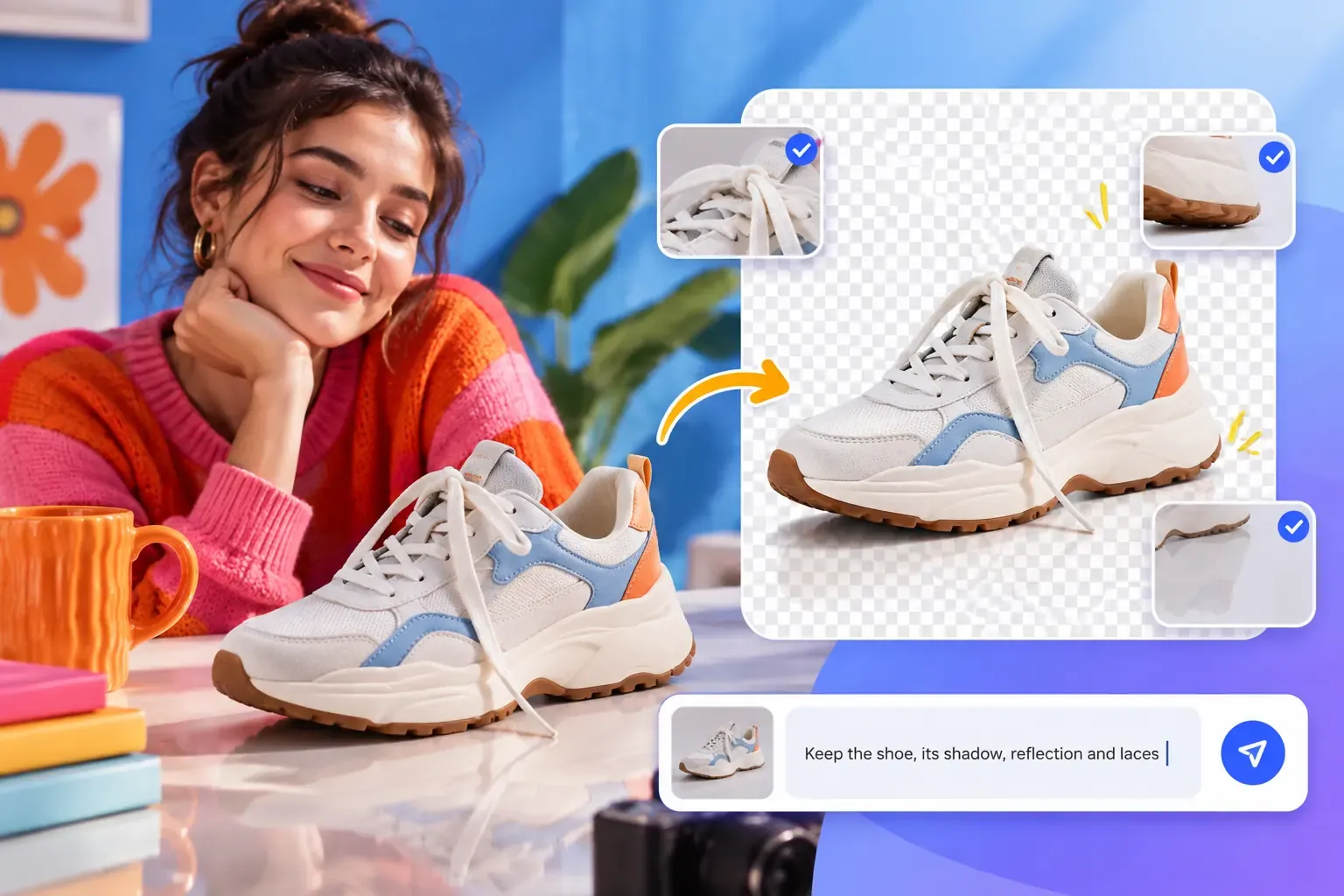
You might need to keep specific shadows, reflections, or small props when trying to remove background from a product photo. Editing the text prompts tells the AI exactly which items belong in the foreground, giving you manual-level control over product photo background remover results using just a few words.

Adjust Cutouts Using Text Prompts
Prompt editing workspace showing a shoe cutout with notes for shadows, texture, and retained details

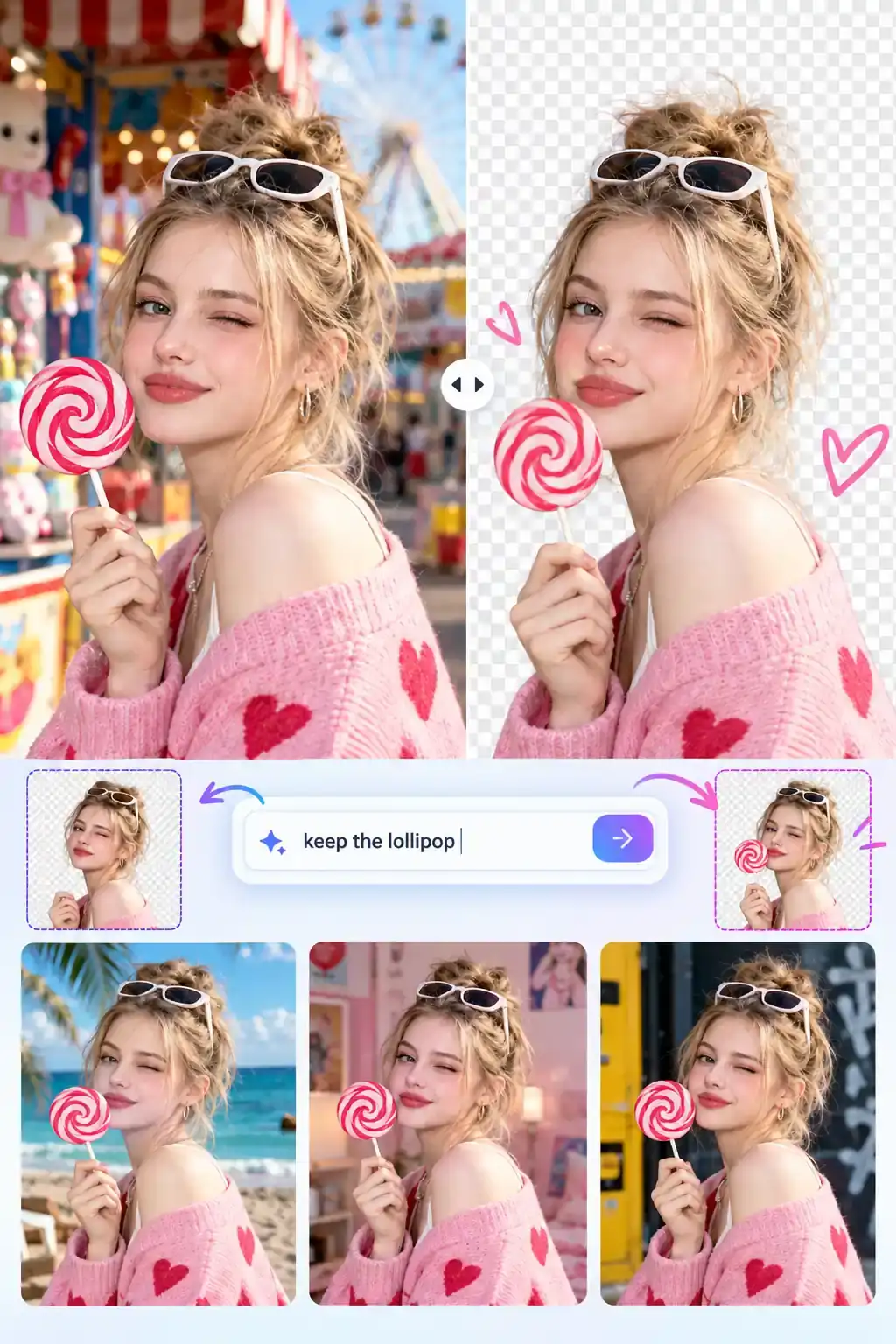
Generate New Backgrounds to Instantly Change Your Visual Context

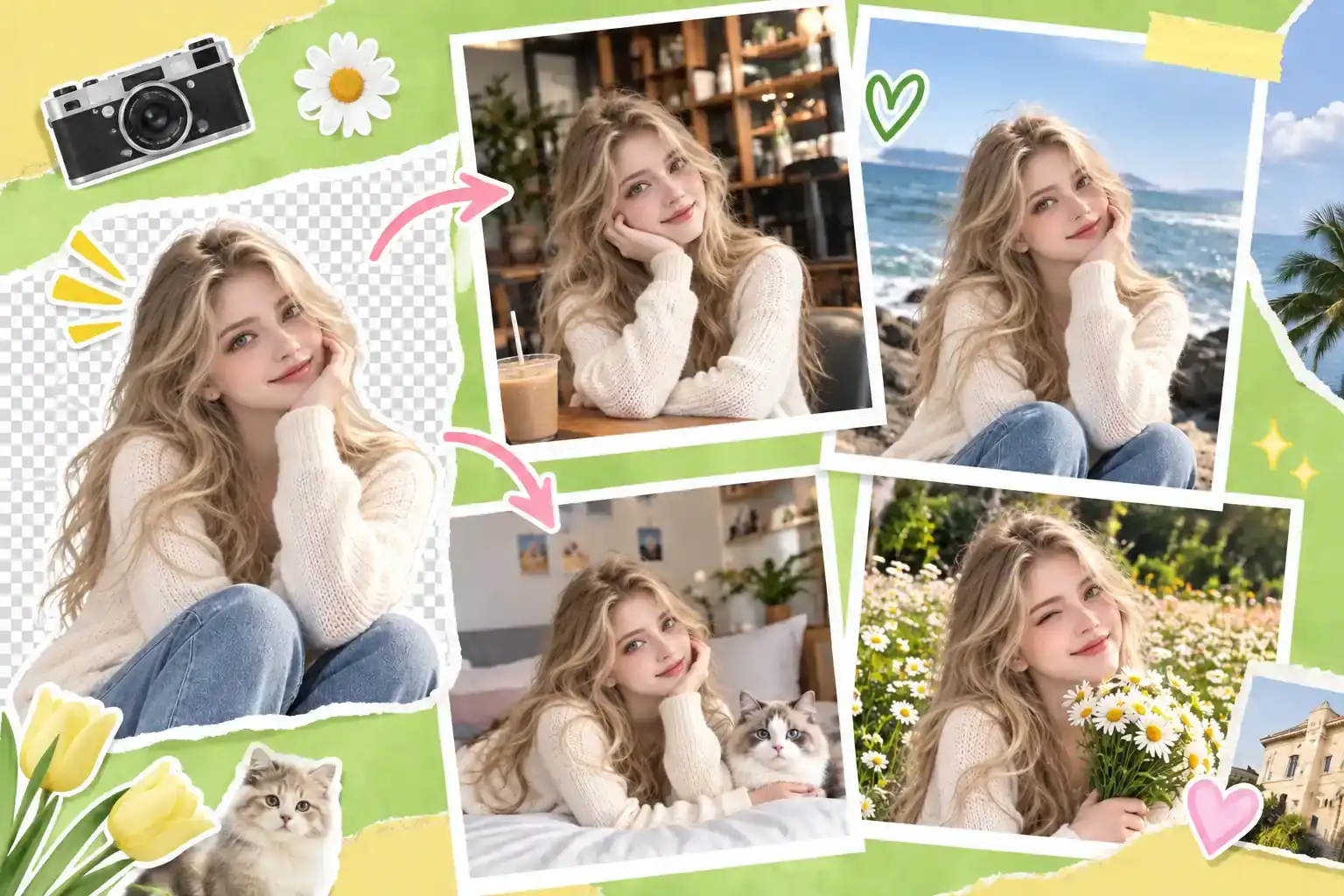
Getting a clear cutout from a transparent background maker is just the start. You can also use text descriptions to completely change image background scenes. Our AI places the isolated subject into a realistic lifestyle scene or studio setup to generate new background elements, turning a basic cutout into a finished visual.

Generate New Backgrounds with AI
Portrait collage showing one subject placed into several new lifestyle backgrounds and studio scenes

How to Remove and Replace Backgrounds Using Our Tool

Achieve clean cutouts or generate entirely new scenes in just a few clicks. Follow these straightforward steps to customize your image dimensions, quality, and export formats.

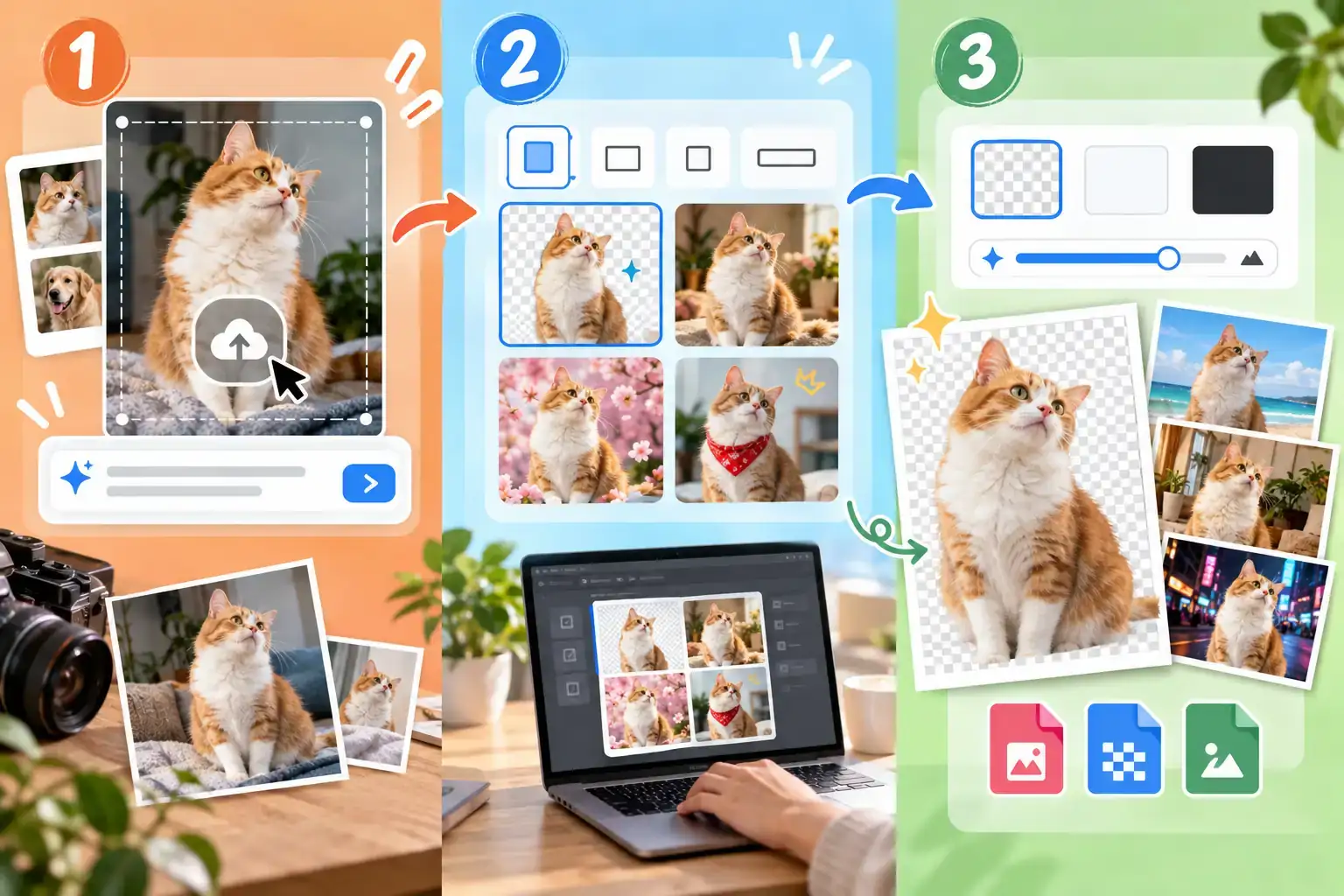
Three-step workflow showing upload, background removal settings, and export choices for edited photos
01

Upload Image and Add Text Prompts

Upload your photo to remove background online. To change the scene entirely, simply type descriptive text to guide the AI.

02

Select Aspect Ratio and Variations

Choose an aspect ratio from 1:1 to 16:9 to fit your layout. You can generate up to four image variations at once to find the perfect result faster.

03

Set Quality and Export Format

Choose a smart, transparent, or opaque background. Adjust the image quality and export your final cutout in JPEG, PNG, or WEBP format.

Start Processing Your Images

Why Choose Our AI Background Remover?

Instant Processing Speed

Get clean, professional cutouts in just seconds to dramatically accelerate your daily creative workflow.

Flawless Edge Detection

Rely on advanced algorithms to perfectly isolate tricky details like hair, fur, and transparent objects without manual tweaking.

Generative Text Control

Go beyond basic erasure by using simple text prompts to seamlessly blend subjects into entirely new environments.

Multi-Variation Generation

Produce up to four different image options simultaneously to quickly find the absolute best visual for your project.

Flexible Export Formats

Download your final high-resolution assets in JPEG, transparent PNG, or web-optimized WEBP formats to suit any platform.

Built for Every Use Case

Easily adapt your visual assets for e-commerce listings, social media graphics, or professional marketing campaigns.

Practical Scenarios to Remove Background from Images

Discover how people actually use our photo background remover to solve daily design problems. From selling items online to updating a resume, getting a clean cutout helps you finish practical tasks instantly.

Standardize Product Image Listings to Drive More Online Sales

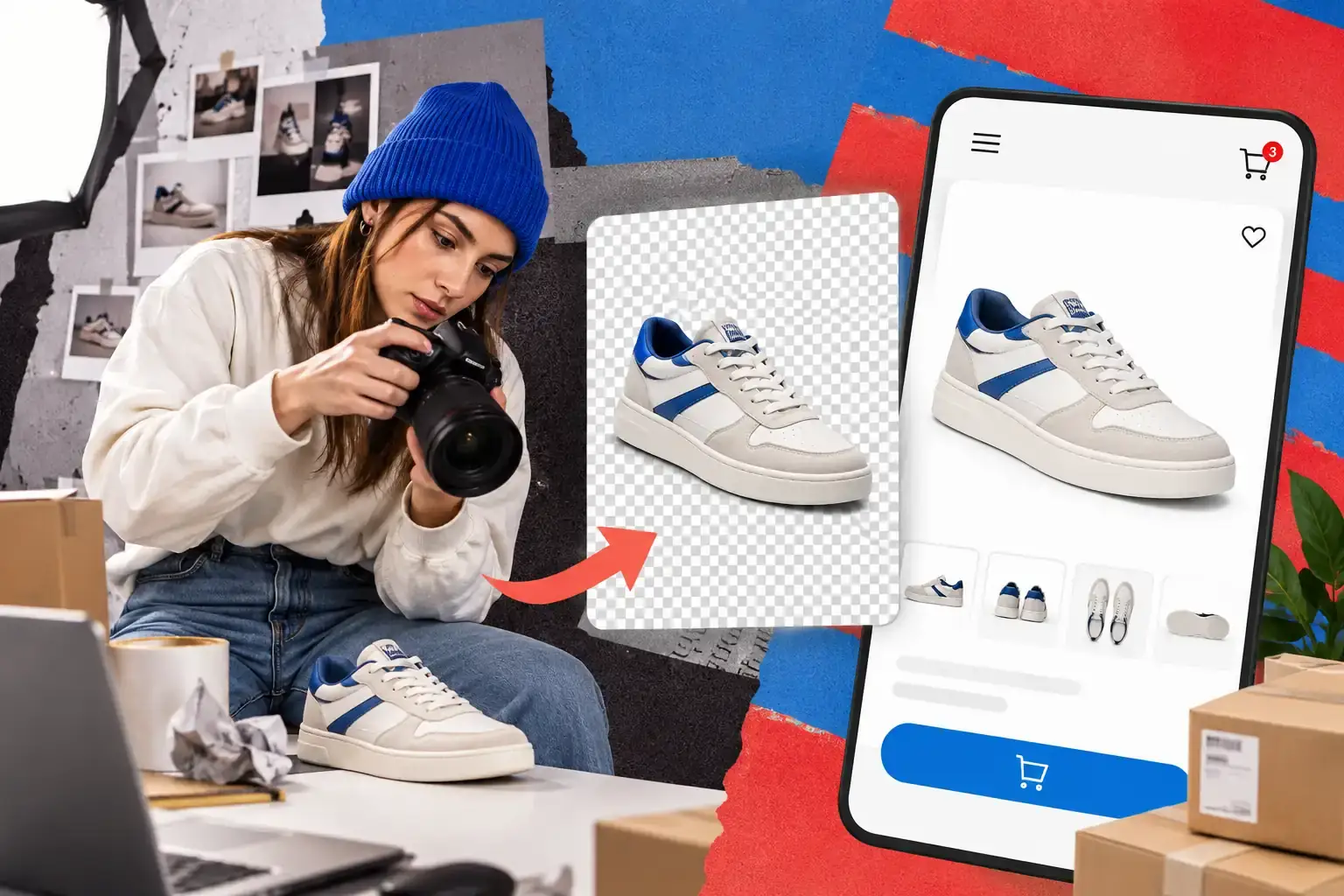
Preparing items for digital storefronts requires a clean, consistent look to capture buyer attention immediately. By using a product photo background remover, online sellers can eliminate messy home settings and present items on a pure white canvas. This standardized appearance builds consumer trust and directly improves conversion rates.

Ecommerce product photo setup showing a shoe isolated for a cleaner online store listing

Craft Polished Corporate Headshot Profiles from Anywhere You Work

Updating a LinkedIn profile or corporate directory no longer requires booking an expensive studio session. Job seekers and professionals can snap a picture anywhere and use a portrait background remover to swap distracting rooms for neutral tones. You get a high-quality headshot that makes a strong first impression on recruiters and clients.

Professional headshot variations showing a portrait prepared for resumes and profile pages

Design YouTube Thumbnails and Posts That Stop the Scroll

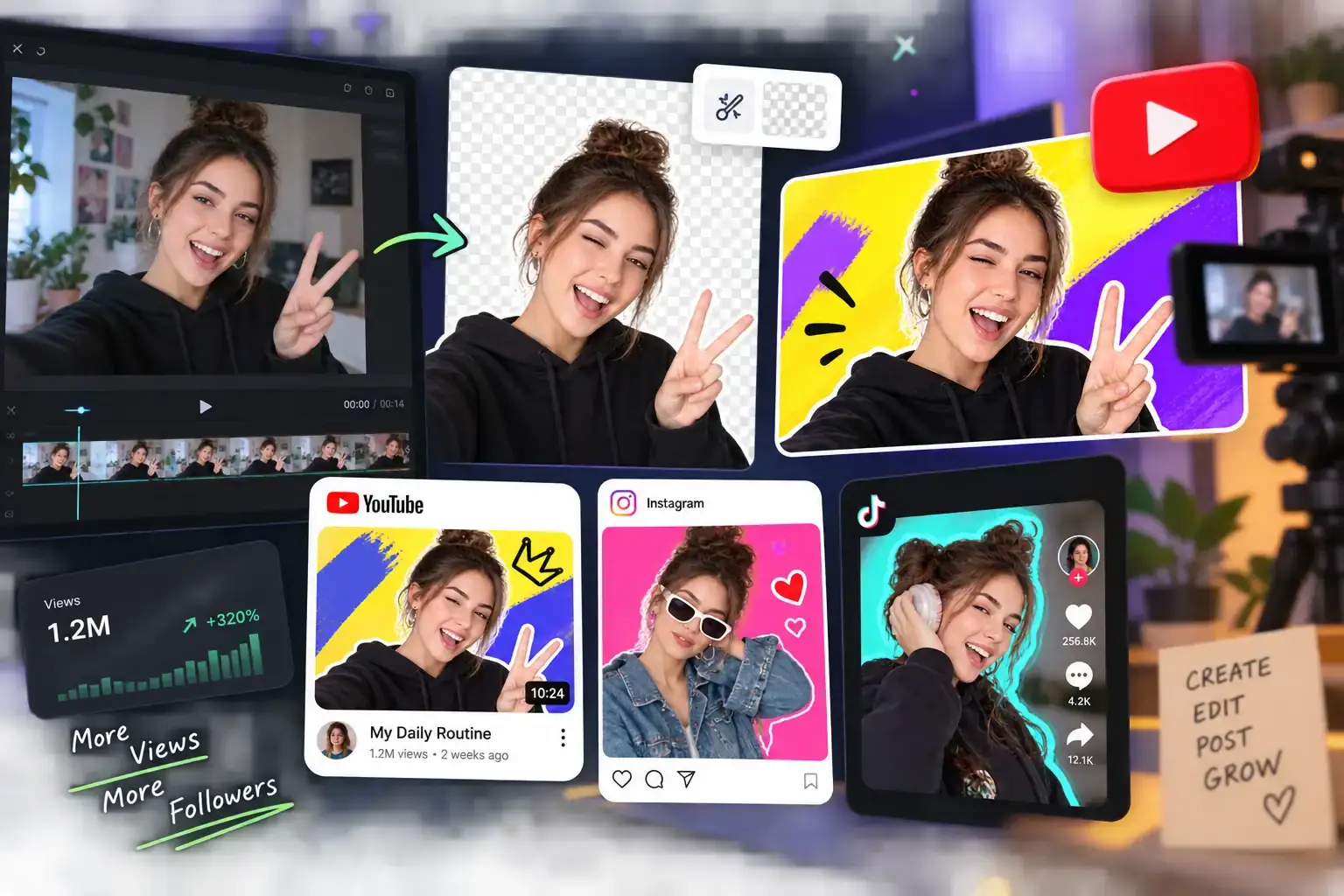
Standing out in crowded social feeds demands vibrant visuals where the main subject truly pops. YouTubers and influencers rely on a transparent background maker to isolate themselves from original video frames before layering bold text. Delivering crisp, engaging assets helps boost click-through rates and grows your audience faster.

Social content workspace showing a creator cutout placed into thumbnails and platform posts

Accelerate the Production of Seasonal Ad Promotional Graphics

Launching holiday promotions often means adapting one core product image into dozens of different visual themes. Instead of arranging new photo shoots, agency marketers can quickly remove bg from image files and generate new background settings for specific campaigns. This approach significantly reduces visual production costs while speeding up ad deployment.

Campaign planning board showing product cutouts adapted into seasonal promotional ad scenes

Cleanly Integrate Brand Logo Assets into Any Design Layout

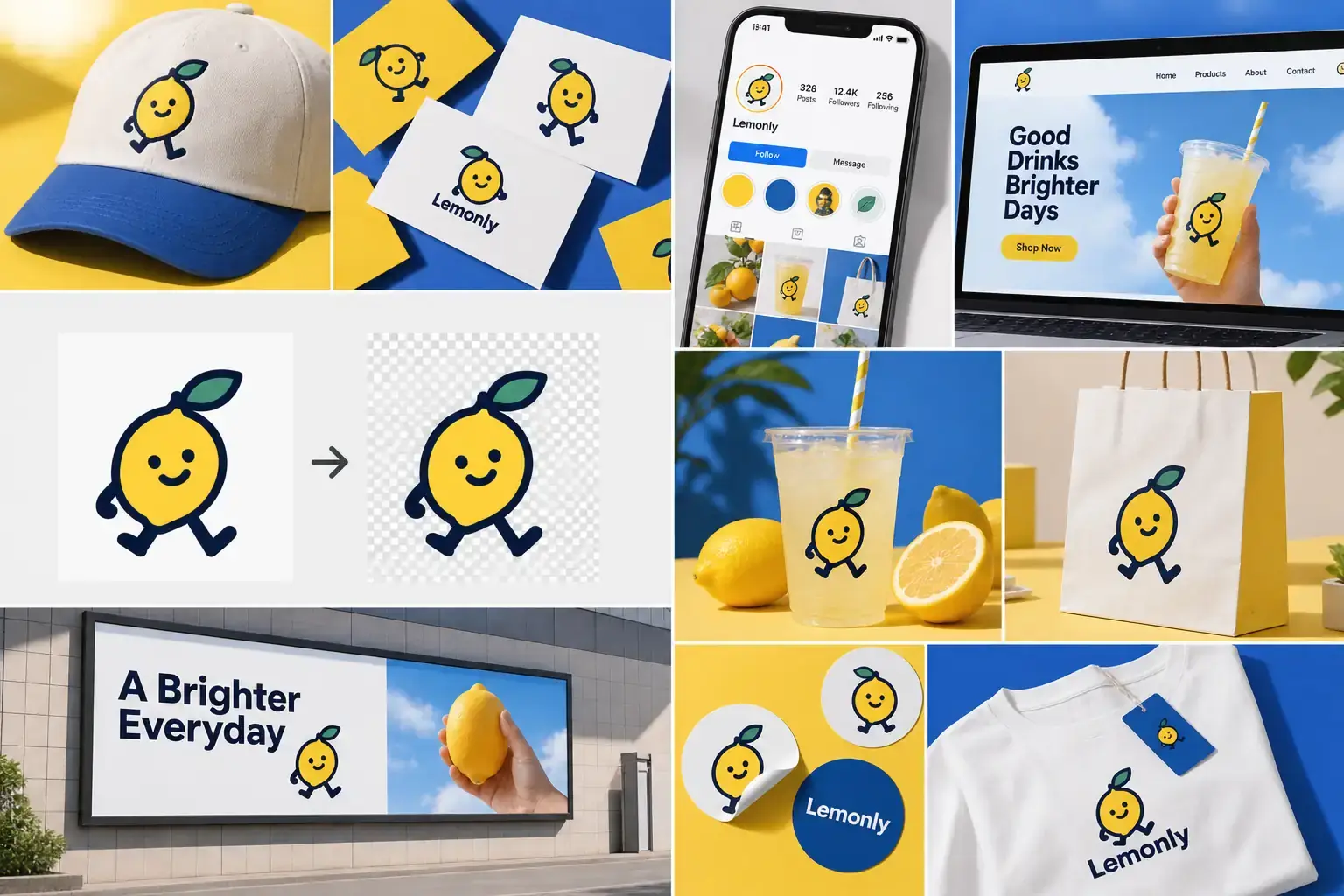
Placing company logos or graphic elements onto colored website headers or presentation slides requires completely clear borders. Utilizing a precise logo background remover ensures your brand assets blend perfectly without awkward white boxes. Graphic designers secure clean PNG files that maintain brand consistency across all digital materials.

Brand asset board showing logo cutouts applied across packaging, mobile screens, and display ads

Real Stories from Everyday Projects and Creative Work

Elara Vance

Independent Interior Decorator

“When shopping for clients, I often take pictures of specific furniture pieces in crowded showrooms. This tool clears away the messy store aisles instantly. I just get the clean cutout of an armchair or lamp, which I can drop directly onto my presentation boards.”

Callum Hayes

Elementary School Teacher

“Making visual worksheets for young students means I need lots of isolated clip art. I pull photos of animals, clear the backgrounds, and print them on study cards. The edges around the leaves and fur actually look natural instead of chopped off.”

Maeva Rossi

Bakery Owner

“I upload pictures of my daily pastries to update our digital menu board. It used to look terrible with my flour-covered kitchen counter in the back. Now I just drop the picture in, get a clear cutout, and put it on a dark chalkboard template.”

Gideon Thorne

Wedding Coordinator

“When putting together mood boards for clients, I need to extract specific floral arrangements from old venue photos. It handles the complicated stems and petals well enough that I no longer have to trace them by hand.”

Linnea Soren

Hobbyist Crafter

“I print custom stickers at home for my journaling group. Getting a completely transparent background used to be frustrating. This handles the extraction fast, and downloading in WEBP keeps the file size small for my old tablet.”

Thaddeus Cole

Community Organizer

“We organize local charity drives and frequently need flyers. We take pictures of the donated items, remove the dark warehouse background, and put them on bright layouts. It is straightforward and does exactly what we need without a complicated interface.”

Frequently Asked Questions

An AI Background Remover uses AI to identify the main subject in an image and remove the original background. After uploading a photo, you can get a cleaner visual asset that is easier to edit, without masking everything by hand.
By default, the output has a transparent background, so you can place it into layouts, composites, or design projects. If you choose an opaque option in the image background settings, the result will follow that setting; if you want a new scene, describe it in the prompt.
The process is designed to preserve the subject’s shape, edges, and details where possible, including hair, fur, accessories, small items, and transparent or semi-transparent areas. For complex images, you can add instructions in the prompt to clarify what should stay.
PNG is the better choice when you need a transparent background. WEBP works well for lighter web use, while JPEG is suitable when you have selected an opaque background for display, sharing, or everyday design work.
Yes. After signing up and logging in to HeyTop AI, you can receive free credits to try background removal. For heavier use or advanced features, check the pricing page and choose a subscription that fits your needs.
Yes. The base prompt helps preserve the subject’s proportions, color, texture, lighting, and fine edges. You can edit it based on your image, add details you want to keep, or describe a new background you want to generate.

Remove Image Backgrounds and Create Cleaner Visuals in Seconds

Start Removing Backgrounds