GPT Image 2.6: AI Image Creation, Editing & Animation

Experience GPT Image 2.6 on HeyTop AI to turn text or reference images into high-quality visuals. From developing new concepts and refining specific details to creating looping animations, shape your work around your creative needs.

Reference images
Model

Loading models…

Preview
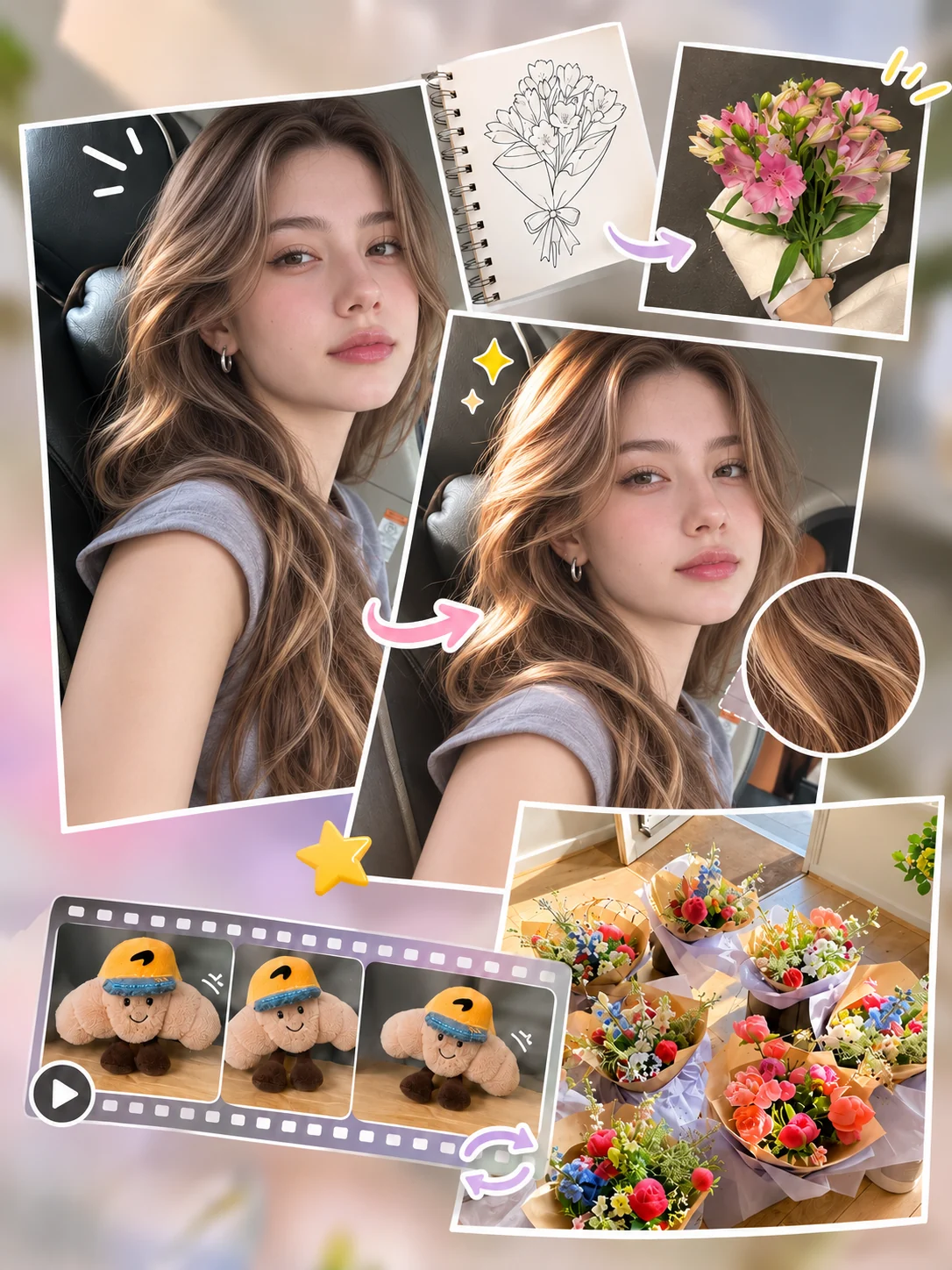
Portrait collage with reference photos, a flower bouquet, character frames, and colorful compositions

What is GPT Image 2.6?

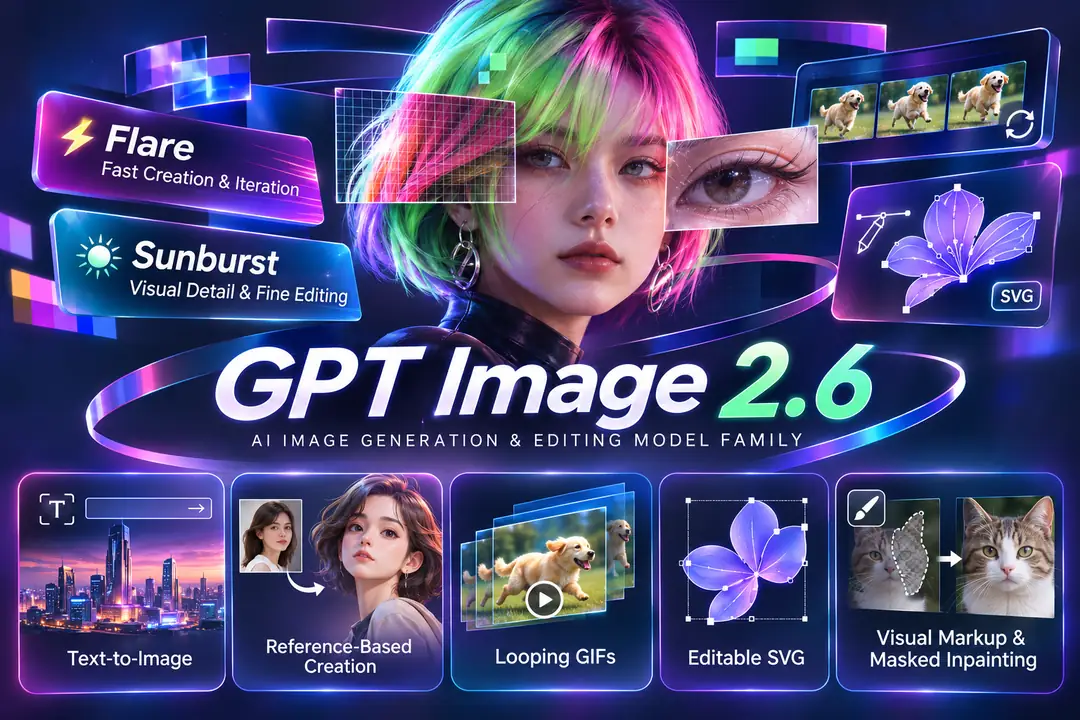
GPT Image 2.6 is OpenAI’s latest AI image generation and editing model family, with Flare for fast creation and iteration and Sunburst for visual detail and fine editing.

Both versions support text-to-image and reference-based image creation, looping GIFs, and editable SVG graphics. Visual markup and masked inpainting help guide changes to selected areas of existing images.

GPT Image 2.6 overview showing Flare, Sunburst, image editing, GIFs, and SVG graphics

What Are the Core Features of GPT Image 2.6 AI Model?

Built for adaptable visual production, GPT Image 2.6 offers the control needed to structure layouts, iterate on specific details, and format outputs for various media platforms.

Create 4K Images with Complex Layouts and Text

Planning strength can be adjusted independently of rendering quality to help handle multiple subjects and text placement. Output options up to 4K support posters and illustrations that bring character positions, headline space, and background details into one composition.

Try 4K Image Generation
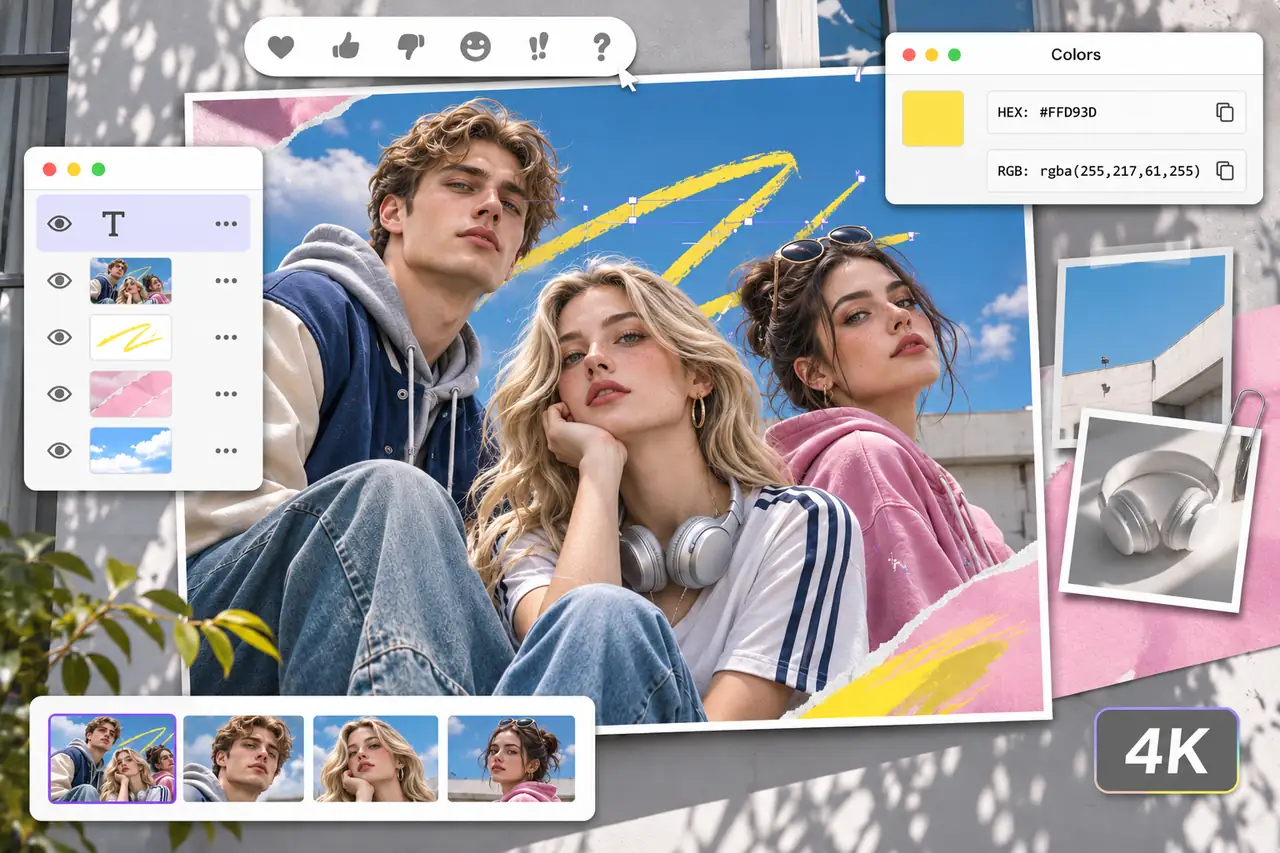
Layered portrait composition with text, color controls, reference images, and a 4K output badge

Revise Marked Details or Rework Targeted Areas

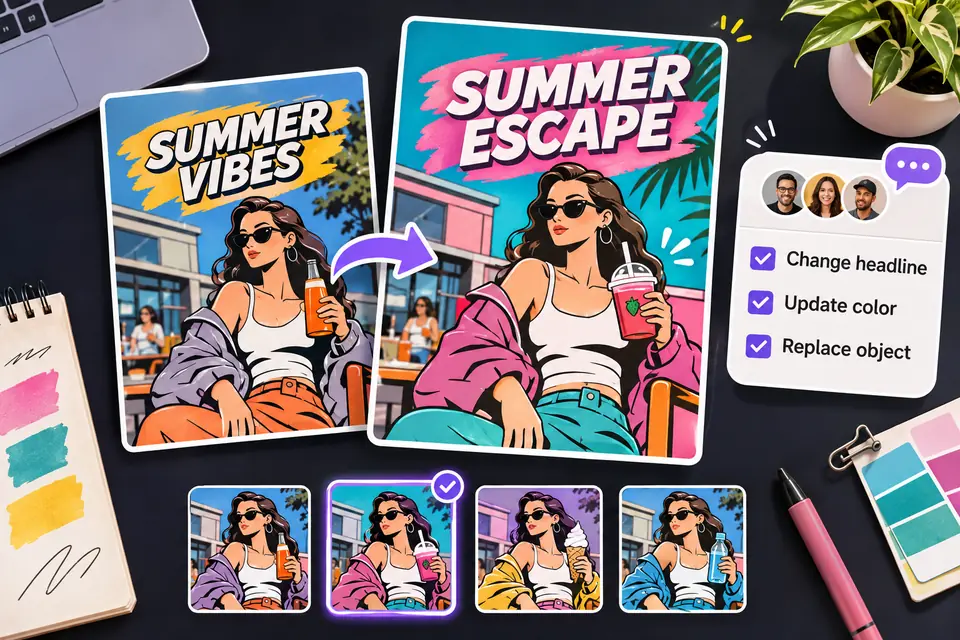
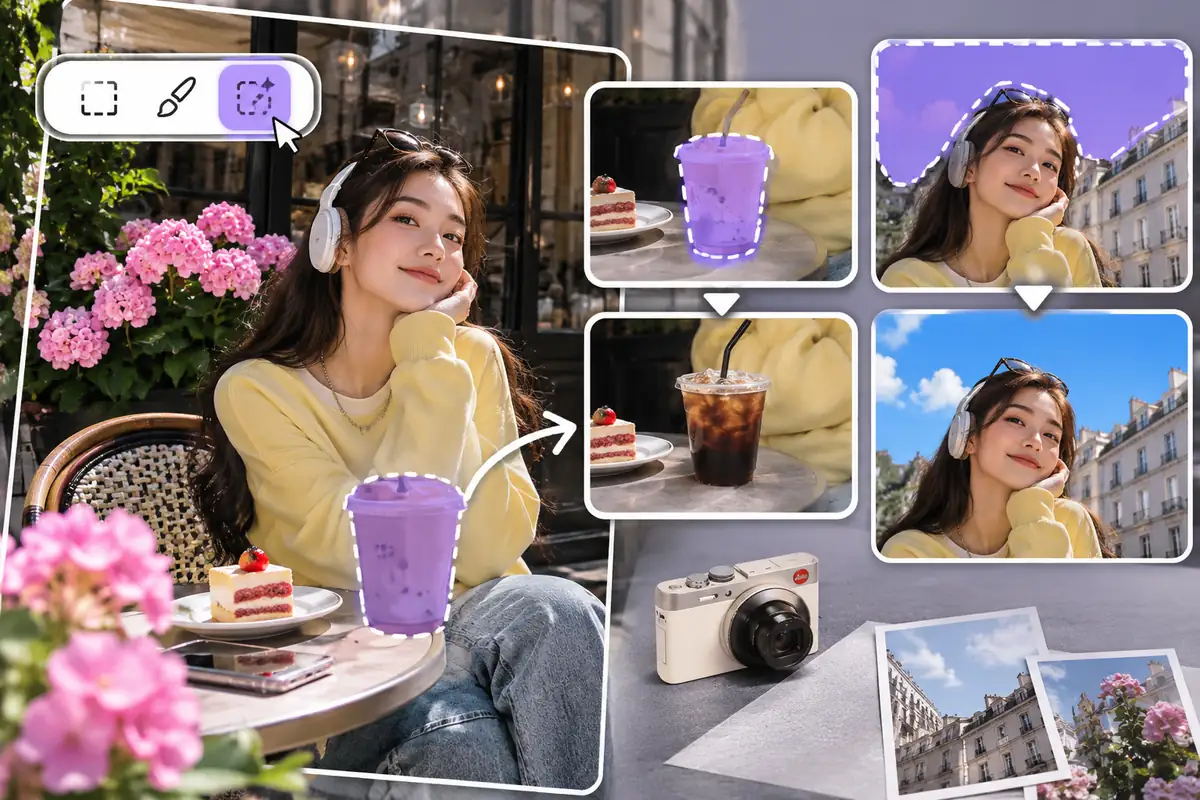
Visual markup identifies details for modification, while masked inpainting guides the area to be regenerated. These tools support focused updates to headlines, objects, or backgrounds, helping you address specific feedback within an existing design.

Edit Targeted Image Areas
Selected photo regions used to revise a drink, clothing, and background details in a cafe scene

Guide Image Creation with Multiple References

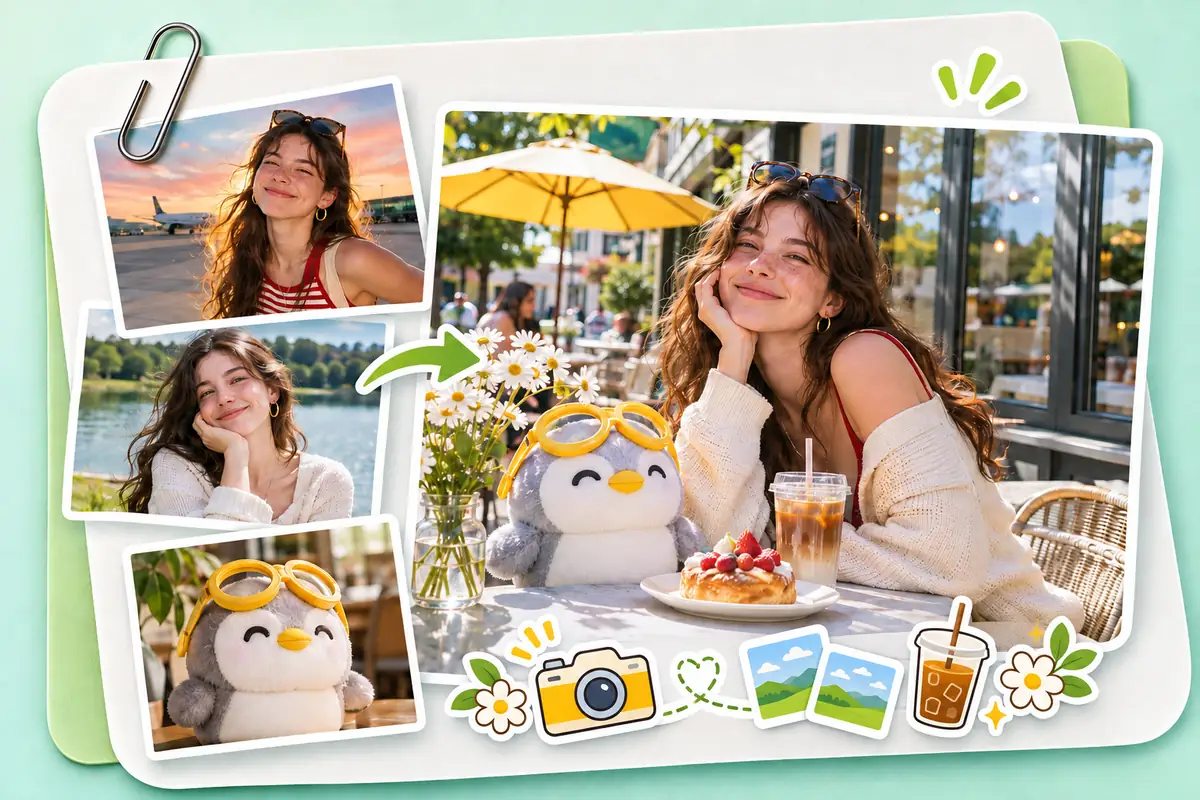
Multiple reference images provide guidance on a subject’s appearance, while written instructions describe the new setting and style. This helps retain recognizable features of a brand mascot or product across images with different backgrounds and lighting.

Create Scenes from References
Portrait and character references combined into a sunny outdoor cafe composition

Generate Expressive Looping Reaction GIFs

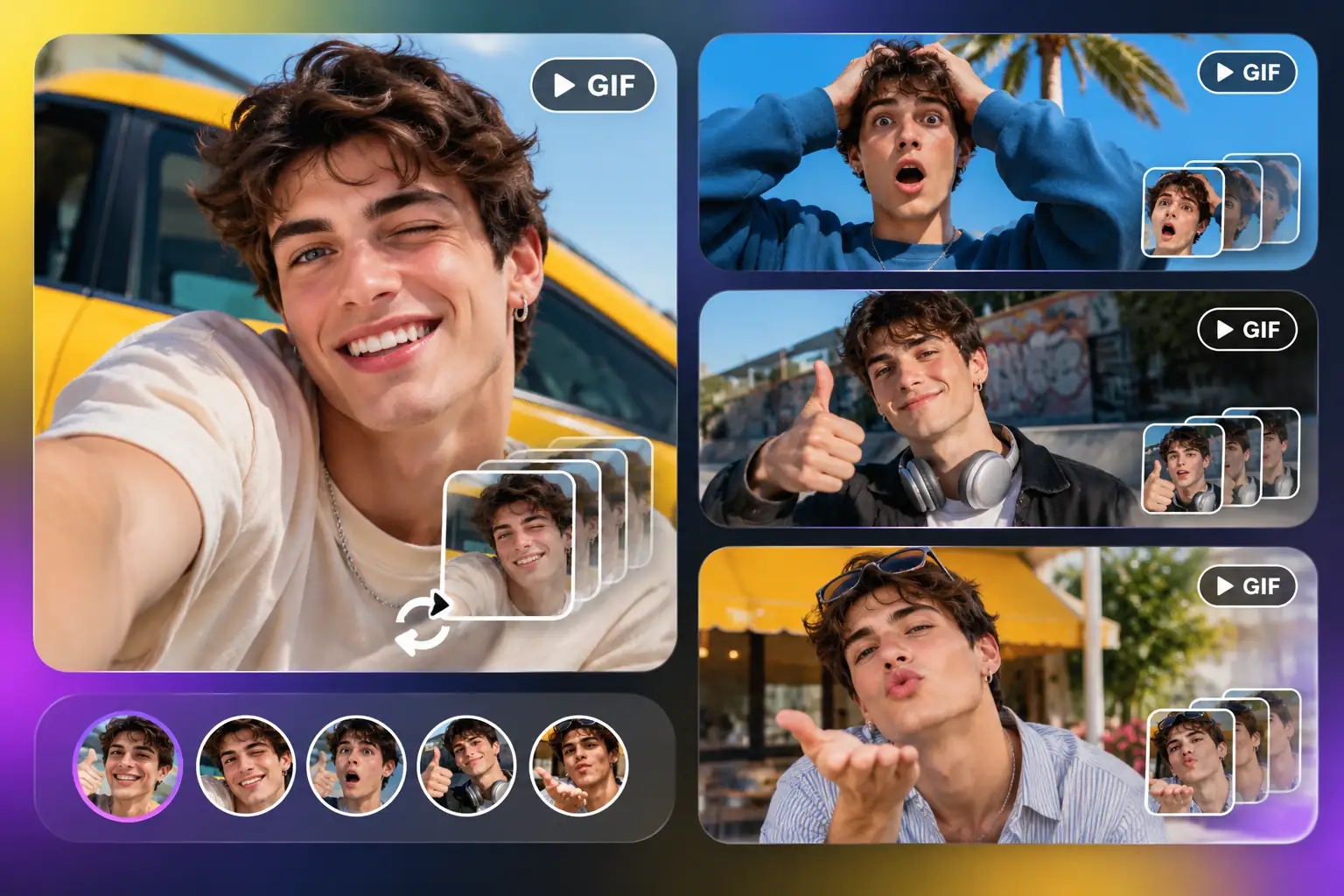
GIF generation produces short animations featuring smiles, winks, surprised expressions, and character gestures. These repeating reactions suit greetings, playful replies, and emotional responses in chats and social posts.

Make My Reaction GIFs
A smiling character shown in several expressive reaction frames and GIF previews

Turn Text into Scalable SVG Illustrations and Icons

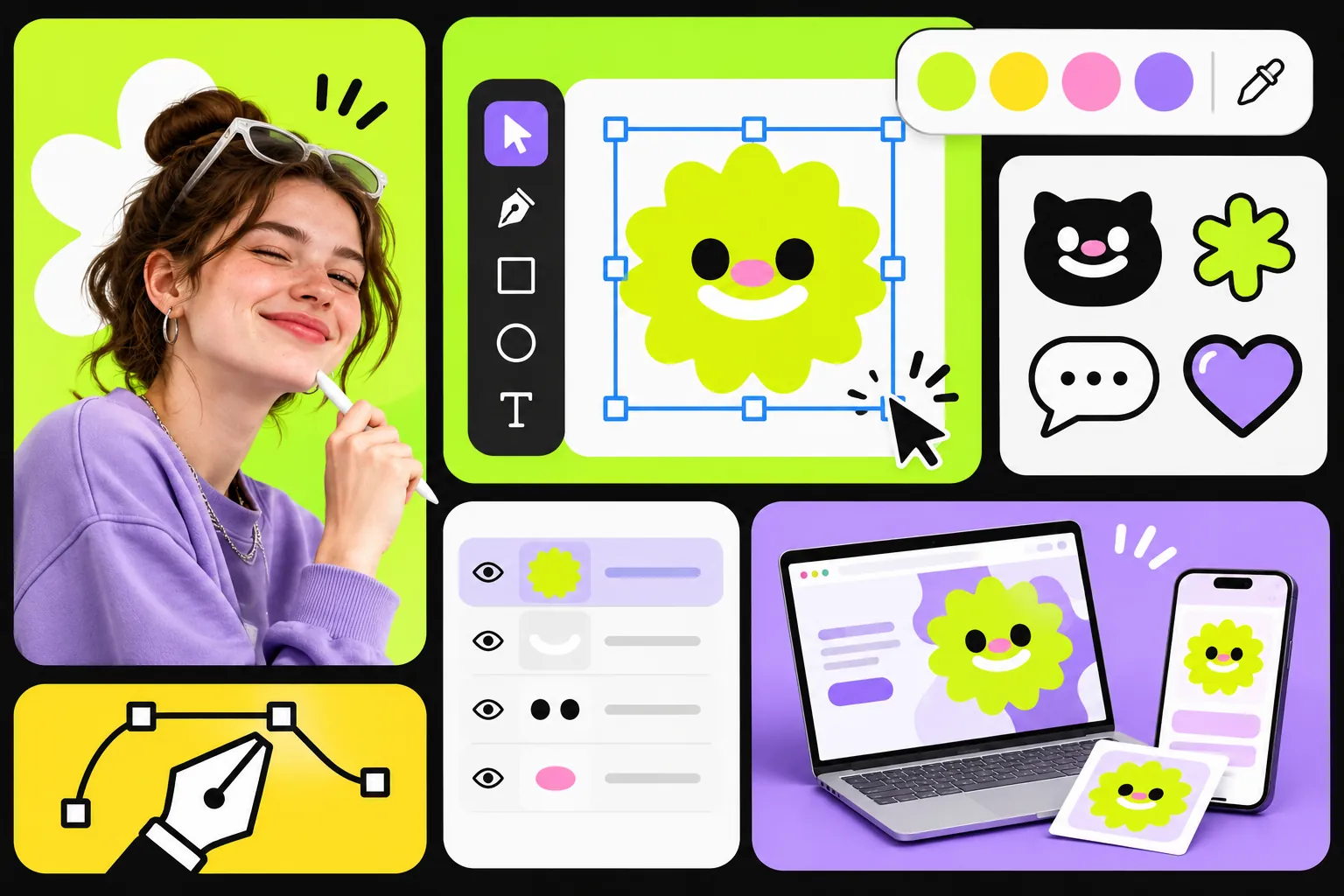
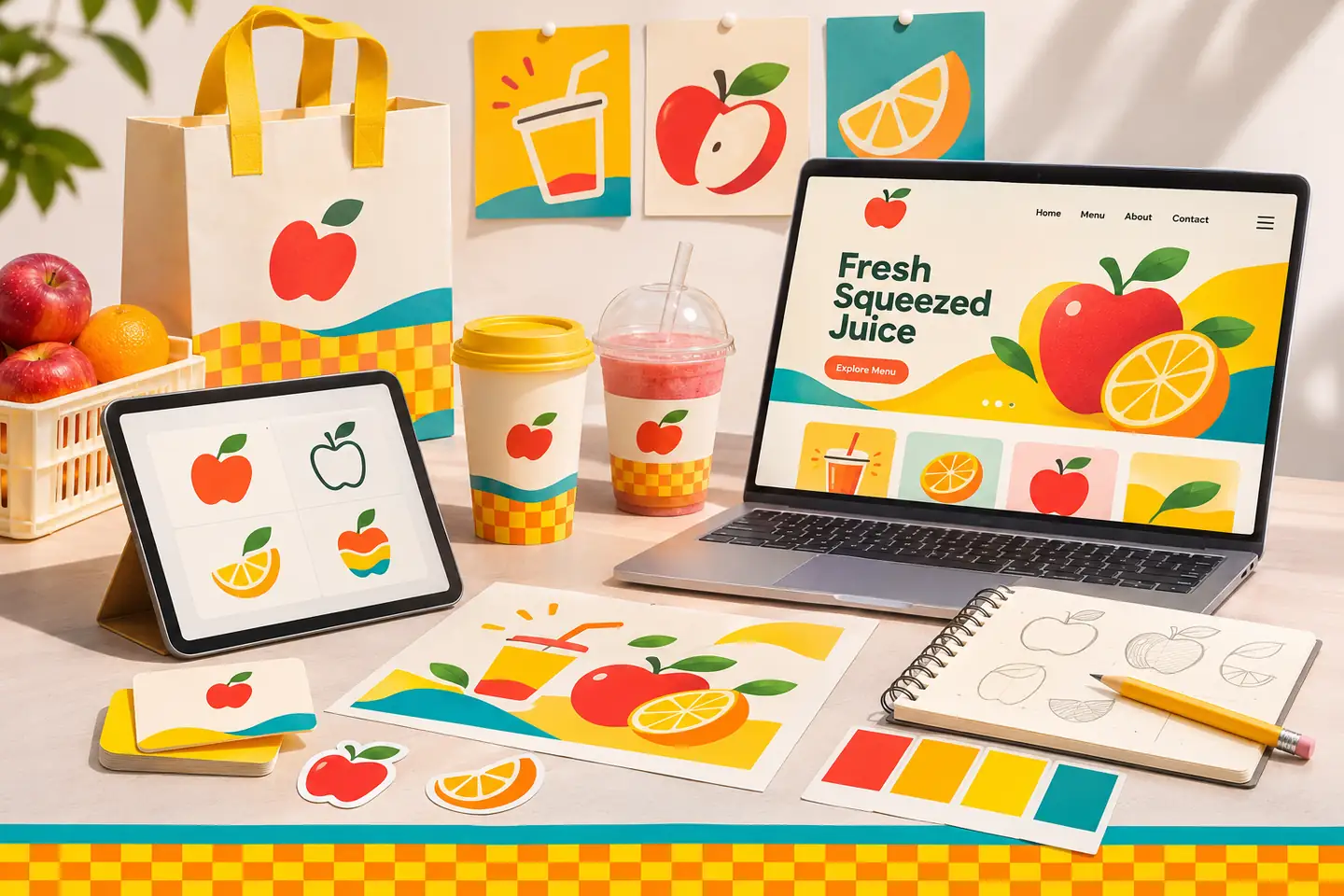
SVG generation produces graphic assets with editable shapes, paths, and colors. Compatible design software allows further changes to size, color, and arrangement, making the artwork adaptable for websites, app interfaces, and print layouts.

Create Editable Vector Graphics
Editable flower illustration with vector handles, color controls, and matching graphic icons

How to Use GPT Image 2.6 Online

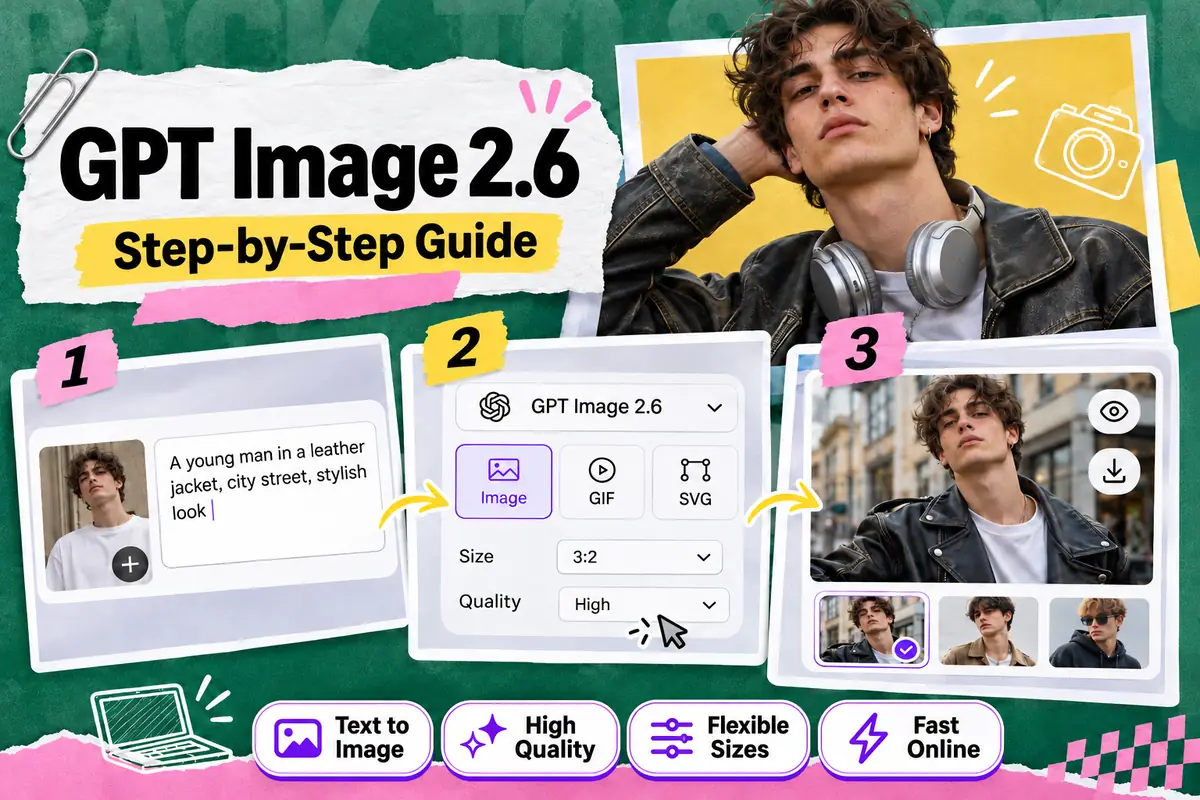
Start with an idea or an image you want to change, and follow these three steps on HeyTop AI.

Three-step GPT Image 2.6 workflow showing a prompt, output settings, and a downloadable portrait

Describe What You Want to Create

Select GPT Image 2.6 and describe what you have in mind. For image editing, add your reference and explain which parts you want to change.

Choose Your Format and Settings

Choose an image, GIF, or SVG output to match your project. Then adjust the available size and quality options before generating.

Review the Result and Download

Generate your result and preview the details. You can revise your request and try again, or download the version you’re happy with.

Why Choose GPT Image 2.6 AI Image Generator?

Faster Image Generation

Get drafts and revisions sooner, keeping ideas moving while you explore different creative directions.

Multiple Results to Compare

Generate 1–4 static images per request to compare visual options before developing your preferred version.

15 Aspect Ratios

Choose from 15 aspect ratios, including 21:9, 9:21, and 3:1, to accommodate panoramic visuals, tall layouts, and wide display banners.

Support for Detailed Prompts

With support for up to 32,000 characters, prompts can include subject details, scene requirements, style preferences, and elements to avoid.

What Can You Create with GPT Image 2.6?

See how GPT Image 2.6 fits into real projects, from preparing launch materials to working through client feedback. Explore what you can make and how it can support the next stage of your work.

Animated Stickers for Greetings and Everyday Reactions

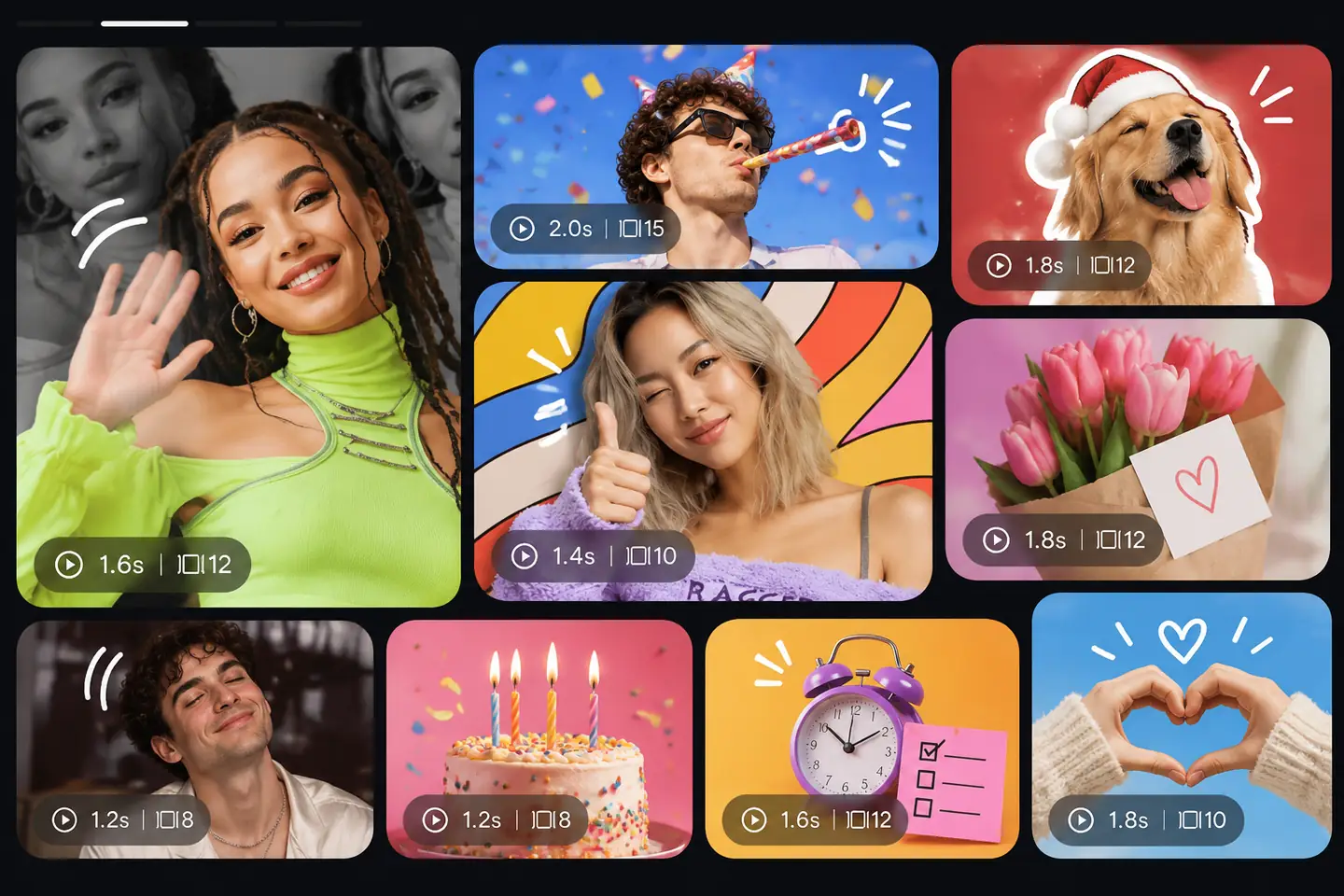
Social editors and creators can make short animated stickers for seasonal greetings, event reminders, and thank-you messages. A wave or nod adds a personal touch to posts and replies, giving communities another way to express a reaction.

Social reaction previews featuring waves, birthday candles, flowers, hearts, and playful expressions

Frequently Asked Questions

Can I keep the same character or product across different scenes?

Yes. Reference images can help retain recognizable features while you explore new settings. Specify what should stay consistent, such as facial features, product shape, or packaging. Details may vary between results, so review the subject before use.

How can I get more accurate text in generated images?

Put the exact wording in quotation marks and specify where it should appear. For longer copy, consider adding the text in a design editor afterward. Check spelling, spacing, and readability before publishing.

Will editing one area leave the rest of the image unchanged?

Not always. Markup and masks guide the requested edit, but other details may also change. Describe both what to modify and what to retain, then review the whole image, especially nearby objects and important text.

What kinds of animation work well as looping GIFs?

Simple movements such as waving, blinking, or rising steam are good starting points. Focus on one clear action and check that the ending connects naturally with the beginning. Use a video tool for longer sequences, multiple shots, or sound.

Can I edit the SVG files after downloading them?

Yes. Open the downloaded SVG in compatible vector design software to adjust its paths, shapes, and colors. Check how the artwork appears in your editor before making changes; it may still need cleanup for your project.

Can I generate images with a transparent background?

Yes. Choose a transparent background and save the result as PNG or WebP, since JPEG does not preserve transparency. Before adding the image to a page or another design, check the subject’s edges against both light and dark backgrounds.

Create Your Next Image with GPT Image 2.6 Today

★★★★★ 4.8 / 5 Made for Creators

Start Creating Now