
Long PDFs often contain useful information, but finding the right details can take time. Important content may be spread across different chapters, tables, footnotes, and appendices. Traditional search can locate exact words, but it is less effective when you need to understand a topic, summarize a section, extract specific information, or compare several documents.
An AI ChatPDF tool provides a more interactive solution. You can upload a document, ask questions in natural language, extract relevant information, and identify useful sections without reading every page first.
This guide explains how to chat with a PDF using HeyTop AI and how to get clearer, more practical answers from its PDF chat tool.
What Is AI ChatPDF, and What Can It Do?
AI ChatPDF refers to an AI-powered document-reading tool that lets you interact with PDF content through natural-language questions. It combines document search, summarization, information extraction, and conversational analysis in one workflow.
Unlike a standard PDF reader that mainly finds matching keywords, an AI PDF tool can interpret information in context. For example, you can ask it to explain a technical concept, summarize a chapter, identify evidence supporting a conclusion, or organize selected data into a table.
Depending on the document and its layout, an AI PDF chat tool can help you:
● Summarize reports, research papers, and manuals;
● Create a structured document outline;
● Explain complex information in simpler language;
● Extract dates, figures, definitions, and action items;
● Answer questions about specific sections;
● Compare information across multiple PDFs when multi-document analysis is available;
● Identify relevant pages or sections for further review.
These features are useful for students, researchers, analysts, and professionals who regularly work with long documents. However, AI ChatPDF should be treated as a reading assistant rather than a replacement for the original PDF. Important figures, research findings, and contract terms should always be checked against the source document.
How to Get More Useful Answers From AI ChatPDF
The quality of an AI-generated answer often depends on how clearly the task is described. A focused prompt helps the tool understand what information you need and how the result should be presented.
Focus on One Task at a Time
Avoid asking for a summary, translation, comparison, and evaluation in one prompt. Instead, divide a complex task into several steps.
For example, start by requesting a summary. Then ask for supporting evidence. Finally, ask the tool to organize the reviewed information into a table.
This step-by-step approach makes the results easier to understand and verify.
Define the Scope
When working with a long document, mention the relevant chapter, heading, section, or page range. If you upload multiple PDFs, identify the target document by file name.
Instead of asking:
What does the report say about risk?
Try:
Summarize the operational risks discussed in Section 4 of the 2025 Annual Report.
A specific scope helps reduce irrelevant or overly general answers.
Request a Clear Format
State whether you need bullet points, a table, numbered steps, or a short paragraph. For data extraction, list the exact fields you want.
For example:
Extract the project name, deadline, responsible team, and current status. Present the results in a four-column table.
You can also improve an initial answer with follow-up questions. Ask the tool to focus on a particular section, add missing details, or separate information explicitly stated in the PDF from its own interpretation.
How to Chat with a PDF in 6 Simple Steps
Step 1: Check and Upload Your PDF
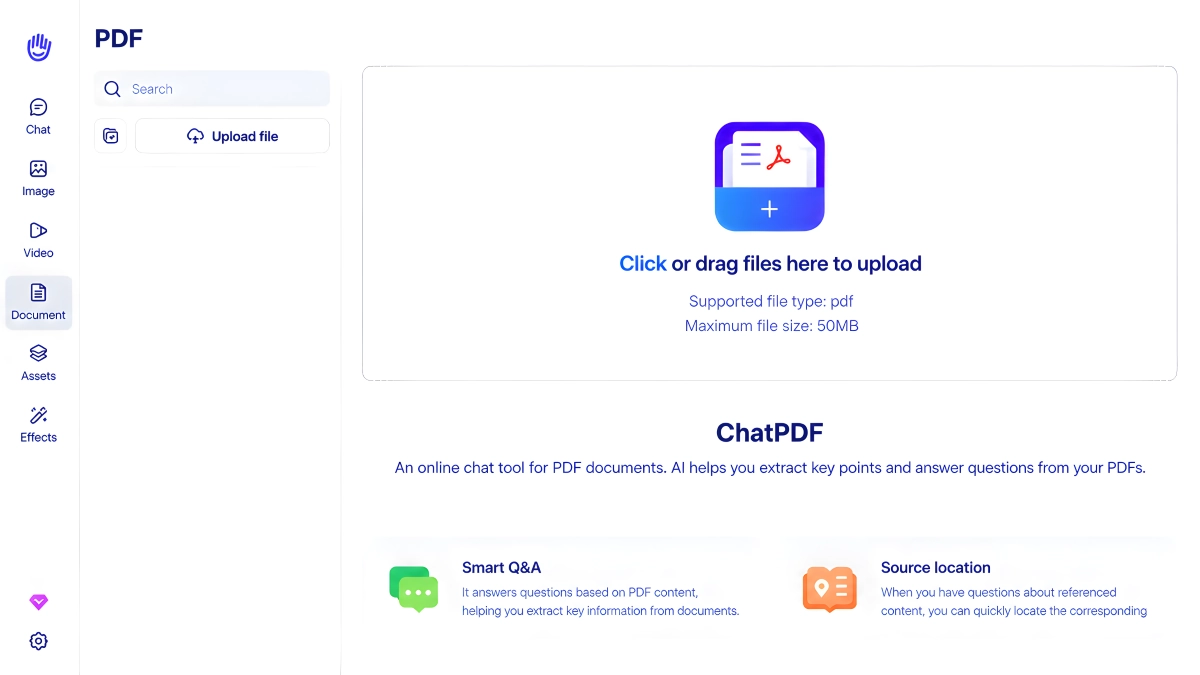
Before uploading, make sure the PDF opens correctly and that its text, tables, and scanned pages are clear and readable. Then click Upload File or drag the document into the upload area and wait for processing to finish.
Step 2: Select and Preview the Document
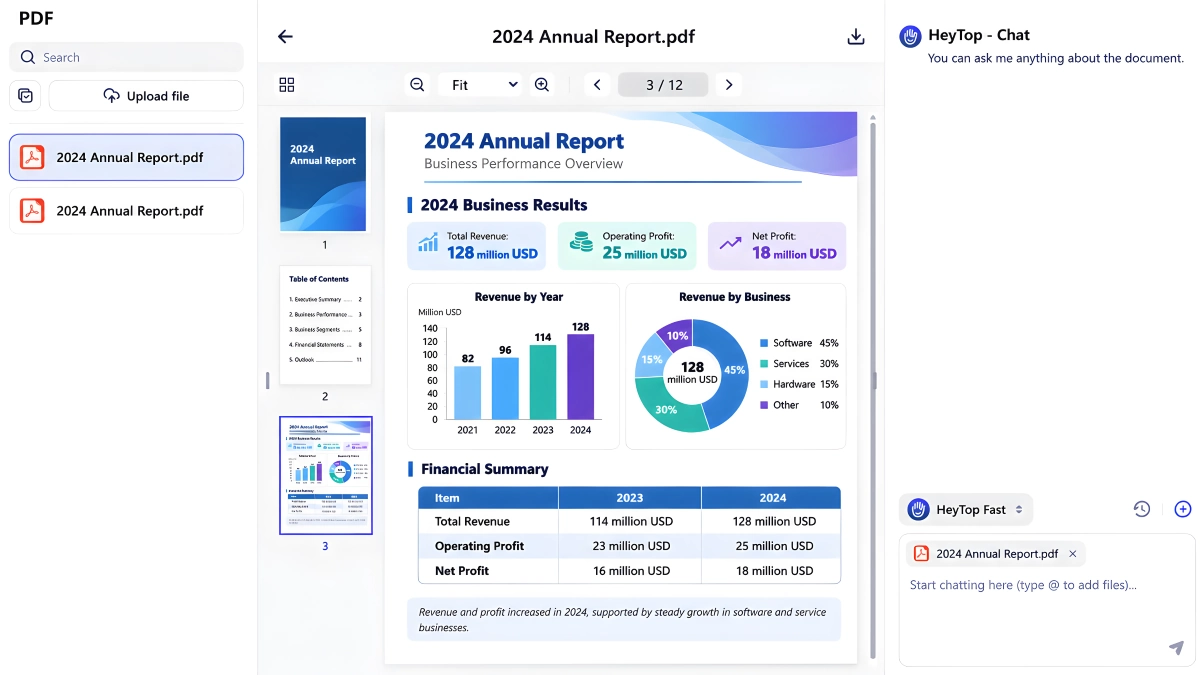
Open the uploaded PDF from the file list and briefly review its headings, page structure, tables, and charts. Use the page navigation and zoom controls to locate the content you want to analyze.
When uploading several documents, give each file a clear name, such as “2024 Annual Report” and “2025 Annual Report,” so they are easy to identify in later questions.
Step 3: Summarize a PDF With AI to Get an Overview
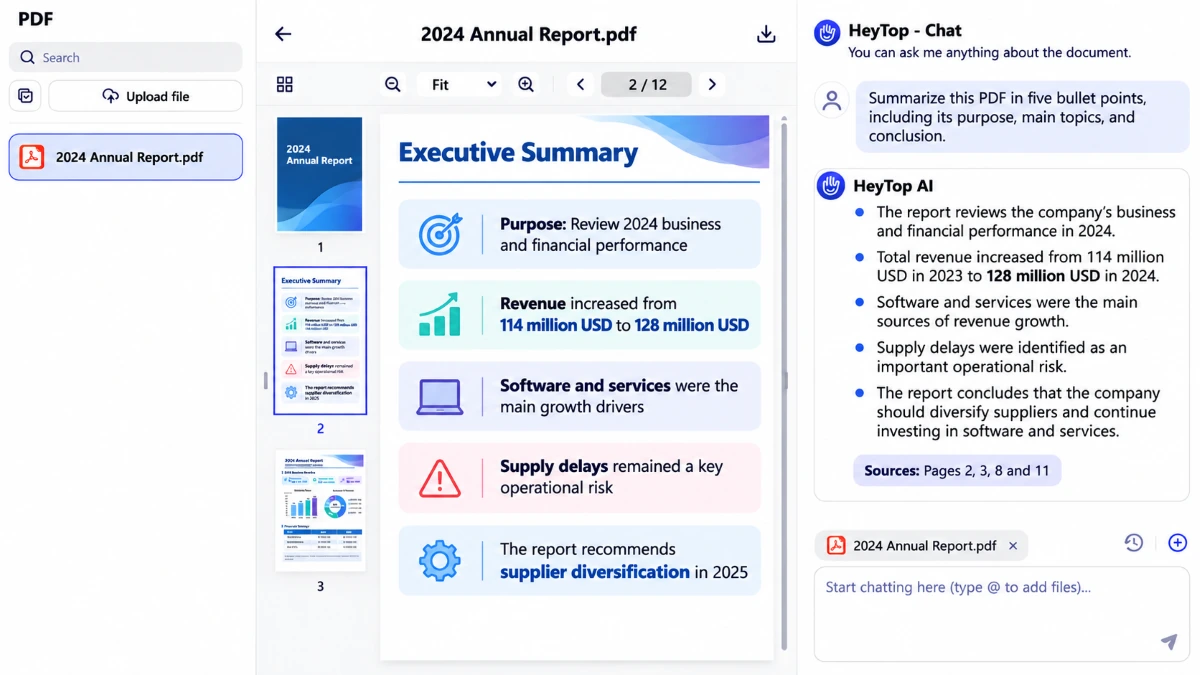
Begin by asking HeyTop AI for a summary or outline. This lets you summarize a PDF with AI and gain a quick understanding of the document’s purpose, structure, key points, and conclusion before exploring specific details.
For example:
Summarize this PDF in five bullet points, including its purpose, main topics, and conclusion.
For a more targeted result, specify the audience, length, and focus:
Write a 150-word executive summary for a project manager, focusing on risks, deadlines, and recommended actions.
You can also generate a PDF summary online to quickly identify the document’s main points and structure.
Step 4: Ask Focused Questions About a PDF
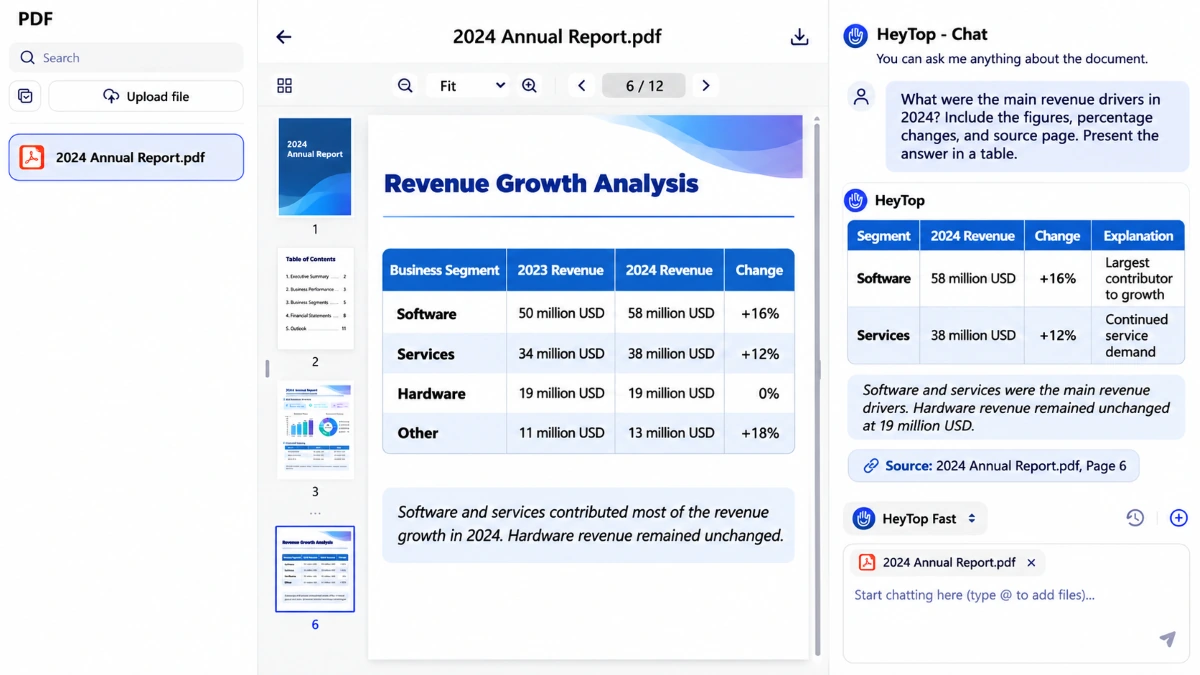
Once you understand the document, you can ask questions about a PDF by narrowing each question to a specific section, topic, or data point. Include the details you need and the format in which you want the answer.
Instead of asking:
What does this paper say about the research?
Ask:
What research method is described in Section 3? Include the sample size, data-collection process, and stated limitations.
You can also ask the tool to explain a technical term, extract figures and dates, summarize a process, interpret a table, or organize selected information into a clear format.
Step 5: Compare Multiple PDFs With AI
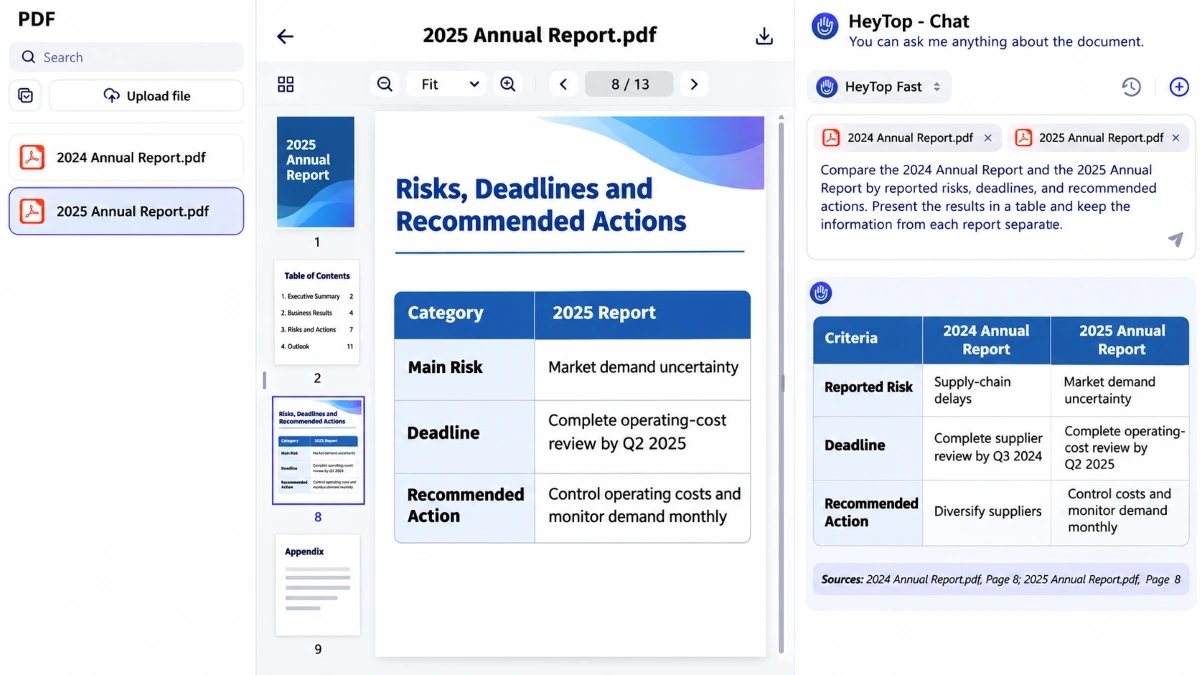
To compare multiple PDFs with AI, add the relevant documents to the conversation, identify each one by file name, and state exactly what you want to compare. Clear criteria help keep information from different documents separate.
For example:
Compare the 2024 Annual Report and the 2025 Annual Report by reported risks, deadlines, and recommended actions. Present the results in a table and keep the information from each report separate.
For research papers, you can compare the research question, methodology, sample size, findings, and limitations in the same way.
This workflow depends on whether multi-document analysis is available in the current version of the tool.
Step 6: Check the Answer Against the PDF
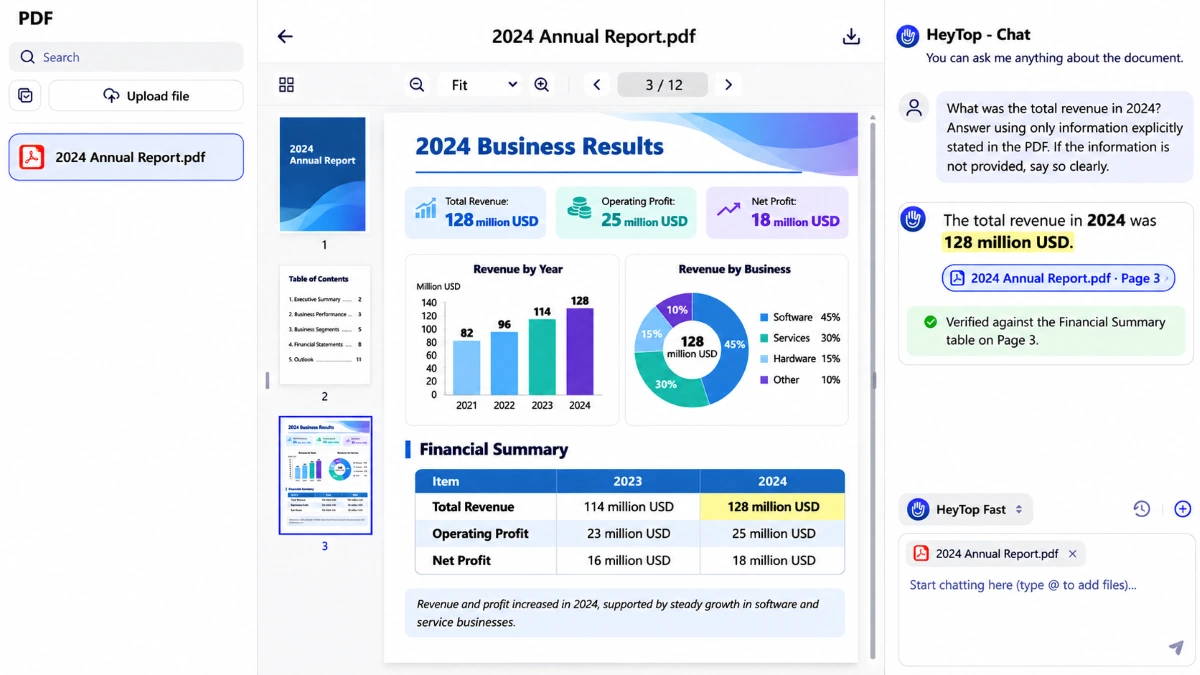
Review important answers against the original text, especially names, dates, figures, percentages, units, table values, and qualifying language. Use the document viewer to return to the relevant page and read the surrounding context.
For stricter source-based answers, ask:
Answer using only information explicitly stated in the PDF. If the requested information is not provided, say so clearly.
This final check is especially important when working with academic, financial, legal, medical, or compliance documents.
AI ChatPDF Example: Comparing Two Research Papers
Suppose you need to compare two studies for a literature review. First, ask the tool to summarize each paper separately:
For each paper, summarize the research question, methodology, sample, main findings, and limitations. Keep the two summaries separate.
Then request a structured comparison:
Compare the two papers in a table. Include the research objective, study design, sample size, main result, and limitation.
Before using the result, check the sample sizes, findings, limitations, and available source references against the original papers.
This short, staged workflow is usually more reliable than requesting a complete literature review in one prompt.
Useful AI PDF Chat Prompts
The following prompts can be adapted to different tasks.
Summarizing
Summarize each section in two bullet points, then state the document’s overall conclusion.
Create an executive summary focused on key decisions, risks, and next steps.
Extracting Information
Extract all dates, amounts, and percentages related to the project budget. Include the source pages when page references are available.
List the evidence supporting the author’s main argument.
Comparing Documents
Compare these documents by purpose, methodology, findings, and limitations. Label each point with its source file.
Compare these two contract versions and list changes related to payment, termination, and renewal.
Checking Answers
Provide a source page for every factual statement when page references are available.
If the document does not explicitly answer the question, state that the information is not provided.
Common AI ChatPDF Problems and How to Fix Them
Problems Chatting with Scanned PDFs
The ability to chat with scanned PDFs may be affected when a file is a low-quality scan, contains rotated pages, includes image-based text, or uses an unusual layout. Try uploading a clearer version, correcting the page orientation, or saving the relevant pages as a separate PDF.
For scanned documents, text recognition results may depend on image quality, page orientation, text size, and layout. Compare important extracted text and figures with the visible page.
The Answer Is Too General
The prompt may be too broad. Add a topic, section, page range, audience, or output format.
Instead of:
Summarize this report.
Try:
Summarize the market risks in Sections 4 and 5 in five bullet points.
Extracted Table Values Are Incorrect
Complex tables, merged cells, footnotes, and image-based text can be difficult to process. Ask the tool to analyze one table at a time and specify the page, rows, columns, and units you need.
For example:
Analyze the table on page 18. Extract the revenue, operating costs, and net income for each year. Preserve the original units and include relevant footnotes.
Always check important figures against the original table.
Frequently Asked Questions About AI ChatPDF
Can AI ChatPDF Summarize a Long PDF?
Yes. It can generate an overall summary, a section outline, or a list of key points. For very long documents, processing one section at a time may preserve more detail and produce more focused answers.
Are AI ChatPDF Answers Always Accurate?
No AI document tool is completely error-free. It may overlook context, misread a table, or interpret complex content incorrectly. Review the relevant source pages or sections before relying on important information.
Can I Chat With Multiple PDFs at Once?
Yes. You can upload multiple PDFs to HeyTop AI and chat with them in the same conversation. Use descriptive file names and clearly state your comparison criteria to keep information from each document separate.
Can I Chat With Scanned PDFs?
Text recognition may allow an AI PDF tool to process scanned documents, but the results depend on image quality, page orientation, text size, and layout. Check important extracted information against the visible page.
Conclusion
With this guide, you can quickly summarize PDFs, extract key information, ask focused questions, and compare multiple documents. Try these methods with the HeyTop AI PDF chat tool to make PDF reading and analysis more efficient.