
Choosing an AI presentation maker involves more than reviewing the first draft. You also need to consider how it handles revisions, works with existing material, and supports the format you need to deliver.
This guide compares Gamma, Canva, HeyTop, Beautiful.ai, Plus AI, and Presentations.AI across features, annual pricing, strengths, and limitations to help you narrow your options.
Details were compiled from official public sources and checked on October 30, 2026. Prices are in USD and may vary by location, taxes, billing terms, and subsequent updates. This is a research-based comparison, not a scored hands-on review.
Why Consider Switching Your AI Presentation Tool?
Switching often starts with a recurring frustration: extensive rewriting, awkward layout adjustments, or a subscription that no longer meets your needs. Identifying that friction is more useful than comparing feature counts alone.
● Generated Slides Miss the Main Point
For a quarterly review, executives may focus on results and decisions, while operational teams need progress updates and specific issues. A draft dominated by background information may fall short, however polished it looks.
Consider how each option handles supporting material, organizes an outline, and lets you revise existing work without losing what is useful.
● Editing Feels Cumbersome
Some people prefer to position elements freely and fine-tune typography and white space. Others would rather select a layout and let the software manage alignment and spacing.
If minor changes take several attempts, a different editor may offer more value than additional templates.
● Subscription Limits Don’t Fit Your Work
An occasional classroom assignment and weekly client proposals call for different allowances, collaboration features, and export options. Generous free generation limits do not necessarily include the file formats or branding controls you require.
Check what your chosen tier covers across the entire process, from the first draft to final delivery.
AI Presentation Tools: A Quick Comparison
The table compares input options, editing features, exports, and annual pricing. Some advanced capabilities require a paid subscription; the sections below explain the practical differences.
Tool | Generation and Import | Editing and Key Features | Export and Sharing | Free Plan or Trial | Annual Pricing |
HeyTop AI | Conversational generation; Text to PPT, PDF to PPT, Word to PPT | Outline editing, varied template styles, revisions after generation | Editable PPTX downloads for sharing or delivery | Free credits to try the platform | Pro: $30/year; Max: $80/year; Ultra: $160/year |
Gamma | Conversational generation, outline revision, PDF and PPTX import | AI-assisted changes, smart layouts, freeform editing | Online sharing; PDF, PPTX, PNG, and more | Free plan; up to 10 slides per generation | Plus: $108; Pro: $216; Ultra: $1,080 per seat/year |
Canva | AI-generated outlines and slide designs | Drag-and-drop editor, visual assets, animations, real-time collaboration | PowerPoint, PDF, video, and online presenting | Free account with limited AI usage | Pro: $144/year; Business: $250/user/year; Enterprise: custom pricing |
Beautiful.ai | AI content generation with supporting files or links | 300+ Smart Slide layouts, automatic alignment and resizing | Online sharing, PDF, editable PowerPoint, and more | 14-day trial | Pro: $144/year; Team: $480/user/year; Enterprise: custom pricing |
Plus AI | Generation within PowerPoint and Google Slides; document uploads on Pro | Single-slide insertion, Rewrite for text revisions, Remix for layout changes | Continue editing and sharing in your existing application | 7-day trial with 1,000 AI credits | Basic: $120; Pro: $240; Team: $360; Max: $2,400 per user/year; Enterprise: custom pricing |
Presentations.AI | Conversational generation and document conversion | Adaptive layouts, brand extraction, presentation tracking and analytics | PowerPoint, PDF, and online sharing | Starter: 200 credits, up to 20 slides | Pro: $240/year; Gold: $1,200/year |
Deep Dive: What Does Each AI Slide Generator Do Best?
1. HeyTop AI: A Unified Suite for Content Generation and Document-to-PPT Conversion
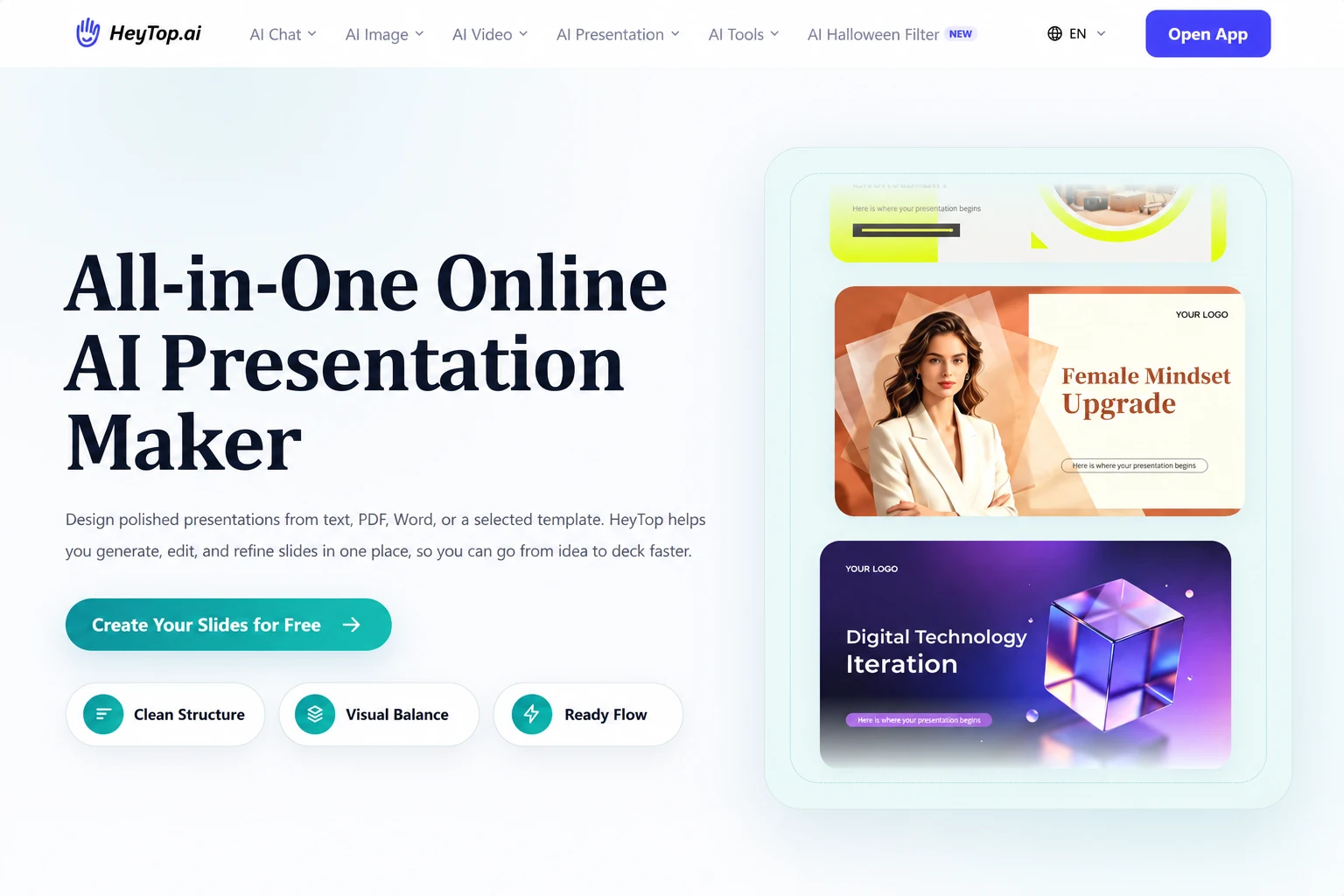
HeyTop AI Presentation Maker streamlines the process of creating presentations from scratch or transforming existing materials. Whether starting from a single sentence or an established report, users can focus on structuring their content, choose from diverse templates, and refine their slides—all within a unified platform.
Key Features
● Conversational Content Generation & Outline Editing: Begin by organizing the structure, then refine chapters, priorities, and slide sequencing.
● AI Text to PPT, PDF to PPT, Word to PPT: Allows users to import text, PDF, or Word documents directly, eliminating the hassle of copying content manually into slides.
● Extensive Template Library: Offers a variety of styles, including minimalist, professional, creative, and playful designs tailored for business, education, and project presentations.
● Post-Generation Editing & Downloading: Users can tweak text, layouts, and visuals before exporting fully editable PPTX files for presentations or handoffs.
Pros
By integrating content generation, document conversion, and initial editing into one suite, HeyTop AI reduces the friction of switching between multiple tools. This efficiency is especially valuable for professionals working with materials from different sources, enabling them to seamlessly manage tasks across different contexts.
Cons
When generating slides from prompts, users should provide detailed background information to help produce relevant results. Converted documents require a manual review to confirm that key elements have been correctly preserved. Free-tier or conditional trial limits also apply to both processing capabilities and exports, meaning the number of presentations created cannot simply be inferred from the subscription fee.
Use Cases
Ideal for users with varied task sources, including business reporting, course design, and projects that involve transforming existing materials into polished slide decks.
2. Gamma: Ideal for Collaborative Brainstorming and Developing Presentations
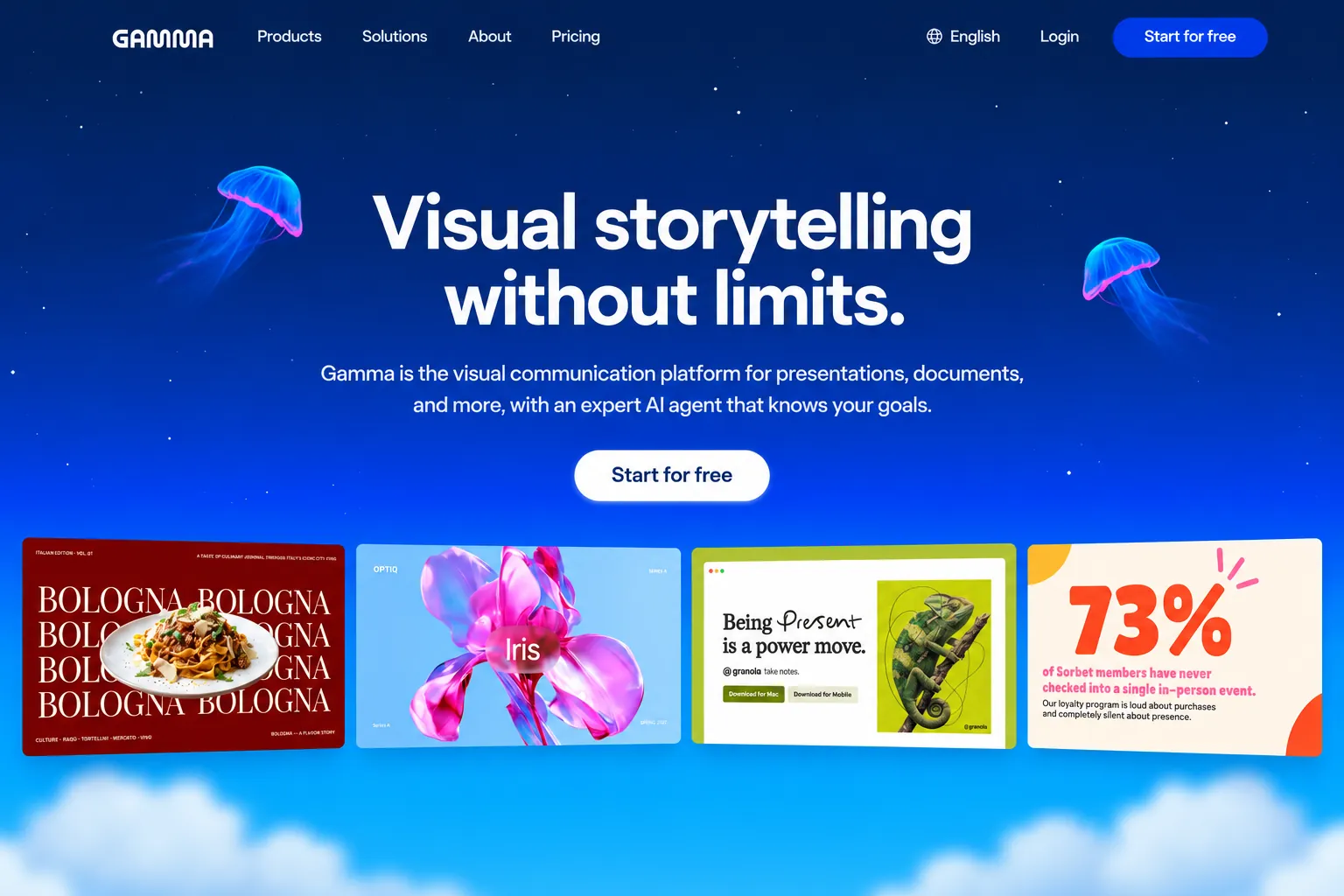
Gamma connects topic discussions, outline adjustments, and slide creation. Users can request revisions through chat, choose between smart layouts and freeform editing, and adjust content and design as needed.
Key Features
● Outline First: Organize the narrative sequence before developing the slide content.
● Multiple Editing Methods: You can have the AI make changes, or manually move elements or change layouts.
● Online Presentation: Drafts can be used directly for discussion; once complete, you can choose to share a link or export the file.
Pros
The “outline-first” approach makes it easy for teams to confirm key points before expanding the content into slides. For proposals that aren’t yet finalized, you can discuss the narrative order first and then devote time to design details, reducing the need to reorganize everything if the content direction changes.
Cons
The free plan’s AI credits do not refresh periodically; actions such as content generation and AI editing consume this quota. PDFs and PPTX files exported from free workspaces include a “Gamma” watermark; to remove the watermark, review the paid plan terms.
Use Cases
Early-stage project presentations, internal proposal reviews, and proposals requiring multiple rounds of feedback.
3. Canva: Suitable for Visually Rich, Highly Customizable Presentations
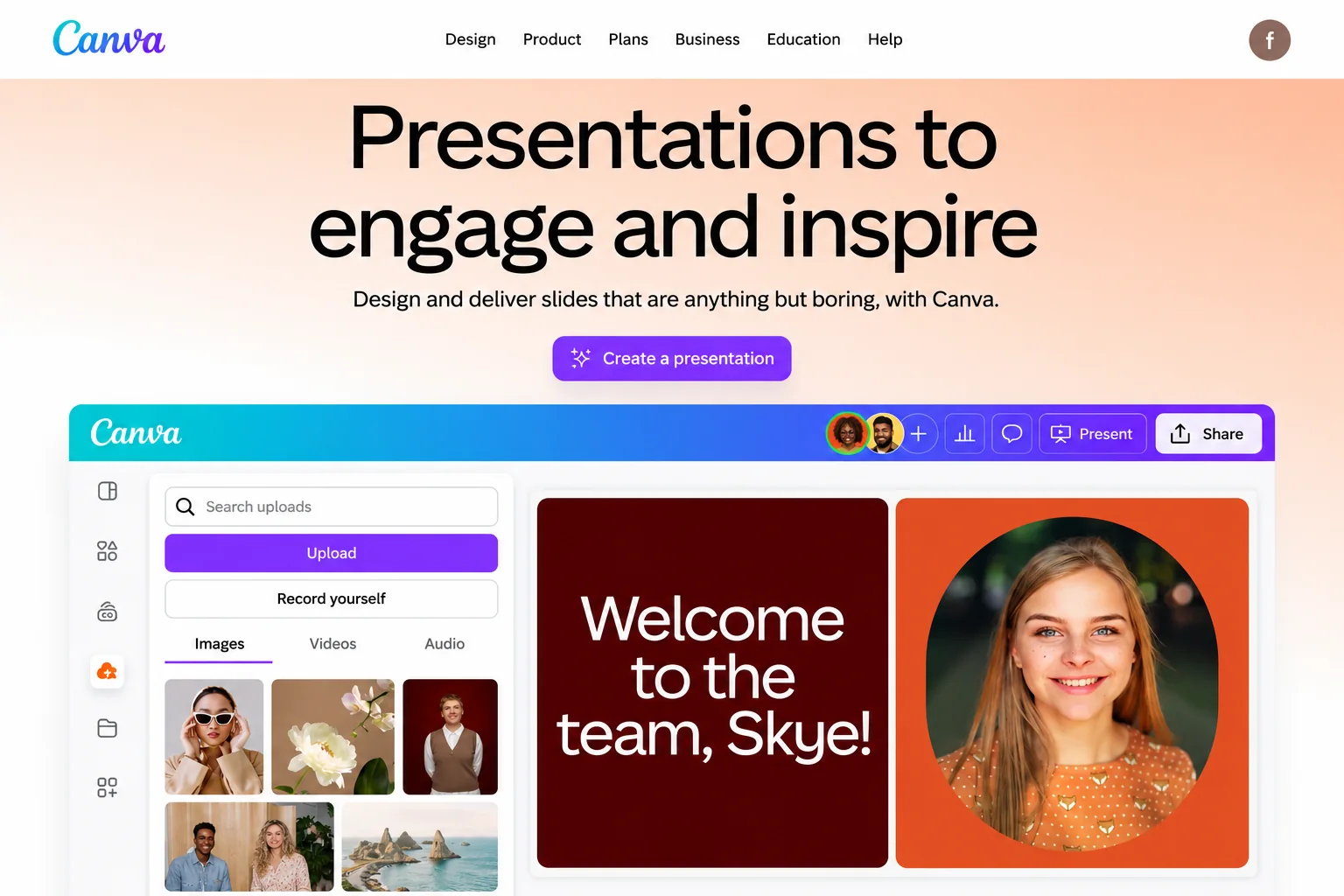
Canva seamlessly blends AI-powered generation with robust visual editing tools. Start by creating an outline and initial slide layout, then refine the design with its extensive library of templates, assets, animations, and collaboration features.
Key Features
● Step-by-Step Workflow: Customize the structure by editing sections before generating the slides.
● Drag-and-Drop Editor with Asset Library: Combine images, illustrations, icons, and text to craft unique visual styles.
● Collaboration & Presentation Tools: Support real-time editing, comments, speaker notes, and presenter view to help teams work together.
● Versatile Exports: Choose from PowerPoint, PDF, video, or live presentation formats depending on your needs.
Pros
Teams already using Canva for marketing or educational projects can reuse existing design assets to maintain a consistent look across materials. This can also reduce the time spent preparing new visuals.
Cons
Exporting presentations to PPTX format may result in formatting inconsistencies when opened in Microsoft PowerPoint, and some embedded animations or videos might not perform as intended. If your presentation relies heavily on these effects, testing the final output on your delivery platform is recommended.
Use Cases
Marketing pitches, brand-focused introductions, creative presentations, and educational decks requiring striking visual styles.
4. Beautiful.ai: Ideal for Reducing Manual Alignment and Repetitive Formatting
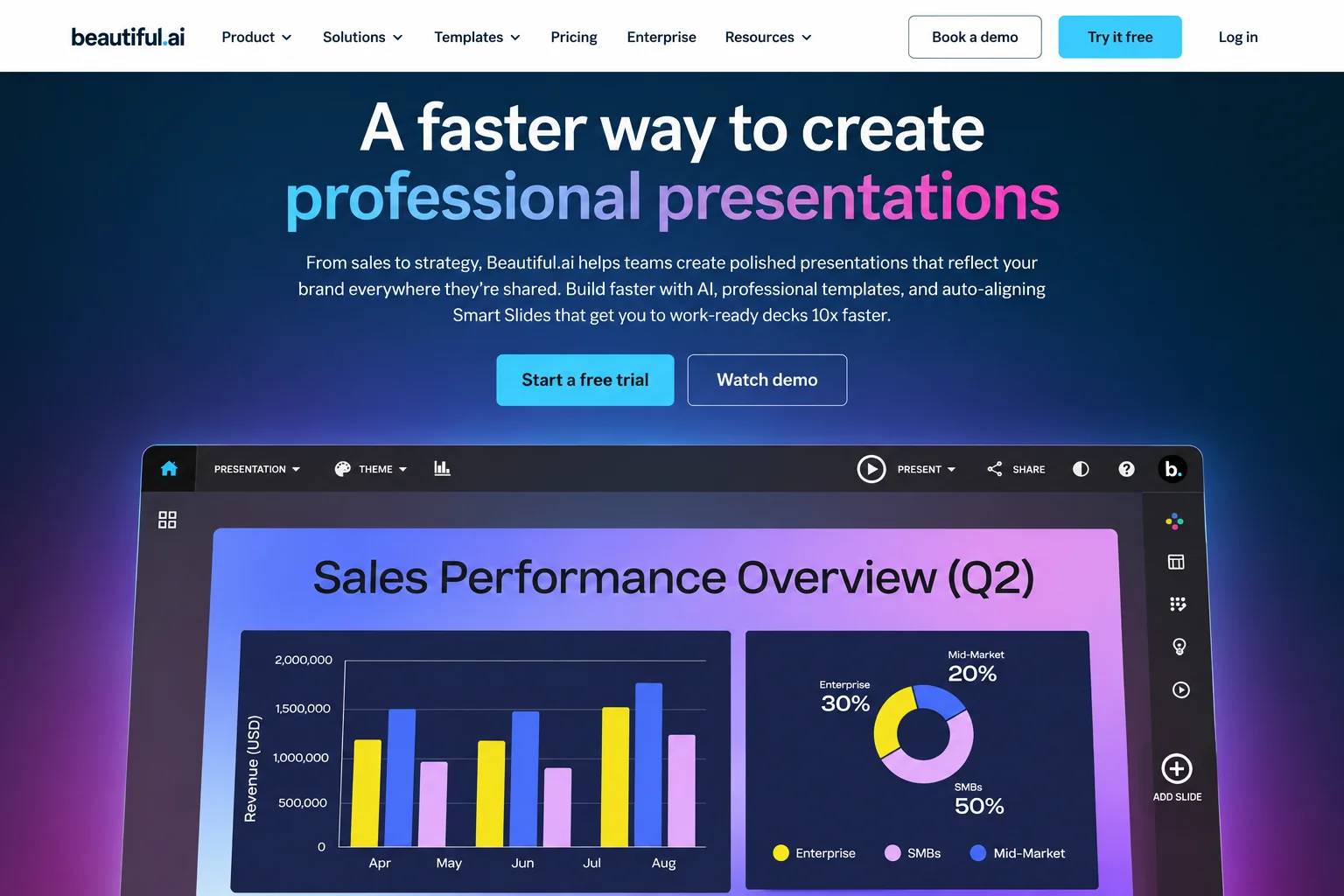
Beautiful.ai centers on its core feature, Smart Slides, which offer layouts tailored to different types of content. These layouts automatically adjust slide elements as content is added or modified, making it an efficient choice for structured presentations.
Key Features
● Over 300 Smart Layouts: Choose from timelines, comparisons, data layouts, and image grids to suit the information on each slide.
● Auto-Formatting: Edits to text or the addition of new elements trigger automatic adjustments to layout, spacing, and formatting based on predefined design rules.
● Unified Themes: Ensures consistent fonts, colors, and branding across all slides in the presentation.
● Team Content Management: Team subscriptions allow for centralized slide libraries, version control, and the ability to lock elements for consistent branding.
Pros
For regular business updates or progress reports, Beautiful.ai enables teams to reuse established slide structures and themes, reducing the need to create visual styles from scratch each time. Shared team libraries and templates also increase efficiency by making commonly used slides easily accessible.
Cons
Getting used to Smart Slides’ design rules may take time, particularly for users who often create custom or unstructured layouts. Additionally, the ability to export editable PowerPoint files is limited to paid plans. Animations and transitions created within the platform may not render properly when transferred to external formats, and missing fonts could disrupt the intended design.
Use Cases
This tool works particularly well for business presentations with consistent formats, recurring updates, or regular reporting requirements. It’s especially useful for teams looking to minimize time spent on manual slide formatting.
5. Plus AI: Suitable for Editing and Updating Existing Decks in PowerPoint or Google Slides
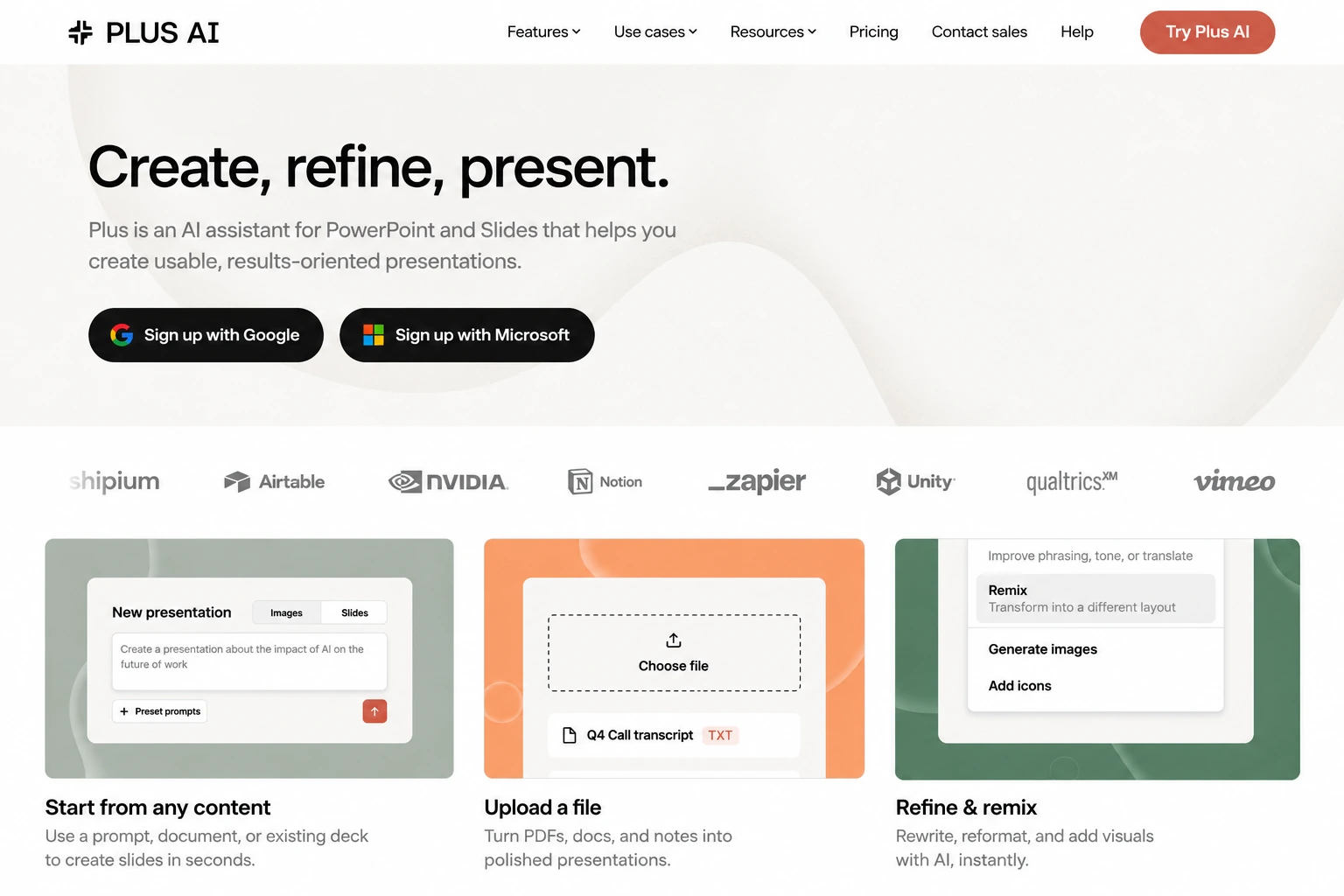
Plus AI seamlessly integrates AI-assisted features into the familiar environments of PowerPoint and Google Slides. It’s designed to help users create new presentations or enhance and update existing ones, making it a great option for teams working with established templates or pre-made slides.
Key Features
● Insert: Add specific types of slides—such as overviews, data summaries, or conclusions—to existing presentations.
● Rewrite: Expand, condense, or rephrase text to improve clarity or tailor messaging to different audiences.
● Remix: Transform the structure of a slide, such as breaking down text blocks into columns or other visually dynamic layouts.
● Brand and Team Templates: Customize branded styles or design templates to ensure presentations align with organizational guidelines.
Pros
This platform is particularly useful for revising and repurposing existing client presentations. Teams can retain the integrity of older assets while easily adding or updating information and improving slide structure. It’s ideal for maintaining continuity without the need to rebuild slides from scratch.
Cons
Features differ by subscription tier: Basic includes generation, Rewrite, and Remix; document uploads are available on Pro and higher tiers; branding and team template capabilities require higher-tier plans.
If your organization manages add-in installation, confirm that installation and use are permitted.
Use Cases
Updating older decks, revising client proposals, and working with an existing presentation library in PowerPoint or Google Slides.
6. Presentations.AI: Brand Styling and Sharing Analytics for Business Presentations
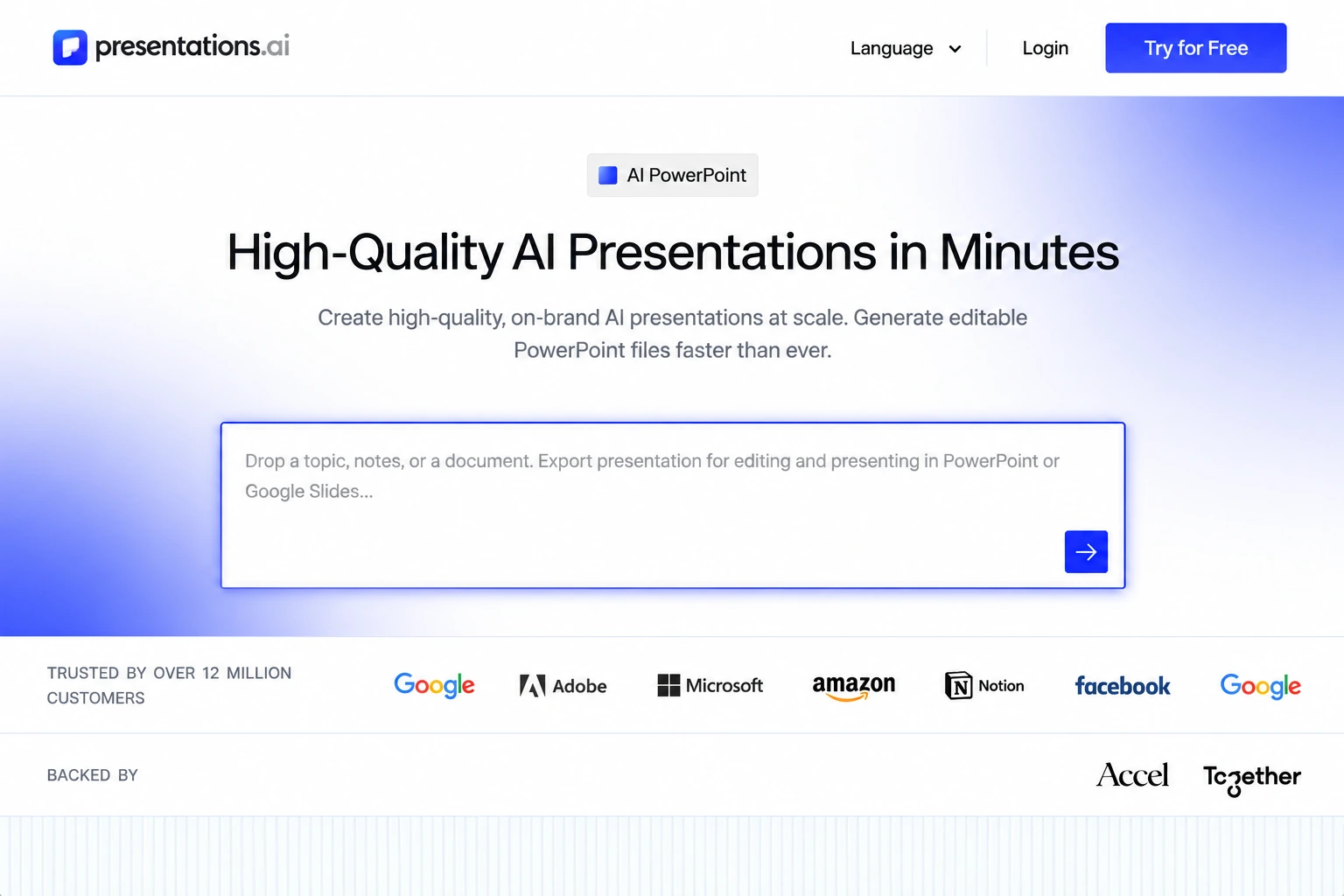
Presentations.AI combines business presentation generation with brand settings and sharing analytics. It can use visual elements from a website to establish a style, while adaptive layouts adjust the arrangement as content changes.
Key Features
● Website-Based Brand Extraction: Use colors, fonts, and other visual elements from a website to establish presentation styling.
● Adaptive Layouts: Adjust content areas, spacing, and visual hierarchy as information is added or revised.
● Style Variations: Explore different visual approaches without changing the underlying message.
● Tracking and Analytics: Access viewing data after sharing, depending on your subscription.
Pros
For teams that regularly prepare client introductions or sales proposals, brand settings can reduce repeated styling work and help maintain a consistent appearance across materials. Viewing analytics may also provide useful context for follow-up conversations, extending the role of a deck beyond its initial delivery.
Cons
Access to models, brand customization, and analytics varies by plan, so check that your chosen subscription includes the capabilities you need. Automatically extracted styles should also be reviewed against your organization’s guidelines rather than assumed to be an exact match.
Use Cases
Client introductions, sales proposals, and other external business presentations where brand consistency and sharing performance matter.
Frequently Asked Questions About AI Presentation Alternatives
Are there any free AI presentation maker alternatives?
Yes. Gamma, Canva, and Presentations.AI offer free plans with usage limits; HeyTop AI provides free credits to try the platform, but you’ll need to pay to exceed the credit limit or use certain advanced features; Beautiful.ai and Plus AI offer 14-day and 7-day trials, respectively, and require a subscription to continue using them after the trial period ends.
Can AI tools generate editable PowerPoint files?
Some tools support editable PPTX files, while Plus AI works directly within PowerPoint. However, just because a file is downloadable doesn’t mean all fonts, animations, and interactive effects will be preserved exactly as they were; you’ll need to check the actual file to be sure.
Can I use an existing presentation instead of creating one from scratch?
Consider tools that support importing original files or editing within an existing editor. It’s important to distinguish between “preserving the original file for continued editing” and “extracting content to regenerate the presentation,” as the two approaches differ in how they preserve formatting. If you have a fixed company template, it’s best to test it first with a few representative slides.
Can I use AI slide tools even without design experience?
If you’re new to using an AI presentation maker, templates and automatic layouts can provide a starting point. You still need to check accuracy and clarity, but you don’t need to master every design technique before getting started. A simple style is usually easier to revise and keep consistent.
Conclusion:
Based on your budget and essential requirements, narrow your options to one or two candidates, then use your own material to check how easily you can revise and deliver the result. There’s no need to choose the option with the most features; focus on whether it reduces the work that currently takes the most time.